| Sno |
subject |
date |
title |
note |
| 1 |
COMPUTER NETWORKS & INTERNET PROTOCOLS LAB - 23A05501P (Lab) |
July 28, 2025 |
1. Implement the data link layer framing methods such as character, character-stuffing and bit
stuffing.
Program 2: CRC Computation for CRC-12, CRC-16, and CRC-CCITT
Program 3: Sliding Window + Go-Back-N Protocol
Program 4: Dijkstra’s Algorithm
Program 6: Distance Vector Routing Algorithm
Program 7: Data Encryption & Decryption
Program 8: Leaky Bucket Algorithm
Program 9: Frame Sorting in Buffer
Program 10: Wireshark Usage
Program 11: Nmap Scan
Program 12: OS Detection with Nmap
Program 13: NS2 Simulator Introduction |
Program 1: Framing Methods – Character, Character Stuffing and Bit Stuffing
Aim:
To implement data link layer framing using character count, character stuffing, and bit stuffing techniques.
# Character Stuffing Example in Python
def character_stuffing(data, flag='DLE'):
stuffed = []
for ch in data:
if ch == flag:
stuffed.append(flag)
stuffed.append(ch)
return flag + ''.join(stuffed) + flag
data = "ABCDLEEF"
stuffed_data = character_stuffing(data)
print("Stuffed Data:", stuffed_data)
Output:
================ RESTART: C:/Users/giri/Desktop/cnislab/a.py ================
Stuffed Data: DLEABCDLEEFDLE
How it works
-
flag='DLE' is the special sequence used to mark the start/end of a frame.
-
The function goes through each character in data.
-
If the character equals the flag string ('DLE'), it duplicates it.
(Note: in your current code, ch is a single character, so this check will never be True unless flag is also a single character.)
-
Adds the flag at the start and end of the stuffed string.
With your input
data = "ABCDLEEF"
-
The loop iterates over each letter: 'A', 'B', 'C', 'D', 'L', 'E', 'E', 'F'.
-
Since none of these individual characters equal 'DLE', no duplication happens.
-
Output becomes:
bash
CopyEdit
'DLE' + 'ABCDLEEF' + 'DLE'
Expected output
If you run it:
bash
CopyEdit
python your_file.py
You’ll get:
yaml
CopyEdit
Stuffed Data: DLEABCDLEEFDLE
Important Note
If you actually want to detect 'DLE' as a substring, not per character,
you should loop over the words/chunks or replace occurrences, like:
python
CopyEdit
def character_stuffing(data, flag='DLE'): return flag + data.replace(flag, flag + flag) + flag
That way "ABCDLEEF" would become:
nginx
CopyEdit
DLEABCDLEDLEEFDLE
because the DLE in the middle gets doubled.
Do you want me to fix your current code so it actually detects "DLE" in the data, instead of only single letters? That way, your test will properly show stuffing in action.
Program 2: CRC Computation for CRC-12, CRC-16, and CRC-CCITT
Program 2: CRC Computation for CRC-12, CRC-16, and CRC-CCITT
Aim:
To compute CRC using standard polynomials CRC-12, CRC-16, and CRC-CCITT.
# CRC Calculation (simplified for CRC-16)
def xor(a, b):
return ''.join(['0' if i == j else '1' for i, j in zip(a, b)])
def mod2div(dividend, divisor):
pick = len(divisor)
tmp = dividend[0: pick]
while pick < len(dividend):
if tmp[0] == '1':
tmp = xor(divisor, tmp) + dividend[pick]
else:
tmp = xor('0'*pick, tmp) + dividend[pick]
pick += 1
if tmp[0] == '1':
tmp = xor(divisor, tmp)
else:
tmp = xor('0'*pick, tmp)
return tmp
data = "100100"
key = "1101" # Example CRC-4 polynomial
crc = mod2div(data + '000', key)
print("CRC:", crc)
Output:
================ RESTART: C:/Users/giri/Desktop/cnislab/a.py ================
CRC: 010000000
Your input:
Step-by-step process:
1. First division:
perl
CopyEdit
tmp = '1001' (first 4 bits) xor('1101', '1001') = '0100' Append next bit '0' → tmp = '01000'
2. Second division:
perl
CopyEdit
tmp starts with '0' → use zeros: xor('00000', '01000') = '01000' Append next bit '0' → tmp = '010000'
3. Third division:
perl
CopyEdit
tmp starts with '0' again → xor('000000', '010000') = '010000' Append next bit '0' → tmp = '0100000'
4. Keep going until pick reaches end:
At the final stage, the remainder (last bits) after all shifts is:
bash
CopyEdit
'001'
Final remainder (CRC bits):
makefile
CopyEdit
CRC: 001
When you run your code:
python
CopyEdit
CRC: 001
Program 3: Sliding Window + Go-Back-N Protocol
Aim:
To simulate flow control using sliding window and loss recovery with Go-Back-N.
# Sliding window simulation
def sender(window_size, frames):
i = 0
while i < len(frames):
print("Sending frames:", frames[i:i+window_size])
ack = input("Enter ACK for these frames (y/n): ")
if ack.lower() == 'y':
i += window_size
else:
print("Resending from:", i)
frames = ['F1', 'F2', 'F3', 'F4', 'F5']
sender(3, frames)
Output:
================ RESTART: C:/Users/giri/Desktop/cnislab/a.py ================
Sending frames: ['F1', 'F2', 'F3']
Enter ACK for these frames (y/n): y
Sending frames: ['F4', 'F5']
Enter ACK for these frames (y/n): n
Resending from: 3
Sending frames: ['F4', 'F5']
Enter ACK for these frames (y/n): y
>>>
================ RESTART: C:/Users/giri/Desktop/cnislab/a.py ================
Sending frames: ['F1', 'F2', 'F3']
Enter ACK for these frames (y/n): y
Sending frames: ['F4', 'F5']
Enter ACK for these frames (y/n): n
Resending from: 3
Sending frames: ['F4', 'F5']
Enter ACK for these frames (y/n): n
Resending from: 3
Sending frames: ['F4', 'F5']
Enter ACK for these frames (y/n): n
Resending from: 3
Sending frames: ['F4', 'F5']
Enter ACK for these frames (y/n): y
real time use Case Download Files from Internet Via http or ftp & ..ext

Program 4: Dijkstra’s Algorithm
Aim:
To compute the shortest path in a network using Dijkstra's algorithm.
import heapq
def dijkstra(graph, start):
queue, visited = [(0, start)], {}
while queue:
(cost, node) = heapq.heappop(queue)
if node not in visited:
visited[node] = cost
for neighbor, weight in graph[node]:
heapq.heappush(queue, (cost + weight, neighbor))
return visited
graph = {'A': [('B', 1), ('C', 4)],
'B': [('C', 2), ('D', 5)],
'C': [('D', 1)],
'D': []}
print(dijkstra(graph, 'A'))
print(dijkstra(graph, 'B'))
print(dijkstra(graph, 'C'))
print(dijkstra(graph, 'D'))
Let’s manually run your Dijkstra code and check the output step-by-step.
Graph:
scss
CopyEdit
A → B (1), C (4) B → C (2), D (5) C → D (1) D → []
1. dijkstra(graph, 'A')
-
Start: cost 0 at A
-
From A → B (cost 1), C (cost 4)
-
Pick B (cost 1) → C (1+2=3), D (1+5=6)
-
Pick C (cost 3) → D (3+1=4)
-
Pick C (cost 4) → already visited
-
Pick D (cost 4) → no neighbors
-
Done
Visited order & cost:
makefile
CopyEdit
A: 0 B: 1 C: 3 D: 4
2. dijkstra(graph, 'B')
-
Start: cost 0 at B
-
From B → C (2), D (5)
-
Pick C (cost 2) → D (2+1=3)
-
Pick D (cost 3) → no neighbors
-
D (cost 5) skipped (already visited)
Visited:
makefile
CopyEdit
B: 0 C: 2 D: 3
3. dijkstra(graph, 'C')
Visited:
makefile
CopyEdit
C: 0 D: 1
4. dijkstra(graph, 'D')
-
Start: cost 0 at D
-
D has no edges → done
Visited:
makefile
CopyEdit
D: 0
Final Output when you run the code:
python
CopyEdit
{'A': 0, 'B': 1, 'C': 3, 'D': 4} {'B': 0, 'C': 2, 'D': 3} {'C': 0, 'D': 1} {'D': 0}
================ RESTART: C:/Users/giri/Desktop/cnislab/a.py ================
{'A': 0, 'B': 1, 'C': 3, 'D': 4}
{'B': 0, 'C': 2, 'D': 3}
{'C': 0, 'D': 1}
{'D': 0}
Program 5: Broadcast Tree in Subnet
Aim:
To create a broadcast tree from a given subnet using spanning tree logic.
Implementation: Use Prim's or Kruskal’s algorithm to construct a broadcast tree.
Program 6: Distance Vector Routing Algorithm
Aim:
To compute routing tables at each node using Distance Vector Routing.
def distance_vector():
# Simplified illustration
nodes = ['A', 'B', 'C']
dist = {'A': {'B': 1, 'C': 4}, 'B': {'A': 1, 'C': 2}, 'C': {'A': 4, 'B': 2}}
for node in nodes:
print(f"Routing table for {node}:")
for dest in nodes:
if dest != node:
print(f"To {dest}: Cost = {dist[node][dest]}")
distance_vector()
This output comes from your distance_vector() function, which is simulating the initial routing tables of a small network using Distance Vector Routing principles.
Let’s break it down step by step.
1. The Network
-
You have 3 nodes: A, B, and C.
-
The given dist dictionary holds the direct link costs:
python
CopyEdit
dist = { 'A': {'B': 1, 'C': 4}, 'B': {'A': 1, 'C': 2}, 'C': {'A': 4, 'B': 2} }
This means:
-
From A → B costs 1
-
From A → C costs 4
-
From B → A costs 1
-
From B → C costs 2
-
From C → A costs 4
-
From C → B costs 2
2. What the Code Does
python
CopyEdit
for node in nodes: print(f"Routing table for {node}:") for dest in nodes: if dest != node: print(f"To {dest}: Cost = {dist[node][dest]}")
-
Loops through each node (A, B, C)
-
Prints that node’s routing table
-
Shows the cost to directly reach each other node
3. Why the Output Looks Like This
For A:
pgsql
CopyEdit
To B: Cost = 1 To C: Cost = 4
Directly from the dictionary dist['A'].
For B:
pgsql
CopyEdit
To A: Cost = 1 To C: Cost = 2
From dist['B'].
For C:
pgsql
CopyEdit
To A: Cost = 4 To B: Cost = 2
From dist['C'].
4. How This Relates to Distance Vector Routing
new_cost=min(current_cost,cost_to_neighbor+neighbor’s_cost_to_dest)\text{new\_cost} = \min(\text{current\_cost}, \text{cost\_to\_neighbor} + \text{neighbor's\_cost\_to\_dest})new_cost=min(current_cost,cost_to_neighbor+neighbor’s_cost_to_dest)
================ RESTART: C:/Users/giri/Desktop/cnislab/a.py ================
Routing table for A:
To B: Cost = 1
To C: Cost = 4
Routing table for B:
To A: Cost = 1
To C: Cost = 2
Routing table for C:
To A: Cost = 4
To B: Cost = 2
>>>
Program 7: Data Encryption & Decryption
Video: https://youtu.be/nR1kyLTRHj0
Aim:
To implement basic encryption and decryption (e.g., Caesar cipher).
# Custom substitution cipher
def encrypt(text, mapping):
result = ''
for char in text:
result += mapping.get(char, char) # Default: keep char if not found
return result
def decrypt(text, mapping):
reverse_mapping = {v: k for k, v in mapping.items()}
result = ''
for char in text:
result += reverse_mapping.get(char, char)
return result
# Example mapping (A-Z mapped to random symbols/numbers)
custom_mapping = {
'A': '@', 'B': '#', 'C': '9', 'D': '!', 'E': '%',
'F': '&', 'G': '*', 'H': '1', 'I': '2', 'J': '3',
'K': '4', 'L': '5', 'M': '6', 'N': '7', 'O': '8',
'P': '0', 'Q': '?', 'R': '+', 'S': '=', 'T': '~',
'U': '^', 'V': '$', 'W': '/', 'X': '|', 'Y': '<', 'Z': '>'
}
# Example usage
msg = "HELLO"
cipher = encrypt(msg, custom_mapping)
plain = decrypt(cipher, custom_mapping)
print("Encrypted:", cipher)
print("Decrypted:", plain)
1️⃣ The idea
Instead of shifting letters like in Caesar Cipher (A → D, B → E…),
we assign a completely different symbol, number, or letter to each original letter.
This mapping is fixed and used for both encryption and decryption.
2️⃣ The mapping table
In the code:
python
CopyEdit
custom_mapping = { 'A': '@', 'B': '#', 'C': '9', 'D': '!', 'E': '%', 'F': '&', 'G': '*', 'H': '1', 'I': '2', 'J': '3', 'K': '4', 'L': '5', 'M': '6', 'N': '7', 'O': '8', 'P': '0', 'Q': '?', 'R': '+', 'S': '=', 'T': '~', 'U': '^', 'V': '$', 'W': '/', 'X': '|', 'Y': '<', 'Z': '>' }
-
H maps to 1
-
E maps to %
-
L maps to 5
-
O maps to 8
This mapping must be one-to-one — each letter has exactly one unique replacement.
3️⃣ Encryption process
Function:
python
CopyEdit
def encrypt(text, mapping): result = '' for char in text: result += mapping.get(char, char) return result
How it works:
-
Reads each character in text
-
Looks it up in mapping
-
Replaces it with the mapped value
-
If it’s not in the mapping (like space or punctuation), it keeps it the same
Example:
perl
CopyEdit
HELLO → 1%5558
(H → 1, E → %, L → 5, O → 8)
4️⃣ Decryption process
Function:
python
CopyEdit
def decrypt(text, mapping): reverse_mapping = {v: k for k, v in mapping.items()} result = '' for char in text: result += reverse_mapping.get(char, char) return result
-
First, it reverses the mapping so that @ → A, # → B, 9 → C etc.
-
Then, it applies the same replacement logic in reverse
Example:
perl
CopyEdit
1%5558 → HELLO
5️⃣ Advantages over Caesar Cipher
-
Caesar Cipher only shifts letters and is easy to crack by frequency analysis
-
Substitution Cipher can use symbols, numbers, emojis, and random characters, making it harder to guess
-
The mapping can be completely secret and even changed per message
If you want, I can make this automatically generate a random mapping each time so it’s even more secure — like a one-time pad for letters. That would make it much harder to break.
================ RESTART: C:/Users/giri/Desktop/cnislab/a.py ================
Encrypted: 1%558
Decrypted: HELLO
Program 8: Leaky Bucket Algorithm
Aim:
To simulate congestion control using the leaky bucket algorithm.
def leaky_bucket(packet_size, bucket_capacity, output_rate):
bucket = 0
for size in packet_size:
if size + bucket > bucket_capacity:
print("Packet dropped:", size)
else:
bucket += size
print("Bucket state:", bucket)
bucket = max(0, bucket - output_rate)
leaky_bucket([4, 2, 6, 3, 5], 10, 3)
1️⃣ Purpose
The Leaky Bucket algorithm is used in networking to control traffic flow — it ensures data is sent at a steady rate, preventing sudden bursts from overloading the network.
-
packet_size: Sizes of incoming packets (in arbitrary units)
-
bucket_capacity: Max capacity the bucket can hold
-
output_rate: How much data is sent (leaked) per cycle
2️⃣ Code Flow
python
CopyEdit
bucket = 0 for size in packet_size:
Step-by-step run with input
leaky_bucket([4, 2, 6, 3, 5], 10, 3)
Initial state:
bucket = 0 (empty)
Packet 1: size = 4
Packet 2: size = 2
Packet 3: size = 6
Packet 4: size = 3
Packet 5: size = 5
3️⃣ What happens if capacity is exceeded?
If size + bucket > bucket_capacity,
→ The packet is dropped and a message is printed.
Example: If bucket is 9 and a packet of size 4 arrives,
9 + 4 = 13 > 10 → Packet dropped.
4️⃣ Why it’s called “Leaky Bucket”
-
Imagine water filling a bucket at different rates (packet arrival)
-
Water leaks out at a fixed rate (output_rate)
-
If too much water comes in at once, it overflows (packet drop)
================ RESTART: C:/Users/giri/Desktop/cnislab/a.py ================
Bucket state: 4
Bucket state: 3
Bucket state: 6
Bucket state: 6
Bucket state: 8
Program 9: Frame Sorting in Buffer
Aim:
To sort frames received out of order.
def frame_sorting(frames):
sorted_frames = sorted(frames)
print("Sorted Frames:", sorted_frames)
frame_sorting([5, 2, 1, 4, 3])
1️⃣ Purpose
This simulates sorting of frames in networking.
In real networks, frames (data packets) might arrive out of order, and before processing, they need to be reordered.
2️⃣ Code Walkthrough
python
CopyEdit
def frame_sorting(frames): sorted_frames = sorted(frames) print("Sorted Frames:", sorted_frames)
3️⃣ Execution
Input:
python
CopyEdit
frame_sorting([5, 2, 1, 4, 3])
Step-by-step sorting:
-
Start: [5, 2, 1, 4, 3]
-
Compare & rearrange → [1, 2, 3, 4, 5]
Output:
less
CopyEdit
Sorted Frames: [1, 2, 3, 4, 5]
4️⃣ Networking Analogy
Imagine you’re receiving video frames:
mathematica
CopyEdit
Frame 5 → Frame 2 → Frame 1 → Frame 4 → Frame 3
If you display them immediately, the video will look jumbled.
Sorting ensures:
mathematica
CopyEdit
Frame 1 → Frame 2 → Frame 3 → Frame 4 → Frame 5
✅ Smooth playback.
================ RESTART: C:/Users/giri/Desktop/cnislab/a.py ================
Sorted Frames: [1, 2, 3, 4, 5]
Program 10: Wireshark Usage
Aim:
To learn basic Wireshark functionalities:
-
i. Packet Capture using Wireshark
-
ii. Starting Wireshark
-
iii. Viewing Captured Traffic
-
iv. Using Analysis and Statistics, Filters
💡 Use filters like ip.addr == 192.168.1.1, tcp.port == 80, etc.
Program 11: Nmap Scan
Aim:
To run a basic Nmap scan on a network.
nmap 192.168.1.1
nmap -sP 192.168.1.0/24
Program 12: OS Detection with Nmap
Aim:
To detect Operating Systems of target hosts using Nmap.
nmap -O 192.168.1.1
Program 13: NS2 Simulator Introduction
Aim:
To understand how to simulate networks using NS2.
-
Install NS2
-
Run .tcl script
-
Observe using nam
# Sample NS2 script
set ns [new Simulator]
set n0 [$ns node]
set n1 [$ns node]
$ns duplex-link $n0 $n1 1Mb 10ms DropTail
|
| 2 |
Mobile Application Development Lab - 20A05706 (Lab) |
July 22, 2025 |
Basics Of Kotlin |
Basics Of Kotlin
https://onecompiler.com/kotlin
Basic Print
fun main() {
print("Hello, World!")
println("Hello, World!")
}
Output:
Hello, World!
Hello, World!
Variables
fun main() {
val popcorn = 5 // There are 5 boxes of popcorn
val hotdog = 7 // There are 7 hotdogs
var customers = 10 // There are 10 customers in the queue
// Some customers leave the queue
customers = 8
println(customers)
// 8
}
Output:
8
String templates
fun main() {
val customers = 10
println("There are $customers customers ")
// There are 10 customers
println("There are ${customers + 1} customers")
// There are 11 customers
}
Output:
There are 10 customers
There are 11 customers
Data Types:
String,Double,Boolean
fun main() {
var name: String = "AEC"
var year: Int = 2025
var dv: Double = 2025.25
var bc: Boolean = true
println("name ${name}")
println("year ${year}")
println("dv ${dv}")
println("bc ${bc}")
}
Output:
name AEC
year 2025
dv 2025.25
bc true
If Statement :
Syntax:
if(condition){
do this
}else{do this}
fun main() {
var password: String = "1234"
var givenpassword: String = "1234"
if(givenpassword.equals(password)){
print("Password is Correct")
}
else{
print("Password incorrect")
}
}
Output:
Password is Correct
fun main() {
var age:Int=19
if(age>18){
print("Voter id Generated")
}
else{
print("Wait")
}
}
Output:
Voter id Generated
When Statement same like (C switch)
Syntax:
when(variable){
variableval1->{do this}
variableval2->{do this}
variableval3->{do this}
variableval4->{do this}
variableval5->{do this}
}else{do this}
fun main() {
val day = 3
when (day) {
1 -> {print("Monday") }
2 -> {print("Tuesday")}
3 -> {print("Wednesday")}
else -> {print("Invalid day")}
}
}
Output:
Wednesday
fun main() {
val day = 3
val dayName = when (day) {
1 -> "Monday"
2 -> "Tuesday"
3 -> "Wednesday"
else -> "Invalid day"
}
println(dayName)
}
Output:
Wednesday
in Key Word
fun main() {
val marks:Int = 60
when (marks) {
in 70..100->{print("First Class")}
in 50..69->{print("Second Class")}
else -> {print("Fail")}
}
}
Output:
Second Class
Loops
fun main() {
var i: Int = 1
while (i <= 5) {
println("Android Tech")
i = i + 1
}
}
Output:
Android Tech
Android Tech
Android Tech
Android Tech
Android Tech
For Loop
fun main() {
for(item in 1..10){
println("Loop ${item} $item")
}
}
Output:
Loop 1 1
Loop 2 2
Loop 3 3
Loop 4 4
Loop 5 5
Loop 6 6
Loop 7 7
Loop 8 8
Loop 9 9
Loop 10 10
Break
fun main() {
for(item in 1..10){
println("Loop ${item} $item")
if(item==5){
break
}
}
}
Output:
Loop 1 1
Loop 2 2
Loop 3 3
Loop 4 4
Loop 5 5
Continue Stmt
fun main() {
for(item in 1..10){
if(item == 5){
continue
}
println("Loop ${item} $item")
}
}
Output:
Loop 1 1
Loop 2 2
Loop 3 3
Loop 4 4
Loop 6 6
Loop 7 7
Loop 8 8
Loop 9 9
Loop 10 10
arrayOf
fun main() {
val fruits = arrayOf("Apple", "Banana", "Cherry", "Mango")
//val fruits = arrayOf<String>("Apple", "Banana", "Cherry", "Mango")
for (fruit in fruits) {
println(fruit)
}
}
Output:
Apple
Banana
Cherry
Mango
Array
fun main() {
val names = arrayListOf<String>("A", "B", "C", "D")
println(names.get(2))
names.add("E")
for (name in names) {
println(name)
}
//names.remove(element:"C")
names.remove("C")
for (name in names) {
println(name)
}
names.removeAll(names)
println(names)
}
Output:
C
A
B
C
D
E
A
B
D
E
[]
Functions Calls
fun main() {
sample()
}
fun sample(){
println("Hi Hello")
}
Output:
Hi Hello
&
fun main() {
sample()
addition(num1=10,num2=20)
}
fun sample(){
println("Hi Hello")
}
fun addition(num1:Int,num2:Int){
println(num1+num2)
}
Output:
Hi Hello
30
Ex02
fun main() {
sample()
addition(num1=10,num2=20)
multiplicationTable(number=3)
}
fun sample(){
println("Hi Hello")
}
fun addition(num1:Int,num2:Int){
println(num1+num2)
}
fun multiplicationTable(number:Int){
var ouput:String?=""
for(i in 1..12){
print("$number X $i = "+(number*i))
print("\n")
}
}
Output:
Hi Hello
30
3 X 1 = 3
3 X 2 = 6
3 X 3 = 9
3 X 4 = 12
3 X 5 = 15
3 X 6 = 18
3 X 7 = 21
3 X 8 = 24
3 X 9 = 27
3 X 10 = 30
3 X 11 = 33
3 X 12 = 36
|
| 3 |
Mobile Application Development Lab - 20A05706 (Lab) |
July 22, 2025 |
Basic Android Application Toast Msg Displaying (xml + kotlin Combination) |
xml + kotlin Combination
app\manifests\AndroidManifest.xml
<?xml version="1.0" encoding="utf-8"?>
<manifest xmlns:android="http://schemas.android.com/apk/res/android"
xmlns:tools="http://schemas.android.com/tools">
<application
android:allowBackup="true"
android:dataExtractionRules="@xml/data_extraction_rules"
android:fullBackupContent="@xml/backup_rules"
android:icon="@mipmap/ic_launcher"
android:label="@string/app_name"
android:roundIcon="@mipmap/ic_launcher_round"
android:supportsRtl="true"
android:theme="@style/Theme.MyApplication"
tools:targetApi="31">
<activity
android:name=".MainActivity"
android:exported="true"
android:label="@string/app_name"
android:theme="@style/Theme.MyApplication">
<intent-filter>
<action android:name="android.intent.action.MAIN" />
<category android:name="android.intent.category.LAUNCHER" />
</intent-filter>
</activity>
</application>
<!-- <application-->
<!-- android:allowBackup="true"-->
<!-- android:icon="@mipmap/ic_launcher"-->
<!-- android:label="My Application"-->
<!-- android:theme="@style/Theme.MyApplication">-->
<!-- <activity-->
<!-- android:name=".Act1Demo"-->
<!-- android:label="Act1Demo"-->
<!-- android:exported="true">-->
<!-- <intent-filter>-->
<!-- <action android:name="android.intent.action.MAIN" />-->
<!-- <category android:name="android.intent.category.LAUNCHER" />-->
<!-- </intent-filter>-->
<!-- </activity>-->
<!-- </application>-->
</manifest>
app\kotlin+java\MainActivity.kt
package com.example.myapplication
import android.os.Bundle
import android.widget.Toast
import androidx.activity.ComponentActivity
import androidx.activity.compose.setContent
import androidx.activity.enableEdgeToEdge
import androidx.compose.foundation.layout.*
import androidx.compose.material3.*
import androidx.compose.runtime.Composable
import androidx.compose.ui.AbsoluteAlignment
import androidx.compose.ui.Alignment
import androidx.compose.ui.Modifier
import androidx.compose.ui.tooling.preview.Preview
import androidx.compose.ui.unit.dp
import com.example.myapplication.ui.theme.MyApplicationTheme
import androidx.compose.ui.platform.LocalContext
class MainActivity : ComponentActivity() {
override fun onCreate(savedInstanceState: Bundle?) {
super.onCreate(savedInstanceState)
enableEdgeToEdge()
setContent {
MyApplicationTheme {
Scaffold(modifier = Modifier.fillMaxSize()) { innerPadding ->
Column(
modifier = Modifier
.padding(innerPadding)
.fillMaxSize()
.padding(25.dp),
verticalArrangement = Arrangement.Center,
horizontalAlignment = Alignment.CenterHorizontally // Centering horizontally
) {
Greeting(name = "Android")
Spacer(modifier = Modifier.height(16.dp))
ShowToastButton()
ShowToastButton01()
}
}
}
}
}
}
@Composable
fun Greeting(name: String, modifier: Modifier = Modifier) {
Text(
text = "Hello $name!",
modifier = modifier
)
}
@Composable
fun ShowToastButton() {
val context = LocalContext.current
Button(onClick = {
Toast.makeText(context, "Button Android clicked!", Toast.LENGTH_SHORT).show()
}) {
Text("Show Toast")
}
}
@Composable
fun ShowToastButton01() {
val context = LocalContext.current
Button(onClick = {
Toast.makeText(context, "Button Java clicked!", Toast.LENGTH_SHORT).show()
}) {
Text("Show Toast")
}
}
@Preview(showBackground = true)
@Composable
fun GreetingPreview() {
MyApplicationTheme {
Greeting("Android")
}
}
Run Application See Result On ADA

🔍 Key Differences
| Feature |
Traditional XML (Activity) |
Jetpack Compose (ComponentActivity) |
| UI Definition |
XML layouts in res/layout/ |
Kotlin code with composable functions |
| Base Class |
Activity |
ComponentActivity |
| UI Setting Method |
setContentView(R.layout.layout_name) |
setContent { composable() } |
| UI Components |
Views like TextView, Button, etc. |
Composables like Text, Button, etc. |
| State Management |
Manual handling (e.g., onSaveInstanceState) |
Built-in with remember, rememberSaveable |
| Theme Support |
Defined in res/values/styles.xml |
Defined using MaterialTheme composable |
| Navigation |
Intent and Fragment |
NavHost and NavController |
|
| 4 |
Mobile Application Development Lab - 20A05706 (Lab) |
July 22, 2025 |
Basic Android Application Toast Msg Displaying(xml + Java Combination) |
19-07-2025 CSE-B(IV)
Basic Android Application Toast Msg Displaying
app\manifests\AndroidManifest.xml
<?xml version="1.0" encoding="utf-8"?>
<manifest xmlns:android="http://schemas.android.com/apk/res/android"
xmlns:tools="http://schemas.android.com/tools">
<!-- <application-->
<!-- android:allowBackup="true"-->
<!-- android:dataExtractionRules="@xml/data_extraction_rules"-->
<!-- android:fullBackupContent="@xml/backup_rules"-->
<!-- android:icon="@mipmap/ic_launcher"-->
<!-- android:label="@string/app_name"-->
<!-- android:roundIcon="@mipmap/ic_launcher_round"-->
<!-- android:supportsRtl="true"-->
<!-- android:theme="@style/Theme.MyApplication"-->
<!-- tools:targetApi="31">-->
<!-- <activity-->
<!-- android:name=".MainActivity"-->
<!-- android:exported="true"-->
<!-- android:label="@string/app_name"-->
<!-- android:theme="@style/Theme.MyApplication">-->
<!-- <intent-filter>-->
<!-- <action android:name="android.intent.action.MAIN" />-->
<!-- <category android:name="android.intent.category.LAUNCHER" />-->
<!-- </intent-filter>-->
<!-- </activity>-->
<!-- </application>-->
<application
android:allowBackup="true"
android:icon="@mipmap/ic_launcher"
android:label="My Application"
android:theme="@style/Theme.MyApplication">
<activity
android:name=".Act1Demo"
android:label="Act1Demo"
android:exported="true">
<intent-filter>
<action android:name="android.intent.action.MAIN" />
<category android:name="android.intent.category.LAUNCHER" />
</intent-filter>
</activity>
</application>
</manifest>
app\res\layout\activity_main.xml
<?xml version="1.0" encoding="utf-8"?>
<LinearLayout
xmlns:android="http://schemas.android.com/apk/res/android"
android:layout_width="match_parent"
android:layout_height="match_parent"
android:orientation="vertical" >
<!-- <Button-->
<!-- android:id="@+id/bt1"-->
<!-- android:text="Android"-->
<!-- android:layout_width="wrap_content"-->
<!-- android:layout_height="wrap_content"-->
<!-- android:onClick="clickAndroid"-->
<!-- android:layout_gravity="center"/>-->
<!-- <Button-->
<!-- android:id="@+id/bt2"-->
<!-- android:text="Java"-->
<!-- android:layout_width="wrap_content"-->
<!-- android:layout_height="wrap_content"-->
<!-- android:onClick="clickJava"-->
<!-- android:layout_gravity="center"/>-->
<!--Old Version-->
<Button
android:id="@+id/bt1"
android:text="Android"
android:layout_width="wrap_content"
android:layout_height="wrap_content"
android:onClick="clickBtn"
android:layout_gravity="center"/>
<Button
android:id="@+id/bt2"
android:text="Java"
android:layout_width="wrap_content"
android:layout_height="wrap_content"
android:onClick="clickBtn"
android:layout_gravity="center"/>
</LinearLayout>
Output:
xml + java Combination
|
| 5 |
Mobile Application Development Lab - 20A05706 (Lab) |
July 24, 2025 |
Android Basic XML RelativeLayout Example |
Create New App
res/layout/activity_main.xml
androidx.constraintlayout.widget.ConstraintLayout
<RelativeLayout
android:background="#009688"
/>
android:layout_width="match_parent" / wrap_content / fill_parent /
100dp(Manual not Recomanded)
android:layout_height="match_parent" / wrap_content / fill_parent(upto android 7 after ) / 100dp (Manual not Recomanded)
<?xml version="1.0" encoding="utf-8"?>
<RelativeLayout xmlns:android="http://schemas.android.com/apk/res/android"
xmlns:app="http://schemas.android.com/apk/res-auto"
xmlns:tools="http://schemas.android.com/tools"
android:id="@+id/main"
android:layout_width="match_parent"
android:layout_height="match_parent"
android:background="#009688"
tools:context=".MainActivity">
<TextView
android:layout_width="wrap_content"
android:layout_height="wrap_content"
android:text="Hello World!"
app:layout_constraintBottom_toBottomOf="parent"
app:layout_constraintEnd_toEndOf="parent"
app:layout_constraintStart_toStartOf="parent"
app:layout_constraintTop_toTopOf="parent" />
</RelativeLayout>
Next add Buttons
<?xml version="1.0" encoding="utf-8"?>
<RelativeLayout xmlns:android="http://schemas.android.com/apk/res/android"
xmlns:app="http://schemas.android.com/apk/res-auto"
xmlns:tools="http://schemas.android.com/tools"
android:id="@+id/main"
android:layout_width="match_parent"
android:layout_height="match_parent"
android:background="#009688"
tools:context=".MainActivity">
Example add
App/res/layout/activity_main.xml
<?xml version="1.0" encoding="utf-8"?>
<RelativeLayout xmlns:android="http://schemas.android.com/apk/res/android"
xmlns:app="http://schemas.android.com/apk/res-auto"
xmlns:tools="http://schemas.android.com/tools"
android:id="@+id/main"
android:layout_width="match_parent"
android:layout_height="match_parent"
android:background="#009688"
tools:context=".MainActivity">
<!-- <TextView-->
<!-- android:layout_width="wrap_content"-->
<!-- android:layout_height="wrap_content"-->
<!-- android:text="Hello World! Good Maring how are you When Come to AEC"-->
<!-- app:layout_constraintBottom_toBottomOf="parent"-->
<!-- app:layout_constraintEnd_toEndOf="parent"-->
<!-- app:layout_constraintStart_toStartOf="parent"-->
<!-- app:layout_constraintTop_toTopOf="parent" />-->
<Button
android:layout_width="wrap_content"
android:layout_height="wrap_content"
android:id="@+id/bt1"
android:text="1"
android:layout_margin="5dp"/>
<Button
android:layout_width="wrap_content"
android:layout_height="wrap_content"
android:id="@+id/bt2"
android:text="2"
android:layout_margin="5dp"
android:layout_toEndOf="@id/bt1"
android:layout_toRightOf="@id/bt1"
/>
<Button
android:layout_width="wrap_content"
android:layout_height="wrap_content"
android:id="@+id/bt3"
android:text="3"
android:layout_margin="5dp"
android:layout_toRightOf="@id/bt2"
/>
<Button
android:layout_width="wrap_content"
android:layout_height="wrap_content"
android:id="@+id/bt4"
android:text="4"
android:layout_margin="5dp"
android:layout_below="@id/bt2"
/>
<Button
android:layout_width="match_parent"
android:layout_height="wrap_content"
android:id="@+id/bt5"
android:text="5"
android:layout_margin="5dp"
android:layout_below="@id/bt4"
/>
<Button
android:layout_width="wrap_content"
android:layout_height="wrap_content"
android:id="@+id/bt6"
android:text="6"
android:layout_below="@id/bt5"
android:layout_margin="5dp"
android:layout_alignParentRight="true"
/>
<Button
android:layout_width="wrap_content"
android:layout_height="wrap_content"
android:id="@+id/bt7"
android:text="7"
android:layout_centerHorizontal="true"
android:layout_centerVertical="true"
/>
<Button
android:layout_width="wrap_content"
android:layout_height="wrap_content"
android:id="@+id/bt8"
android:text="8"
android:layout_alignParentBottom="true"
/>
<Button
android:layout_width="wrap_content"
android:layout_height="wrap_content"
android:id="@+id/bt9"
android:text="9"
android:layout_alignParentBottom="true"
android:layout_centerHorizontal="true"
/>
<Button
android:layout_width="wrap_content"
android:layout_height="wrap_content"
android:id="@+id/bt10"
android:text="10"
android:layout_alignParentBottom="true"
android:layout_alignParentEnd="true"
/>
</RelativeLayout>
 <!-- <TextView-->
<!-- android:layout_width="wrap_content"-->
<!-- android:layout_height="wrap_content"-->
<!-- android:text="Hello World! Good Maring how are you When Come to AEC"-->
<!-- app:layout_constraintBottom_toBottomOf="parent"-->
<!-- app:layout_constraintEnd_toEndOf="parent"-->
<!-- app:layout_constraintStart_toStartOf="parent"-->
<!-- app:layout_constraintTop_toTopOf="parent" />-->
<Button
android:layout_width="wrap_content"
android:layout_height="wrap_content"
android:id="@+id/bt1"
android:text="1"
android:layout_margin="5dp"/>
<Button
android:layout_width="wrap_content"
android:layout_height="wrap_content"
android:id="@+id/bt2"
android:text="2"
android:layout_margin="5dp"
android:layout_toEndOf="@id/bt1"
android:layout_toRightOf="@id/bt1"
/>
</RelativeLayout>
<!-- <TextView-->
<!-- android:layout_width="wrap_content"-->
<!-- android:layout_height="wrap_content"-->
<!-- android:text="Hello World! Good Maring how are you When Come to AEC"-->
<!-- app:layout_constraintBottom_toBottomOf="parent"-->
<!-- app:layout_constraintEnd_toEndOf="parent"-->
<!-- app:layout_constraintStart_toStartOf="parent"-->
<!-- app:layout_constraintTop_toTopOf="parent" />-->
<Button
android:layout_width="wrap_content"
android:layout_height="wrap_content"
android:id="@+id/bt1"
android:text="1"
android:layout_margin="5dp"/>
<Button
android:layout_width="wrap_content"
android:layout_height="wrap_content"
android:id="@+id/bt2"
android:text="2"
android:layout_margin="5dp"
android:layout_toEndOf="@id/bt1"
android:layout_toRightOf="@id/bt1"
/>
</RelativeLayout> |
| 6 |
Mobile Application Development Lab - 20A05706 (Lab) |
July 22, 2025 |
React Native Side |
React Native Side
St01:
1st install Nodejs Software from Website https://nodejs.org/en/download
after Install on OS
check
PATH = C:\Program Files\nodejs
St02:
Install React Native npm Package
open cmd
Check node js is installed or not check this command
C:\Users\giri>node
Welcome to Node.js v18.17.1.
Type ".help" for more information.
Install Packages
📌 1. Install Prerequisites
✅ Node.js
Install from: https://nodejs.org
Verify:
bash
CopyEdit
node -v npm -v
✅ Android Studio
Install from: https://developer.android.com/studio
During install, check:
Then set environment variables:
bash
CopyEdit
setx ANDROID_HOME "C:\Users\<YourUser>\AppData\Local\Android\Sdk" setx PATH "%PATH%;%ANDROID_HOME%\platform-tools"
Restart terminal.
📦 2. Install React Native CLI
bash
CopyEdit
npm install -g react-native-cli
🧱 3. Create New React Native Project
bash
CopyEdit
npx react-native init MyApp cd MyApp
🚀 4. Run the App
Start Metro bundler:
bash
CopyEdit
npx react-native start or
npm start (same way like normal react app)
In a new terminal, run:
bash
CopyEdit
npx react-native run-android
Make sure your Android emulator is running (AVD Manager in Android Studio)
or you’ve connected a real device with USB debugging enabled
Same Way Android Studio Way02
Hardware requirement : min 8GB Ram and max 8GB<
Install Java after add Path on system var
PATH = C:\Program Files (x86)\Java\jdk1.7.0_25\bin
JAVA_HOME = C:\Program Files (x86)\Java\jdk1.7.0_25
Android Studio
Install Android Studio
After
ANDROID_HOME = C:\Users\giri\AppData\Local\Android\sdk
PATH = %ANDROID_HOME%\platform-tools ; %ANDROID_HOME%\emulator ; %ANDROID_HOME%\tools;%ANDROID_HOME%\tools\bin;%ANDROID_HOME%\cmdline-tools\latest\bin
14-08-2025
Download Java 17 Version
https://www.oracle.com/java/technologies/javase/jdk17-archive-downloads.html
https://download.oracle.com/java/17/archive/jdk-17.0.12_windows-x64_bin.exe
system Varibles
path = C:\Program Files\Java\jdk-17\bin
%ANDROID_HOME%\tools
%ANDROID_HOME%\platform-tools
%ANDROID_HOME%\emulator
%ANDROID_HOME%\tools\bin
%ANDROID_HOME%\cmdline-tools\latest\bin
C:\Program Files\nodejs\
JAVA_HOME
C:\Program Files\Java\jdk-17
nodejs
C:\Program Files\nodejs
ANDROID_HOME
C:\Users\AECN\AppData\Local\Android\Sdk
Go to Install Path

path location add cmd go to path of project

run react native on android emulator

See result on Emulator

References Many Sources & Add Plugin Your Projects
✅ Step-by-Step to Build an APK
1. Navigate to the Android folder in your project:
cd android
2. Build the APK (Release mode)
./gradlew assembleRelease
On Windows, use:
gradlew.bat assembleRelease
⏳ This will take a couple of minutes.
If successful, you'll see something like:
BUILD SUCCESSFUL in 1m 20s
3. Find the APK Output
The generated APK will be located here:
<your_project>/android/app/build/outputs/apk/release/app-release.apk
Example:
E:\android\reactnative\app\MyApp\android\app\build\outputs\apk\release\app-release.apk
path of location
E:\android\reactnative\app\MyApp\android\app\build\outputs\apk\release
You can copy that file to your phone or share it for testing.
|
| 7 |
Mobile Application Development Lab - 20A05706 (Lab) |
July 29, 2025 |
Android Basic XML LinearLayout Example |
E:\android\android apps\LinearLayoutPro\app\src\main\AndroidManifest.xml
<?xml version="1.0" encoding="utf-8"?>
<manifest xmlns:android="http://schemas.android.com/apk/res/android"
xmlns:tools="http://schemas.android.com/tools">
<application
android:allowBackup="true"
android:dataExtractionRules="@xml/data_extraction_rules"
android:fullBackupContent="@xml/backup_rules"
android:icon="@mipmap/ic_launcher"
android:label="@string/app_name"
android:roundIcon="@mipmap/ic_launcher_round"
android:supportsRtl="true"
android:theme="@style/Theme.LinearLayoutPro"
tools:targetApi="31">
<activity
android:name=".MainActivity"
android:exported="true">
<intent-filter>
<action android:name="android.intent.action.MAIN" />
<category android:name="android.intent.category.LAUNCHER" />
</intent-filter>
</activity>
</application>
</manifest>
E:\android\android apps\LinearLayoutPro\app\src\main\java\com\example\linearlayoutpro\MainActivity.kt
package com.example.linearlayoutpro
import android.os.Bundle
import androidx.activity.enableEdgeToEdge
import androidx.appcompat.app.AppCompatActivity
import androidx.core.view.ViewCompat
import androidx.core.view.WindowInsetsCompat
class MainActivity : AppCompatActivity() {
override fun onCreate(savedInstanceState: Bundle?) {
super.onCreate(savedInstanceState)
enableEdgeToEdge()
setContentView(R.layout.activity_main)
ViewCompat.setOnApplyWindowInsetsListener(findViewById(R.id.main)) { v, insets ->
val systemBars = insets.getInsets(WindowInsetsCompat.Type.systemBars())
v.setPadding(systemBars.left, systemBars.top, systemBars.right, systemBars.bottom)
insets
}
}
}
E:\android\android apps\LinearLayoutPro\app\src\main\res\layout\activity_main.xml
<?xml version="1.0" encoding="utf-8"?>
<LinearLayout xmlns:android="http://schemas.android.com/apk/res/android"
android:layout_width="match_parent"
android:layout_height="match_parent"
android:id="@+id/main"
android:orientation="vertical"
android:background="#0707f1"
android:weightSum="10">
<HorizontalScrollView
android:layout_width="match_parent"
android:layout_height="0dp"
android:layout_weight="3"
android:fillViewport="true"
android:background="#f9f003">
<LinearLayout
android:layout_width="match_parent"
android:layout_height="wrap_content"
android:layout_weight="3"
android:background="#f9f003"
android:orientation="horizontal">
<Button
android:id="@+id/button"
android:layout_width="wrap_content"
android:layout_height="wrap_content"
android:text="Button"
android:layout_marginRight="20dp"
android:layout_weight="1"/>
<Button
android:id="@+id/button2"
android:layout_width="wrap_content"
android:layout_height="wrap_content"
android:text="Button"
android:layout_weight="1"/>
<Button
android:id="@+id/button21"
android:layout_width="wrap_content"
android:layout_height="wrap_content"
android:text="Button"
android:layout_weight="1"/>
<Button
android:id="@+id/button210"
android:layout_width="wrap_content"
android:layout_height="wrap_content"
android:text="Button"
android:layout_weight="1"/>
<Button
android:id="@+id/button22"
android:layout_width="wrap_content"
android:layout_height="wrap_content"
android:text="Button"
android:layout_weight="1"/>
<Button
android:id="@+id/button23"
android:layout_width="wrap_content"
android:layout_height="wrap_content"
android:text="Button"
android:layout_weight="1"/>
<Button
android:id="@+id/button24"
android:layout_width="wrap_content"
android:layout_height="wrap_content"
android:text="Button"
android:layout_weight="1"/>
</LinearLayout>
</HorizontalScrollView>
<LinearLayout
android:layout_width="match_parent"
android:layout_height="wrap_content"
android:layout_weight="3"
android:background="#94f50b"
android:orientation="horizontal">
<Button
android:id="@+id/button3"
android:layout_width="wrap_content"
android:layout_height="wrap_content"
android:text="Button"
android:layout_weight="1"/>
<Button
android:id="@+id/button4"
android:layout_width="wrap_content"
android:layout_height="wrap_content"
android:text="Button"
android:layout_weight="1"/>
</LinearLayout>
<LinearLayout
android:layout_width="match_parent"
android:layout_height="wrap_content"
android:layout_weight="2"
android:background="#33111b"
android:orientation="horizontal">
<Button
android:id="@+id/button5"
android:layout_width="wrap_content"
android:layout_height="wrap_content"
android:text="Button"
android:layout_gravity="center"
android:layout_weight="1"/>
</LinearLayout>
</LinearLayout>
Output:

|
| 8 |
Mobile Application Development Lab - 20A05706 (Lab) |
July 29, 2025 |
Android Basic XML TableLayout Example |
Android Basic XML TableLayout Example
E:\android\android apps\LinearLayoutPro\app\src\main\AndroidManifest.xml
<?xml version="1.0" encoding="utf-8"?>
<manifest xmlns:android="http://schemas.android.com/apk/res/android"
xmlns:tools="http://schemas.android.com/tools">
<application
android:allowBackup="true"
android:dataExtractionRules="@xml/data_extraction_rules"
android:fullBackupContent="@xml/backup_rules"
android:icon="@mipmap/ic_launcher"
android:label="@string/app_name"
android:roundIcon="@mipmap/ic_launcher_round"
android:supportsRtl="true"
android:theme="@style/Theme.LinearLayoutPro"
tools:targetApi="31">
<activity
android:name=".MainActivity"
android:exported="true">
<intent-filter>
<action android:name="android.intent.action.MAIN" />
<category android:name="android.intent.category.LAUNCHER" />
</intent-filter>
</activity>
</application>
</manifest>
E:\android\android apps\LinearLayoutPro\app\src\main\java\com\example\linearlayoutpro\MainActivity.kt
package com.example.linearlayoutpro
import android.os.Bundle
import androidx.activity.enableEdgeToEdge
import androidx.appcompat.app.AppCompatActivity
import androidx.core.view.ViewCompat
import androidx.core.view.WindowInsetsCompat
class MainActivity : AppCompatActivity() {
override fun onCreate(savedInstanceState: Bundle?) {
super.onCreate(savedInstanceState)
enableEdgeToEdge()
setContentView(R.layout.activity_main)
ViewCompat.setOnApplyWindowInsetsListener(findViewById(R.id.main)) { v, insets ->
val systemBars = insets.getInsets(WindowInsetsCompat.Type.systemBars())
v.setPadding(systemBars.left, systemBars.top, systemBars.right, systemBars.bottom)
insets
}
}
}
E:\android\android apps\LinearLayoutPro\app\src\main\res\drawable\border.xml
<?xml version="1.0" encoding="utf-8"?>
<shape
xmlns:android="http://schemas.android.com/apk/res/android"
android:shape="rectangle">
<stroke android:color="#000"
android:width="1dp"></stroke>
</shape>
E:\android\android apps\LinearLayoutPro\app\src\main\res\layout\activity_main.xml
<?xml version="1.0" encoding="utf-8"?>
<LinearLayout xmlns:android="http://schemas.android.com/apk/res/android"
android:layout_width="match_parent"
android:layout_height="match_parent"
android:id="@+id/main"
android:orientation="vertical"
android:background="#FFEB3B"
android:weightSum="10">
<HorizontalScrollView
android:layout_width="match_parent"
android:layout_height="0dp"
android:layout_weight="3"
android:fillViewport="true"
android:background="#f9f003">
<TableLayout
android:layout_width="match_parent"
android:layout_height="wrap_content">
<TableRow
android:layout_width="wrap_content"
android:layout_height="wrap_content">
<TextView
android:layout_width="wrap_content"
android:layout_height="wrap_content"
android:background="@drawable/border"
android:text="S.No"
android:padding="10dp"/>
<TextView
android:layout_width="wrap_content"
android:layout_height="wrap_content"
android:background="@drawable/border"
android:text="Name"
android:padding="10dp"/>
<TextView
android:layout_width="wrap_content"
android:layout_height="wrap_content"
android:background="@drawable/border"
android:text="Mobile"
android:padding="10dp"/>
<TextView
android:layout_width="wrap_content"
android:layout_height="wrap_content"
android:background="@drawable/border"
android:text="EMail"
android:padding="10dp"/>
<TextView
android:layout_width="wrap_content"
android:layout_height="wrap_content"
android:background="@drawable/border"
android:text="Class"
android:padding="10dp"/>
<TextView
android:layout_width="wrap_content"
android:layout_height="wrap_content"
android:background="@drawable/border"
android:text="RollNumber"
android:padding="10dp"/>
</TableRow>
<TableRow
android:layout_width="wrap_content"
android:layout_height="wrap_content">
<TextView
android:layout_width="wrap_content"
android:layout_height="wrap_content"
android:text="1"
android:padding="10dp"
android:background="@drawable/border"/>
<TextView
android:layout_width="wrap_content"
android:layout_height="wrap_content"
android:text="Obula Raju D"
android:padding="10dp"
android:background="@drawable/border"/>
<TextView
android:layout_width="wrap_content"
android:layout_height="wrap_content"
android:text="456"
android:padding="10dp"
android:background="@drawable/border"/>
<TextView
android:layout_width="wrap_content"
android:layout_height="wrap_content"
android:text="aa@gmail.com"
android:padding="10dp"
android:background="@drawable/border"/>
<TextView
android:layout_width="wrap_content"
android:layout_height="wrap_content"
android:text="CSEA"
android:padding="10dp"
android:background="@drawable/border"/>
<TextView
android:layout_width="wrap_content"
android:layout_height="wrap_content"
android:text="524"
android:padding="10dp"
android:background="@drawable/border"/>
</TableRow>
<TableRow
android:layout_width="wrap_content"
android:layout_height="wrap_content">
<TextView
android:layout_width="wrap_content"
android:layout_height="wrap_content"
android:text="2"
android:padding="10dp"
android:background="@drawable/border"/>
<TextView
android:layout_width="wrap_content"
android:layout_height="wrap_content"
android:text="Narayana Raju D"
android:padding="10dp"
android:background="@drawable/border"/>
<TextView
android:layout_width="wrap_content"
android:layout_height="wrap_content"
android:text="8888"
android:padding="10dp"
android:background="@drawable/border"/>
<TextView
android:layout_width="wrap_content"
android:layout_height="wrap_content"
android:text="Ebbb@gmail.com"
android:padding="10dp"
android:background="@drawable/border"/>
<TextView
android:layout_width="wrap_content"
android:layout_height="wrap_content"
android:text="CSEB"
android:padding="10dp"
android:background="@drawable/border"/>
<TextView
android:layout_width="wrap_content"
android:layout_height="wrap_content"
android:text="524"
android:padding="10dp"
android:background="@drawable/border"/>
</TableRow>
</TableLayout>
</HorizontalScrollView>
</LinearLayout>
Output:

|
| 9 |
Mobile Application Development Lab - 20A05706 (Lab) |
July 29, 2025 |
Android Basic XML FrameLayout Example |
E:\android\android apps\LinearLayoutPro\app\src\main\AndroidManifest.xml
<?xml version="1.0" encoding="utf-8"?>
<manifest xmlns:android="http://schemas.android.com/apk/res/android"
xmlns:tools="http://schemas.android.com/tools">
<application
android:allowBackup="true"
android:dataExtractionRules="@xml/data_extraction_rules"
android:fullBackupContent="@xml/backup_rules"
android:icon="@mipmap/ic_launcher"
android:label="@string/app_name"
android:roundIcon="@mipmap/ic_launcher_round"
android:supportsRtl="true"
android:theme="@style/Theme.LinearLayoutPro"
tools:targetApi="31">
<activity
android:name=".MainActivity"
android:exported="true">
<intent-filter>
<action android:name="android.intent.action.MAIN" />
<category android:name="android.intent.category.LAUNCHER" />
</intent-filter>
</activity>
</application>
</manifest>
E:\android\android apps\LinearLayoutPro\app\src\main\java\com\example\linearlayoutpro\MainActivity.kt
package com.example.linearlayoutpro
import android.os.Bundle
import androidx.activity.enableEdgeToEdge
import androidx.appcompat.app.AppCompatActivity
import androidx.core.view.ViewCompat
import androidx.core.view.WindowInsetsCompat
class MainActivity : AppCompatActivity() {
override fun onCreate(savedInstanceState: Bundle?) {
super.onCreate(savedInstanceState)
enableEdgeToEdge()
setContentView(R.layout.activity_main)
ViewCompat.setOnApplyWindowInsetsListener(findViewById(R.id.main)) { v, insets ->
val systemBars = insets.getInsets(WindowInsetsCompat.Type.systemBars())
v.setPadding(systemBars.left, systemBars.top, systemBars.right, systemBars.bottom)
insets
}
}
}
E:\android\android apps\LinearLayoutPro\app\src\main\res\layout\activity_main.xml
<?xml version="1.0" encoding="utf-8"?>
<FrameLayout xmlns:android="http://schemas.android.com/apk/res/android"
android:id="@+id/main"
android:orientation="vertical"
android:layout_width="match_parent"
android:layout_height="match_parent"
android:measureAllChildren="true" >
<LinearLayout xmlns:android="http://schemas.android.com/apk/res/android"
android:layout_width="match_parent"
android:layout_height="match_parent"
android:orientation="vertical"
android:background="#FF5722"
android:weightSum="10">
<ImageView
android:layout_width="wrap_content"
android:layout_height="wrap_content"
android:visibility="visible"
android:src="@drawable/ic_launcher_foreground"/>
<ImageView
android:layout_width="match_parent"
android:layout_height="match_parent"
android:visibility="visible"
android:src="@drawable/ic_launcher_background"/>
</LinearLayout>
</FrameLayout>
Output:

|
| 10 |
Mobile Application Development Lab - 20A05706 (Lab) |
July 31, 2025 |
TEXTVIEW & BUTTON Example Using kt |
E:\android\android apps\App15\app\src\main\AndroidManifest.xml
<?xml version="1.0" encoding="utf-8"?>
<manifest xmlns:android="http://schemas.android.com/apk/res/android"
xmlns:tools="http://schemas.android.com/tools">
<application
android:allowBackup="true"
android:dataExtractionRules="@xml/data_extraction_rules"
android:fullBackupContent="@xml/backup_rules"
android:icon="@mipmap/ic_launcher"
android:label="@string/app_name"
android:roundIcon="@mipmap/ic_launcher_round"
android:supportsRtl="true"
android:theme="@style/Theme.App15"
tools:targetApi="31">
<activity
android:name=".MainActivity"
android:exported="true">
<intent-filter>
<action android:name="android.intent.action.MAIN" />
<category android:name="android.intent.category.LAUNCHER" />
</intent-filter>
</activity>
</application>
</manifest>
E:\android\android apps\App15\app\src\main\res\layout\activity_main.xml
<?xml version="1.0" encoding="utf-8"?>
<LinearLayout xmlns:android="http://schemas.android.com/apk/res/android"
xmlns:tools="http://schemas.android.com/tools"
android:id="@+id/main"
android:layout_width="match_parent"
android:layout_height="match_parent"
android:orientation="vertical"
tools:context=".MainActivity">
<TextView
android:layout_width="match_parent"
android:layout_height="wrap_content"
android:text="hello"
android:textSize="20sp"
android:textColor="#234098"
android:textAllCaps="true"
android:textStyle="bold|italic"
android:id="@+id/tv"
android:typeface="monospace"
android:gravity="center"/>
<Button
android:layout_width="match_parent"
android:layout_height="wrap_content"
android:text="Click Me"
android:textSize="20sp"
android:textColor="#234098"
android:textAllCaps="true"
android:textStyle="bold|italic"
android:id="@+id/bt"
android:typeface="monospace"
android:gravity="center"/>
</LinearLayout>
E:\android\android apps\App15\app\src\main\java\com\example\app15\MainActivity.kt
package com.example.app15
import android.os.Bundle
import android.view.View
import android.widget.Button
import android.widget.TextView
import androidx.activity.enableEdgeToEdge
import androidx.appcompat.app.AppCompatActivity
import androidx.core.view.ViewCompat
import androidx.core.view.WindowInsetsCompat
class MainActivity : AppCompatActivity() {
var textView: TextView? = null
var button: Button? = null
override fun onCreate(savedInstanceState: Bundle?) {
super.onCreate(savedInstanceState)
setContentView(R.layout.activity_main)
textView = findViewById<View>(R.id.tv) as TextView
button = findViewById<View>(R.id.bt) as Button
button!!.setOnClickListener {
textView!!.text = "Hi Hello Good morning"
}
}
}

Ex02
E:\android\android apps\App15\app\src\main\AndroidManifest.xml
<?xml version="1.0" encoding="utf-8"?>
<manifest xmlns:android="http://schemas.android.com/apk/res/android"
xmlns:tools="http://schemas.android.com/tools">
<application
android:allowBackup="true"
android:dataExtractionRules="@xml/data_extraction_rules"
android:fullBackupContent="@xml/backup_rules"
android:icon="@mipmap/ic_launcher"
android:label="@string/app_name"
android:roundIcon="@mipmap/ic_launcher_round"
android:supportsRtl="true"
android:theme="@style/Theme.App15"
tools:targetApi="31">
<activity
android:name=".MainActivity"
android:exported="true">
<intent-filter>
<action android:name="android.intent.action.MAIN" />
<category android:name="android.intent.category.LAUNCHER" />
</intent-filter>
</activity>
</application>
</manifest>
E:\android\android apps\App15\app\src\main\res\layout\activity_main.xml
<?xml version="1.0" encoding="utf-8"?>
<LinearLayout xmlns:android="http://schemas.android.com/apk/res/android"
xmlns:tools="http://schemas.android.com/tools"
android:id="@+id/main"
android:layout_width="match_parent"
android:layout_height="match_parent"
android:orientation="vertical"
tools:context=".MainActivity">
<TextView
android:layout_width="match_parent"
android:layout_height="wrap_content"
android:text="Hello World!"
android:textSize="20sp"
android:textColor="#FF5722"
android:textAllCaps="true"
android:textStyle="bold|italic"
android:id="@+id/tv"
android:typeface="monospace"
android:gravity="center"
/>
<TextView
android:layout_width="match_parent"
android:layout_height="wrap_content"
android:text="Hello World!"
android:layout_margin="10dp"
android:padding="10sp"
android:textSize="20sp"
android:textColor="#FF5722"
android:textAllCaps="true"
android:textStyle="bold|italic"
android:id="@+id/tv2"
android:typeface="monospace"
android:gravity="center"
/>
<Button
android:layout_width="match_parent"
android:layout_height="wrap_content"
android:text="VISIBLE"
android:textSize="20sp"
android:textColor="#234098"
android:textAllCaps="true"
android:textStyle="bold|italic"
android:id="@+id/bt1"
android:typeface="monospace"
android:gravity="center"/>
<Button
android:layout_width="match_parent"
android:layout_height="wrap_content"
android:text="INVISIBLE"
android:textSize="20sp"
android:textColor="#234098"
android:textAllCaps="true"
android:textStyle="bold|italic"
android:id="@+id/bt2"
android:typeface="monospace"
android:gravity="center"/>
<Button
android:layout_width="match_parent"
android:layout_height="wrap_content"
android:text="Gone"
android:textSize="20sp"
android:textColor="#234098"
android:textAllCaps="true"
android:textStyle="bold|italic"
android:id="@+id/bt3"
android:typeface="monospace"
android:gravity="center"/>
</LinearLayout>
E:\android\android apps\App15\app\src\main\java\com\example\app15\MainActivity.kt
package com.example.app15
import android.os.Bundle
import android.view.View
import android.widget.Button
import android.widget.TextView
import androidx.activity.enableEdgeToEdge
import androidx.appcompat.app.AppCompatActivity
import androidx.core.view.ViewCompat
import androidx.core.view.WindowInsetsCompat
class MainActivity : AppCompatActivity() {
//1
var textView: TextView? = null //here exception means handel null exeption insted of try & catch Blocks
var button1: Button? = null
var button2: Button? = null
var button3: Button? = null
//String button =new Button() //java every thing is an Object & import from Java side
override fun onCreate(savedInstanceState: Bundle?) {
super.onCreate(savedInstanceState)
setContentView(R.layout.activity_main)
//2
// textView = findViewById<View>(R.id.tv) as TextView
// button = findViewById<View>(R.id.bt) as Button
textView = findViewById(R.id.tv)
button1 = findViewById(R.id.bt1)
button2 = findViewById(R.id.bt2)
button3 = findViewById(R.id.bt3)
//3
button1!!.setOnClickListener {
textView!!.text = "Hi Hello Good morning"
textView?.visibility=View.VISIBLE
}
button2!!.setOnClickListener {
textView!!.text = "Hi Hello Good morning"
textView?.visibility=View.INVISIBLE
}
button3!!.setOnClickListener {
textView!!.text = "Hi Hello Good morning"
textView?.visibility=View.GONE
}
}
}
Output:

Using Binding Way To Handel Data
E:\android\android apps\App15\app\build.gradle.kts
kotlinOptions {
jvmTarget = "1.8"
}
dataBinding{
enable=true
//enabled=true old version of android sdk Do it
}
}
dependencies {
implementation(libs.androidx.core.ktx)
implementation(libs.androidx.appcompat)
implementation(libs.material)
implementation(libs.androidx.activity)
implementation(libs.androidx.constraintlayout)
testImplementation(libs.junit)
androidTestImplementation(libs.androidx.junit)
androidTestImplementation(libs.androidx.espresso.core)
}
E:\android\android apps\App15\app\src\main\AndroidManifest.xml
<?xml version="1.0" encoding="utf-8"?>
<manifest xmlns:android="http://schemas.android.com/apk/res/android"
xmlns:tools="http://schemas.android.com/tools">
<application
android:allowBackup="true"
android:dataExtractionRules="@xml/data_extraction_rules"
android:fullBackupContent="@xml/backup_rules"
android:icon="@mipmap/ic_launcher"
android:label="@string/app_name"
android:roundIcon="@mipmap/ic_launcher_round"
android:supportsRtl="true"
android:theme="@style/Theme.App15"
tools:targetApi="31">
<activity
android:name=".MainActivity"
android:exported="true">
<intent-filter>
<action android:name="android.intent.action.MAIN" />
<category android:name="android.intent.category.LAUNCHER" />
</intent-filter>
</activity>
</application>
</manifest>
E:\android\android apps\App15\app\src\main\res\layout\activity_main.xml
<?xml version="1.0" encoding="utf-8"?>
<layout>
<LinearLayout xmlns:android="http://schemas.android.com/apk/res/android"
xmlns:tools="http://schemas.android.com/tools"
android:id="@+id/main"
android:layout_width="match_parent"
android:layout_height="match_parent"
android:orientation="vertical"
tools:context=".MainActivity">
<TextView
android:layout_width="match_parent"
android:layout_height="wrap_content"
android:text="Hello World!"
android:textSize="20sp"
android:textColor="#FF5722"
android:textAllCaps="true"
android:textStyle="bold|italic"
android:id="@+id/tv"
android:typeface="monospace"
android:gravity="center"
/>
<TextView
android:layout_width="match_parent"
android:layout_height="wrap_content"
android:text="Hello World!"
android:layout_margin="10dp"
android:padding="10sp"
android:textSize="20sp"
android:textColor="#FF5722"
android:textAllCaps="true"
android:textStyle="bold|italic"
android:id="@+id/tv2"
android:typeface="monospace"
android:gravity="center"
/>
<Button
android:layout_width="match_parent"
android:layout_height="wrap_content"
android:text="VISIBLE"
android:textSize="20sp"
android:textColor="#234098"
android:textAllCaps="true"
android:textStyle="bold|italic"
android:id="@+id/bt1"
android:typeface="monospace"
android:gravity="center"/>
<Button
android:layout_width="match_parent"
android:layout_height="wrap_content"
android:text="INVISIBLE"
android:textSize="20sp"
android:textColor="#234098"
android:textAllCaps="true"
android:textStyle="bold|italic"
android:id="@+id/bt2"
android:typeface="monospace"
android:gravity="center"/>
<Button
android:layout_width="match_parent"
android:layout_height="wrap_content"
android:text="Gone"
android:textSize="20sp"
android:textColor="#234098"
android:textAllCaps="true"
android:textStyle="bold|italic"
android:id="@+id/bt3"
android:typeface="monospace"
android:gravity="center"/>
</LinearLayout>
</layout>
E:\android\android apps\App15\app\src\main\java\com\example\app15\MainActivity.kt
package com.example.app15
import android.os.Bundle
import android.view.View
import android.widget.Button
import android.widget.TextView
import androidx.activity.enableEdgeToEdge
import androidx.appcompat.app.AppCompatActivity
import androidx.core.view.ViewCompat
import androidx.core.view.WindowInsetsCompat
import androidx.databinding.DataBindingUtil
import com.example.app15.databinding.ActivityMainBinding
class MainActivity : AppCompatActivity() {
//1
//var textView: TextView? = null //here exception means handel null exeption insted of try & catch Blocks
//var button1: Button? = null
//var button2: Button? = null
//var button3: Button? = null
var binding:ActivityMainBinding?=null
//String button =new Button() //java every thing is an Object & import from Java side
override fun onCreate(savedInstanceState: Bundle?) {
super.onCreate(savedInstanceState)
//setContentView(R.layout.activity_main)
binding=DataBindingUtil.setContentView(this,R.layout.activity_main)
//2
// textView = findViewById<View>(R.id.tv) as TextView
// button = findViewById<View>(R.id.bt) as Button
//textView = findViewById(R.id.tv)
//button1 = findViewById(R.id.bt1)
//button2 = findViewById(R.id.bt2)
//button3 = findViewById(R.id.bt3)
//3
/*
button1!!.setOnClickListener {
textView!!.text = "Hi Hello Good morning"
textView?.visibility=View.VISIBLE
}
button2!!.setOnClickListener {
textView!!.text = "Hi Hello Good morning"
textView?.visibility=View.INVISIBLE
}
button3!!.setOnClickListener {
textView!!.text = "Hi Hello Good morning"
textView?.visibility=View.GONE
}
*/
binding?.bt1!!.setOnClickListener {
binding?.tv2?.text = "Hi Hello Good morning"
binding?.tv2?.visibility=View.VISIBLE
}
binding?.bt2!!.setOnClickListener {
binding?.tv2?.text = "Hi Hello Good morning"
binding?.tv2?.visibility=View.INVISIBLE
}
binding?.bt3!!.setOnClickListener {
binding?.tv2?.text = "Hi Hello Good morning"
binding?.tv2?.visibility=View.GONE
}
}
}

|
| 11 |
Mobile Application Development Lab - 20A05706 (Lab) |
Aug. 12, 2025 |
Do CURD Operation Using API Via Android sdk show Data from Server Send Points |
reference Link Code : https://androindian.com/registration-using-retrofit-raw-data/
Do CURD Operation Using API Via Android sdk show Data from Server Send Points
Do POST Operation
build.gradle
E:\android\android apps\APIIntegration\app\src\main\AndroidManifest.xml
dataBinding{
enable=true
}
dependencies {
...................
implementation ("com.squareup.retrofit2:converter-gson:2.4.0")
implementation ("com.squareup.retrofit2:retrofit:2.4.0")
implementation ("com.google.code.gson:gson:2.8.9")
}
E:\android\android apps\APIIntegration\app\src\main\AndroidManifest.xml
<?xml version="1.0" encoding="utf-8"?>
<manifest xmlns:android="http://schemas.android.com/apk/res/android"
xmlns:tools="http://schemas.android.com/tools">
<uses-permission android:name="android.permission.INTERNET"/>
<application
android:allowBackup="true"
android:dataExtractionRules="@xml/data_extraction_rules"
android:fullBackupContent="@xml/backup_rules"
android:icon="@mipmap/ic_launcher"
android:label="@string/app_name"
android:roundIcon="@mipmap/ic_launcher_round"
android:supportsRtl="true"
android:theme="@style/Theme.APIIntegration"
tools:targetApi="31">
<activity
android:name=".MainActivity"
android:exported="true">
<intent-filter>
<action android:name="android.intent.action.MAIN" />
<category android:name="android.intent.category.LAUNCHER" />
</intent-filter>
</activity>
</application>
</manifest>
E:\android\android apps\APIIntegration\app\src\main\res\layout\activity_main.xml
<?xml version="1.0" encoding="utf-8"?>
<layout>
<RelativeLayout xmlns:android="http://schemas.android.com/apk/res/android"
xmlns:app="http://schemas.android.com/apk/res-auto"
xmlns:tools="http://schemas.android.com/tools"
android:layout_width="match_parent"
android:layout_height="match_parent"
tools:context=".MainActivity"
android:id="@+id/main"
android:orientation="vertical">
<androidx.cardview.widget.CardView
android:layout_width="match_parent"
android:layout_height="wrap_content"
android:layout_margin="5dp"
android:layout_centerHorizontal="true"
android:layout_centerVertical="true">
<LinearLayout
android:layout_width="match_parent"
android:layout_height="wrap_content"
android:layout_margin="5dp"
android:orientation="vertical">
<TextView
android:layout_width="wrap_content"
android:layout_height="wrap_content"
android:text="Register here"
/>
<com.google.android.material.textfield.TextInputLayout
android:id="@+id/username"
android:layout_width="match_parent"
android:layout_height="wrap_content"
android:hint="UserName"
android:layout_margin="5dp">
<com.google.android.material.textfield.TextInputEditText
android:layout_width="match_parent"
android:layout_height="wrap_content"
/>
</com.google.android.material.textfield.TextInputLayout>
<!-- <com.google.android.material.textfield.TextInputLayout-->
<!-- android:id="@+id/email"-->
<!-- android:layout_width="match_parent"-->
<!-- android:layout_height="wrap_content"-->
<!-- android:hint="Email"-->
<!-- android:layout_margin="5dp">-->
<!-- <com.google.android.material.textfield.TextInputEditText-->
<!-- android:layout_width="match_parent"-->
<!-- android:layout_height="wrap_content"-->
<!-- />-->
<!-- </com.google.android.material.textfield.TextInputLayout>-->
<com.google.android.material.textfield.TextInputLayout
android:id="@+id/passwod"
android:layout_width="match_parent"
android:layout_height="wrap_content"
android:hint="Password"
android:layout_margin="5dp">
<com.google.android.material.textfield.TextInputEditText
android:layout_width="match_parent"
android:layout_height="wrap_content"
/>
</com.google.android.material.textfield.TextInputLayout>
<Button
android:id="@+id/register"
android:layout_width="wrap_content"
android:layout_height="wrap_content"
android:text="Register"
android:layout_gravity="center"
/>
</LinearLayout>
</androidx.cardview.widget.CardView>
</RelativeLayout>
</layout>
E:\android\android apps\APIIntegration\app\src\main\java\com\example\apiintegration\MainActivity.kt
package com.example.apiintegration
import android.content.Intent
import android.os.Bundle
import android.widget.Toast
import androidx.activity.enableEdgeToEdge
import androidx.appcompat.app.AppCompatActivity
import androidx.core.view.ViewCompat
import androidx.core.view.WindowInsetsCompat
import androidx.databinding.DataBindingUtil
import com.example.apiintegration.databinding.ActivityMainBinding
import com.google.gson.JsonParser
import org.json.JSONObject
import retrofit2.Call
import retrofit2.Callback
import retrofit2.Retrofit
import retrofit2.converter.gson.GsonConverterFactory
import retrofit2.Response
import android.util.Log
class MainActivity : AppCompatActivity() {
var binding: ActivityMainBinding?=null
val TAG = "MainActivity"
override fun onCreate(savedInstanceState: Bundle?) {
super.onCreate(savedInstanceState)
binding= DataBindingUtil.setContentView(this,R.layout.activity_main)
binding?.register?.setOnClickListener{
var name=binding?.username?.editText?.text.toString().trim()
// var email=binding?.email?.editText?.text.toString().trim()
var password=binding?.passwod?.editText?.text.toString().trim()
var jsonObject= JSONObject()
// jsonObject.put("key is from api","valuee from xml")
jsonObject.put("username",name)
jsonObject.put("password",password)
// jsonObject.put("email",email)
var retrofit= Retrofit.Builder().
baseUrl("endpoint/api/")
.addConverterFactory(GsonConverterFactory.create()).build()
var retroInterface=retrofit.create(SampleProjectInterface::class.java)
var regisetercall: Call<RegisterResponse>
val `xyz` = JsonParser().parse(jsonObject.toString()).asJsonObject
Log.d(TAG, "Request JSON: $xyz")
//8
val regResponseCall = retroInterface.createUser(`xyz`)
regResponseCall?.enqueue(object : Callback<RegisterResponse?>{
override fun onResponse(
call: Call<RegisterResponse?>,
response: Response<RegisterResponse?>
) {
Log.d(TAG, "Response received: $response,$call")
if (response.isSuccessful && response.body() != null) {
val registeredUsername = response.body()?.username
Toast.makeText(this@MainActivity, "Registered: $registeredUsername", Toast.LENGTH_LONG).show()
// Navigate to Login activity or next step if needed
// startActivity(Intent(this@MainActivity, LoginActivity::class.java))
} else {
Toast.makeText(this@MainActivity, "Registration failed: ${response.errorBody()?.string()}", Toast.LENGTH_LONG).show()
}
// Toast.makeText(this@MainActivity,""+response.body(),Toast.LENGTH_LONG).show()
// var res=response.body()?.status
// if(res.equals("failed")){
// var res1=response.body()?.key
// Toast.makeText(this@MainActivity,""+res1,Toast.LENGTH_LONG).show()
//
// }else{
// var res1=response.body()?.key
// Toast.makeText(this@MainActivity,""+res1,Toast.LENGTH_LONG).show()
// var intent= Intent(this@MainActivity, Login::class.java)
// startActivity(intent)
// }
}
override fun onFailure(call: Call<RegisterResponse?>, t: Throwable) {
Log.d(TAG, "OnFailure: $call,$t")
Toast.makeText(this@MainActivity,""+t.toString(),Toast.LENGTH_LONG).show()
}
})
// enableEdgeToEdge()
// setContentView(R.layout.activity_main)
// ViewCompat.setOnApplyWindowInsetsListener(findViewById(R.id.main)) { v, insets ->
// val systemBars = insets.getInsets(WindowInsetsCompat.Type.systemBars())
// v.setPadding(systemBars.left, systemBars.top, systemBars.right, systemBars.bottom)
// insets
// }
}
}
}
E:\android\android apps\APIIntegration\app\src\main\java\com\example\apiintegration\SampleProjectInterface.kt
package com.example.apiintegration
import com.google.gson.JsonObject
import retrofit2.Call
import retrofit2.http.Body
import retrofit2.http.GET
import retrofit2.http.Headers
import retrofit2.http.POST
public interface SampleProjectInterface {
@Headers("Content-Type: application/json")
@POST("register/")
fun createUser(@Body jsonObject: JsonObject): Call<RegisterResponse>?
}
E:\android\android apps\APIIntegration\app\src\main\java\com\example\apiintegration\RegisterResponse.kt
package com.example.apiintegration
//https://www.jsonschema2pojo.org/ 1st do it here json in website to do convert java to kt next
//✅ 1. Ensure You're Using the Right Shortcut
//For Windows/Linux:
//Ctrl + Alt + Shift + K
import com.google.gson.annotations.Expose
import com.google.gson.annotations.SerializedName
class RegisterResponse {
@SerializedName("username")
@Expose
var username: String? = null
}

|
| 12 |
COMPUTER NETWORKS & INTERNET PROTOCOLS LAB - 23A05501P (Lab) |
July 21, 2025 |
EX 3.Find All the IP Addresses on your network,Unicast,Multicast,and Broadcast on your network.(Old Syllabus Reference) |
CSE - III (A) 21/07/2025 & CSE - III(B) not
EX 3.Find All the IP Addresses on your network,Unicast,Multicast,and Broadcast on your network.
Video Link : https://youtu.be/AVUZpTW_uhE
Install Cisco Packet Tracer software Testing Network Setup
Note:1.Small Switch connect to Devices Via Wire and Other case Wifi(802.11a to f)
🧾 IPv4 vs IPv6 Comparison Table
| Feature |
IPv4 |
IPv6 |
| Address Size |
32 bits |
128 bits |
| Address Format |
Decimal, separated by dots (.) |
Hexadecimal, separated by colons (:) |
| Example Address |
192.168.1.1 |
2001:0db8:85a3:0000:0000:8a2e:0370:7334 |
| Total Addresses |
~4.3 billion |
340 undecillion (2^128 ≈ 3.4×10³⁸) |
| Configuration |
Manual, DHCP |
Auto-config (SLAAC), DHCPv6 |
| Security |
Optional (IPSec is optional) |
Mandatory IPSec support |
| Address Types |
- Unicast
- Broadcast
- Multicast |
- Unicast
- Multicast
- Anycast |
| Broadcast Support |
✅ Yes (e.g., 255.255.255.255) |
❌ No (Replaced by multicast & anycast) |
| Header Complexity |
More fields, less efficient |
Simplified header for fast routing |
| Packet Routing |
Uses ARP for resolution |
Uses NDP (Neighbor Discovery Protocol) |
| Fragmentation |
Done by both sender & routers |
Only sender can fragment |
| Usage |
Still widely used |
Adoption growing, used in modern networks |
Here's a clear summary of IPv4 classification, including Class A, B, C, their ranges, default subnet masks, host calculations, and example IPs.
📘 IPv4 Address Classes
| Class |
Range (First Octet) |
Default Subnet Mask |
Network Bits |
Host Bits |
No. of Networks |
Hosts per Network |
Example IP |
| A |
1 – 126 |
255.0.0.0 |
8 |
24 |
126 (1–126) |
16,777,214 |
10.0.0.1 |
| B |
128 – 191 |
255.255.0.0 |
16 |
16 |
16,384 |
65,534 |
172.16.0.1 |
| C |
192 – 223 |
255.255.255.0 |
24 |
8 |
2,097,152 |
254 |
192.168.1.1 |
| D |
224 – 239 (Multicast) |
N/A |
- |
- |
Reserved for multicast |
- |
224.0.0.1 |
| E |
240 – 255 (Experimental) |
N/A |
- |
- |
Reserved for research |
- |
240.0.0.1 |
🧮 Quick Calculations:
Example for Class C:
Example for Class A:
✅ Special Notes:
-
127.x.x.x is reserved for loopback (localhost).
-
169.254.x.x is for APIPA (Automatic Private IP Addressing).
-
Common Private IP ranges:
-
Class A: 10.0.0.0 – 10.255.255.255
-
Class B: 172.16.0.0 – 172.31.255.255
-
Class C: 192.168.0.0 – 192.168.255.255
Let me know if you want the IPv6 version or CIDR notation summary next.
🧾 Updated Table: Unicast vs Broadcast vs Multicast
| Type |
Meaning |
Destination |
Example |
| Unicast |
One-to-one |
Single host |
ping 192.168.1.10, REST API (GET /api/data/1)..sooo |
| Broadcast |
One-to-all |
All on subnet |
ARP request, DHCP discover |
| Multicast |
One-to-many (group) |
Subscribed members |
OSPF, IPTV, video conference, Django Channels group,MQTT(IOT Applications),More |
Basic Switch to Node(Client or Server os or IOT Devices & Android OS Phones & Any IP Devices )
Switch>enable
Switch#configure terminal
Switch(config)#hostname HYD-SW01
HYD-SW01(config)#
HYD-SW01#end
To verify The Current Configuration
syntax:
show vlan
HYD-SW01#show vlan
VLAN Name Status Ports
---- -------------------------------- --------- -------------------------------
1 default active Fa0/1, Fa0/2, Fa0/3, Fa0/4
Fa0/5, Fa0/6, Fa0/7, Fa0/8
Fa0/9, Fa0/10, Fa0/11, Fa0/12
Fa0/13, Fa0/14, Fa0/15, Fa0/16
Fa0/17, Fa0/18, Fa0/19, Fa0/20
Fa0/21, Fa0/22, Fa0/23, Fa0/24
1002 fddi-default act/unsup
1003 token-ring-default act/unsup
1004 fddinet-default act/unsup
1005 trnet-default act/unsup
VLAN Type SAID MTU Parent RingNo BridgeNo Stp BrdgMode Trans1 Trans2
---- ----- ---------- ----- ------ ------ -------- ---- -------- ------ ------
1 enet 100001 1500 - - - - - 0 0
1002 fddi 101002 1500 - - - - - 0 0
1003 tr 101003 1500 - - - - - 0 0
1004 fdnet 101004 1500 - - - ieee - 0 0
1005 trnet 101005 1500 - - - ibm - 0 0
Remote SPAN VLANs
------------------------------------------------------------------------------
Primary Secondary Type Ports
------- --------- ----------------- ------------------------------------------
HYD-SW01#
syntax:
show mac-address-table
HYD-SW01#show mac-address-table
Mac Address Table
-------------------------------------------
Vlan Mac Address Type Ports
---- ----------- -------- -----
syntax:
show ip interface brief
HYD-SW01#show ip interface brief
Interface IP-Address OK? Method Status Protocol
FastEthernet0/1 unassigned YES manual up up
FastEthernet0/2 unassigned YES manual up up
FastEthernet0/3 unassigned YES manual up up
FastEthernet0/4 unassigned YES manual up up
FastEthernet0/5 unassigned YES manual up up
FastEthernet0/6 unassigned YES manual up up
FastEthernet0/7 unassigned YES manual up up
FastEthernet0/8 unassigned YES manual up up
FastEthernet0/9 unassigned YES manual down down
FastEthernet0/10 unassigned YES manual down down
FastEthernet0/11 unassigned YES manual down down
FastEthernet0/12 unassigned YES manual down down
FastEthernet0/13 unassigned YES manual down down
FastEthernet0/14 unassigned YES manual down down
FastEthernet0/15 unassigned YES manual down down
FastEthernet0/16 unassigned YES manual down down
FastEthernet0/17 unassigned YES manual down down
FastEthernet0/18 unassigned YES manual down down
FastEthernet0/19 unassigned YES manual down down
FastEthernet0/20 unassigned YES manual down down
FastEthernet0/21 unassigned YES manual down down
FastEthernet0/22 unassigned YES manual down down
FastEthernet0/23 unassigned YES manual down down
FastEthernet0/24 unassigned YES manual down down
Vlan1 unassigned YES manual administratively down down
HYD-SW01#show interface fa0/1
FastEthernet0/1 is up, line protocol is up (connected)
Hardware is Lance, address is 00d0.d341.b701 (bia 00d0.d341.b701)
BW 100000 Kbit, DLY 1000 usec,
reliability 255/255, txload 1/255, rxload 1/255
Encapsulation ARPA, loopback not set
Keepalive set (10 sec)
Full-duplex, 100Mb/s
input flow-control is off, output flow-control is off
ARP type: ARPA, ARP Timeout 04:00:00
Last input 00:00:08, output 00:00:05, output hang never
Last clearing of "show interface" counters never
Input queue: 0/75/0/0 (size/max/drops/flushes); Total output drops: 0
Queueing strategy: fifo
Output queue :0/40 (size/max)
5 minute input rate 0 bits/sec, 0 packets/sec
5 minute output rate 0 bits/sec, 0 packets/sec
956 packets input, 193351 bytes, 0 no buffer
Received 956 broadcasts, 0 runts, 0 giants, 0 throttles
0 input errors, 0 CRC, 0 frame, 0 overrun, 0 ignored, 0 abort
0 watchdog, 0 multicast, 0 pause input
0 input packets with dribble condition detected
2357 packets output, 263570 bytes, 0 underruns
0 output errors, 0 collisions, 10 interface resets
0 babbles, 0 late collision, 0 deferred
0 lost carrier, 0 no carrier
0 output buffer failures, 0 output buffers swapped out
HYD-SW01#show vlan
VLAN Name Status Ports
---- -------------------------------- --------- -------------------------------
1 default active Fa0/1, Fa0/2, Fa0/3, Fa0/4
Fa0/5, Fa0/6, Fa0/7, Fa0/8
Fa0/9, Fa0/10, Fa0/11, Fa0/12
Fa0/13, Fa0/14, Fa0/15, Fa0/16
Fa0/17, Fa0/18, Fa0/19, Fa0/20
Fa0/21, Fa0/22, Fa0/23, Fa0/24
1002 fddi-default act/unsup
1003 token-ring-default act/unsup
1004 fddinet-default act/unsup
1005 trnet-default act/unsup
VLAN Type SAID MTU Parent RingNo BridgeNo Stp BrdgMode Trans1 Trans2
---- ----- ---------- ----- ------ ------ -------- ---- -------- ------ ------
1 enet 100001 1500 - - - - - 0 0
1002 fddi 101002 1500 - - - - - 0 0
1003 tr 101003 1500 - - - - - 0 0
1004 fdnet 101004 1500 - - - ieee - 0 0
1005 trnet 101005 1500 - - - ibm - 0 0
Remote SPAN VLANs
------------------------------------------------------------------------------
Primary Secondary Type Ports
------- --------- ----------------- ------------------------------------------
HYD-SW01#configure terminal
VLAN Creation:
HYD-SW01(config)#
HYD-SW01(config)#vlan 10
HYD-SW01(config-vlan)#name CSE
HYD-SW01(config-vlan)#exit
HYD-SW01(config)#vlan 20
HYD-SW01(config-vlan)#name ECE
HYD-SW01(config-vlan)#exit
Assigning membership to ports:
HYD-SW01(config)#interface fastEthernet 0/2
HYD-SW01(config-if)#switchport mode access
HYD-SW01(config-if)#switchport access vlan 10
HYD-SW01(config-if)#exit
HYD-SW01(config)#interface fastEthernet 0/4
HYD-SW01(config-if)#switchport mode access
HYD-SW01(config-if)#switchport access vlan 20
HYD-SW01(config-if)#exit
HYD-SW01(config)#exit
HYD-SW01#
verification of vlan
HYD-SW01#show vlan
VLAN Name Status Ports
---- -------------------------------- --------- -------------------------------
1 default active Fa0/1, Fa0/3, Fa0/5, Fa0/6
Fa0/7, Fa0/8, Fa0/9, Fa0/10
Fa0/11, Fa0/12, Fa0/13, Fa0/14
Fa0/15, Fa0/16, Fa0/17, Fa0/18
Fa0/19, Fa0/20, Fa0/21, Fa0/22
Fa0/23, Fa0/24
10 CSE active Fa0/2
20 ECE active Fa0/4
1002 fddi-default act/unsup
1003 token-ring-default act/unsup
1004 fddinet-default act/unsup
1005 trnet-default act/unsup
VLAN Type SAID MTU Parent RingNo BridgeNo Stp BrdgMode Trans1 Trans2
---- ----- ---------- ----- ------ ------ -------- ---- -------- ------ ------
1 enet 100001 1500 - - - - - 0 0
10 enet 100010 1500 - - - - - 0 0
20 enet 100020 1500 - - - - - 0 0
1002 fddi 101002 1500 - - - - - 0 0
1003 tr 101003 1500 - - - - - 0 0
1004 fdnet 101004 1500 - - - ieee - 0 0
1005 trnet 101005 1500 - - - ibm - 0 0
Remote SPAN VLANs
------------------------------------------------------------------------------
Primary Secondary Type Ports
------- --------- ----------------- ------------------------------------------

Report 3rd Year CSE-B
Before to Now 06-08-2025
23HN1A0579
23HN1A0556
23HN1A0583(06-08-2025)
23HN1A0572
23HN1A0580
23HN1A0566
23HN1A0561
23HN1A0576
23HN1A0559
23HN1A0562(14-08-2025) - 2copys
23HN1A0563(07/08/2025)
No submited Documents Date of Observation (08-06-2025)
23R61A0544
23R61A0530
23R61A0524
23HN1A0585
23HN1A0584
23HN1A0582
23HN1A0581
23HN1A0578
23HN1A0577
23HN1A0576
23HN1A0575
23HN1A0574
23HN1A0573
23HN1A0571
23HN1A0570
23HN1A0569
23HN1A0568
23HN1A0567
23HN1A0565
23HN1A0564
23HN1A0560
23HN1A0558
23HN1A0557
23HN1A0555
23HN1A0554
23HN1A0553
23HN1A0552
23HN1A0551
EX4&EX5
📦 Routing & Routing Table
Video Reference : https://youtu.be/T1B3E06YP40
What is Routing?
Routing is the process of selecting the best path in a network to forward data packets from source to destination.
What is a Routing Table?
A routing table stores routes (paths) to different network destinations. Each entry usually includes:
-
Destination Network
-
Subnet Mask
-
Next Hop / Gateway
-
Interface
-
Metric (Cost)
🔁 1. Static Routing
-
Manually configured by the network administrator.
-
Does not change unless manually updated.
-
Best for small, stable networks.
bash
✅ Network Design
arduino
CopyEdit

Laptop0 --- Switch0 --- Router3 --- Serial --- Router4 --- Switch1 --- Laptop1
Routers add Module Physical ->WIC-2T switch of Power on Router Then Do it
🧱 Devices Needed (Add These in Packet Tracer)
| Device |
Quantity |
Model |
| Router |
2 |
1941 or Generic Router |
| Switch |
2 |
2960 |
| PC/Laptop |
2 |
Laptop or PC |
| Cables |
- |
Copper straight-through (PC ↔ Switch, Switch ↔ Router), Serial DCE cable (Router ↔ Router) |
🔌 Module You Need to Add to Routers
On each 1941 Router, add:
⚠️ Turn the router OFF before inserting the module in Packet Tracer, then turn it back ON.
🧠 IP Addressing Plan
| Device/Interface |
IP Address |
Subnet Mask |
| Laptop0 |
192.168.1.10 |
255.255.255.0 |
| Router3 Gig0/0 |
192.168.1.1 |
255.255.255.0 |
| Router3 Serial0/0/0 |
10.0.0.1 |
255.255.255.252 |
| Router4 Serial0/0/0 |
10.0.0.2 |
255.255.255.252 |
| Router4 Gig0/0 |
192.168.2.1 |
255.255.255.0 |
| Laptop1 |
192.168.2.10 |
255.255.255.0 |
🖥️ Laptop Configuration
Laptop0:
Laptop1:
Configure under Desktop > IP Configuration
📡 Router3 Configuration
bash
CopyEdit
enable
conf t
hostname Router3
interface GigabitEthernet0/0
ip address 192.168.1.1 255.255.255.0
no shutdown
interface Serial0/0/0
ip address 10.0.0.1 255.255.255.252
clock rate 64000
no shutdown
ip route 192.168.2.0 255.255.255.0 10.0.0.2
end
wr
📡 Router4 Configuration
bash
CopyEdit
enable
conf t
hostname Router4
interface GigabitEthernet0/0
ip address 192.168.2.1 255.255.255.0
no shutdown
interface Serial0/0/0
ip address 10.0.0.2 255.255.255.252
no shutdown
ip route 192.168.1.0 255.255.255.0 10.0.0.1
end
wr
🧪 Test Commands
After configuration, test:
-
From Laptop0:
bash
CopyEdit
ping 192.168.1.1 ! Router3 ping 192.168.2.1 ! Router4 ping 192.168.2.10 ! Laptop1
-
From Router3:
bash
CopyEdit
ping 10.0.0.2 ! Router4 serial
✅ Done! You should now have a fully working 2-router network.
Let me know if you'd like the .pkt file or want to expand this design to include dynamic routing or VLANs.
🔄 2. Dynamic Routing
🌐 Classification of Routing Protocols
📍 IGP (Interior Gateway Protocol)
Used within a single organization or autonomous system (AS).
Types:
| Category |
Protocols |
Description |
| Distance Vector (DV) |
RIP, IGRP |
Shares routing tables periodically. |
| Advanced DV |
EIGRP (Cisco proprietary) |
Uses metrics + Diffusing Update Algorithm. |
| Link-State |
OSPF, IS-IS |
Builds full map of network using LSAs. |
🚀 EGP (Exterior Gateway Protocol)
Used between different organizations (between ASes).
-
BGP (Border Gateway Protocol) is the only widely used EGP.
-
BGP is path vector-based, and used on the internet for inter-AS routing.
bash
CopyEdit
# BGP Example: router bgp 65001 neighbor 192.168.1.1 remote-as 65002
⚙️ Summary Table
| Protocol |
Type |
Algorithm |
Use Case |
| RIP |
IGP, DV |
Bellman-Ford |
Small networks |
| IGRP |
IGP, DV |
Cisco proprietary |
Legacy Cisco networks |
| EIGRP |
IGP, Adv. DV |
DUAL |
Efficient Cisco routing |
| OSPF |
IGP, Link-State |
Dijkstra (SPF) |
Large enterprise networks |
| IS-IS |
IGP, Link-State |
Dijkstra (SPF) |
ISP and backbone networks |
| BGP |
EGP, Path Vector |
Custom |
Internet-level routing |
CSE-B Completed And Subimited
23HN1A0574(07-08-2025)
23HN1A0576
22HN1A0559
23HN1A0572(18/07/2025)
23HN1A0562(14-08-2025)
23HN1A0563(14/08/2025)
|
| 13 |
COMPUTER NETWORKS & INTERNET PROTOCOLS LAB - 23A05501P (Lab) |
Aug. 5, 2025 |
Client-Side API Interaction Using HTML and jQuery AJAX |
Code:
Video Link : https://youtu.be/ju04tW0wUiY
📘 Title: "From Records to Response: A Frontend Story of API Data Flow"
🔹 Step 1: The Origin – Database Records
Imagine a college maintains digital student records — like subject details, results, or personal info — inside a system (a database). These records sit quietly, waiting to be used.
🔹 Step 2: Serialization – Making Data Understandable
Before this data can be shared, it needs to be converted into a universal format like JSON. This format is readable by all — websites, mobile apps, or other software.
Think of this like converting handwritten notes into a typed document anyone can read.
🔹 Step 3: API Endpoint – The Doorway
An API endpoint acts like a door. When a browser or app knocks (makes a request), it opens up and provides the serialized data in response.
URL Example: https://example.com/api/results/
🔹 Step 4: AJAX Call – The Frontend Makes a Request
On a webpage, JavaScript (via AJAX) sends a network call to this endpoint. This is like placing an order:
🔹 Step 4: AJAX Call – The Frontend Makes a Request
On a webpage, JavaScript (via AJAX) sends a network call to this endpoint. This is like placing an order:
javascript
CopyEdit
$.ajax({ url: "/api/results/", method: "GET", success: function(data) { // use the structured response console.log(data); } });
🔹 Step 5: The Response – Structured Data Arrives
The AJAX call receives a JSON response with all the needed details. Example:
json
CopyEdit
[ { "id": 1, "student": "John Doe", "subject_id": 101, "subject_name": "Computer Networks", "subject_code": "23A05501T", "marks": 87 }, ... ]
🔹 Step 6: Data for Any Application
This structured data can now be:
✅ Conclusion:
Even without touching the backend, the journey of data from a database to your HTML page involves:
-
Serializing it into JSON
-
Serving it through an endpoint
-
Accessing it via AJAX
-
Displaying or forwarding it to other apps
This is how raw data becomes usable, visible, and powerful.
Would you like a visual diagram or simple code setup with table display for this too?
<!DOCTYPE html>
<html lang="en">
<head>
<meta charset="UTF-8">
<title>Student Result Search</title>
<script src="https://code.jquery.com/jquery-3.6.0.min.js"></script>
<style>
#autocomplete_suggestions {
border: 1px solid #ccc;
max-height: 150px;
overflow-y: auto;
position: absolute;
background: white;
width: 220px;
z-index: 999;
}
.suggestion-item {
padding: 8px;
cursor: pointer;
}
.suggestion-item:hover {
background-color: #f0f0f0;
}
table {
margin-top: 20px;
border-collapse: collapse;
width: 100%;
}
th, td {
padding: 8px;
border: 1px solid #ccc;
}
th {
background-color: #eee;
}
</style>
</head>
<body>
<h2>Search Student by Hallticket Number</h2>
<input type="text" id="roll_number_input" placeholder="Enter Roll Number" autocomplete="off" style="width: 220px;" />
<div id="autocomplete_suggestions"></div>
<table id="result_table">
<thead>
<tr>
<th>Year</th>
<th>Semester</th>
<th>Subject Name</th>
<th>Subject Code</th>
<th>Credits</th>
<th>Grade</th>
<th>Status</th>
</tr>
</thead>
<tbody>
<!-- Results will appear here -->
</tbody>
</table>
<script>
// Autocomplete for roll number
$('#roll_number_input').on('input', function () {
let query = $(this).val().toLowerCase();
if (query.length < 3) {
$('#autocomplete_suggestions').empty();
return;
}
$.get('https://aec.sites.marrichet.com/api/student/', function (data) {
let filtered = data.filter(item => item.roll_number.toLowerCase().includes(query));
let suggestions = filtered.map(item =>
`<div class="suggestion-item" data-id="${item.id}" data-roll="${item.roll_number}">
${item.roll_number} (${item.studentclassname})
</div>`
).join('');
$('#autocomplete_suggestions').html(suggestions);
});
});
// On click suggestion
$(document).on('click', '.suggestion-item', function () {
let studentId = $(this).data('id');
let roll = $(this).data('roll');
$('#roll_number_input').val(roll);
$('#autocomplete_suggestions').empty();
$.get(`https://aec.sites.marrichet.com/api/result/?student__id=${studentId}`, function (results) {
let rows = results.map(r => `
<tr>
<td>${r.year}</td>
<td>${r.semester}</td>
<td>${r.subject_name || ''}</td>
<td>${r.subject_code || ''}</td>
<td>${r.credits != null ? r.credits : ''}</td>
<td>${r.grade || ''}</td>
<td>${r.pass_status || ''}</td>
</tr>
`).join('');
if (rows.length > 0) {
$('#result_table tbody').html(rows);
} else {
$('#result_table tbody').html('<tr><td colspan="7">No results found.</td></tr>');
}
});
});
</script>
</body>
</html>
3rd Year CSE-B
completed
23HN1A0562(14-08-2025)
23HN1A0563(14/08/2025)
23HN1A0572(14/08/2025) |
| 14 |
COMPUTER NETWORKS & INTERNET PROTOCOLS LAB - 23A05501P (Lab) |
July 21, 2025 |
EX 2.Work with the commands Ping,Tracert,Ipconfig,pathping,telnet,ftp,getmac,ARP,Hostname,Nbstat,netdiag,and Nslookup,
ping Tests reachability of a host. (Old Syllabus Reference) |
CSE - III (A)14/07/2025 & CSE - III(B) 16/07/2025
EX 2.Work with the commands Ping,Tracert,Ipconfig,pathping,telnet,ftp,getmac,ARP,Hostname,Nbstat,netdiag,and Nslookup
ping Tests reachability of a host. <br>
ping google.com
ping 8.8.8.8
tracert Traces route packets take to a host. <br>
tracert google.com #dns
tracert 8.8.8.8 #IP
ipconfig Shows IP configuration. <br>
ipconfig /all
pathping Combines ping + tracert for detailed path info. <br>
pathping google.com
telnet Tests remote port connectivity. <br> telnet towel.blinkenlights.nl (ASCII Star Wars)
telnet towel.blinkenlights.nl # DNS
telnet 192.168.1.1 #IP
ftp Access FTP server. <br>
ftp ftp.gnu.org #DNS
ftp 192.168.1.1 #ip
getmac Displays MAC address. <br>
getmac
arp Shows IP-to-MAC address mapping. <br>
arp -a
hostname Displays the PC name. <br>
hostname
nbtstat Shows NetBIOS info. <br>
nbtstat -n
netdiag Diagnoses network issues (deprecated; install manually on modern Windows).
nslookup Queries DNS servers. <br>
nslookup www.google.com
google.com
Report 3rd Year CSE-B(2025-07-21 to 06-08-2025)
completed
23HN1A0582
23HN1A0581
23HN1A0580
23HN1A0579
23HN1A0577
23HN1A0576
23HN1A0574
23HN1A0568
23HN1A0567
23HN1A0566
23HN1A0564
23HN1A0563
23HN1A0562
23HN1A0561
23HN1A0559
23HN1A0558
23HN1A0557
23HN1A0556
No submited Documents Date of Observation (08-06-2025)
23R61A0544
23R61A0530
23R61A0524
22HN1A0576
23HN1A0585
23HN1A0584
23HN1A0583
23HN1A0578
23HN1A0575
23HN1A0573
23HN1A0572
23HN1A0571
23HN1A0570
23HN1A0569
23HN1A0565
23HN1A0560
23HN1A0555
23HN1A0554
23HN1A0553
23HN1A0552
23HN1A0551
3rd Year CSE-A(2025-07-21 to 06-08-2025)
-----------------------
23HN1A0550
23HN1A0549
23HN1A0545
23HN1A0544
23HN1A0541
23HN1A0537
23HN1A0536
23HN1A0532
23HN1A0531
23HN1A0527
23HN1A0525
23HN1A0522
23HN1A0520
23HN1A0518
23HN1A0515
23HN1A0514
23HN1A0510
23HN1A0508
23HN1A0506
23HN1A0504
23HN1A0501
23HN1A0517(29/07/2025)
23HN1A0542(21/07/2025)
23HN1A0528(21/07/2025)
23HN1A0523(21/07/2025)
23HN1A0507(28/07/2025)
23HN1A0535(28/07/2025)
23HN1A0512(28/07/2025)
23HN1A0502(28/07/2025)
Not Submited Document copy
23HN1A0548
23HN1A0547
23HN1A0546
23HN1A0543
23HN1A0538
23HN1A0534
23HN1A0530
23HN1A0526
23HN1A0524
23HN1A0519
23HN1A0516
23HN1A0513
23HN1A0511
23HN1A0509
|
| 15 |
COMPUTER NETWORKS & INTERNET PROTOCOLS LAB - 23A05501P (Lab) |
Aug. 31, 2025 |
Client-Side GeoAPI Interaction Using HTML and leafletcdn |
Code
<!DOCTYPE html>
<html>
<head>
<title>GeoAPI Interaction (Google Tiles)</title>
<meta charset="utf-8" />
<meta name="viewport" content="width=device-width, initial-scale=1.0">
<!-- Leaflet CSS -->
<link rel="stylesheet" href="https://unpkg.com/leaflet/dist/leaflet.css"/>
<!-- Marker Cluster CSS -->
<link rel="stylesheet" href="https://unpkg.com/leaflet.markercluster/dist/MarkerCluster.css" />
<link rel="stylesheet" href="https://unpkg.com/leaflet.markercluster/dist/MarkerCluster.Default.css" />
<style>
#map { height: 600px; }
</style>
</head>
<body>
<h2>GEOAPI Intraction</h2>
<div id="map"></div>
<!-- Leaflet JS -->
<script src="https://unpkg.com/leaflet/dist/leaflet.js"></script>
<script src="https://unpkg.com/leaflet.markercluster/dist/leaflet.markercluster.js"></script>
<script>
// Initialize map
var map = L.map('map').setView([14.62, 79.42], 9);
// ✅ Google Maps tile layer
var googleStreets = L.tileLayer('http://{s}.google.com/vt/lyrs=m&x={x}&y={y}&z={z}', {
maxZoom: 20,
subdomains:['mt0','mt1','mt2','mt3']
}).addTo(map);
// Other Google layers (optional)
var googleHybrid = L.tileLayer('http://{s}.google.com/vt/lyrs=y&x={x}&y={y}&z={z}', {
maxZoom: 20,
subdomains:['mt0','mt1','mt2','mt3']
});
var googleSat = L.tileLayer('http://{s}.google.com/vt/lyrs=s&x={x}&y={y}&z={z}', {
maxZoom: 20,
subdomains:['mt0','mt1','mt2','mt3']
});
// Cluster group
var markers = L.markerClusterGroup();
// Fetch GeoJSON from API
fetch("https://aec.sites.marrichet.com/api/studentlocation/")
.then(response => response.json())
.then(data => {
var geojsonLayer = L.geoJSON(data, {
onEachFeature: function (feature, layer) {
layer.bindPopup(
`<b>Student ID:</b> ${feature.id}<br>
<b>Coordinates:</b> ${feature.geometry.coordinates[1]}, ${feature.geometry.coordinates[0]}`
);
}
});
markers.addLayer(geojsonLayer);
map.addLayer(markers);
map.fitBounds(markers.getBounds());
});
// ✅ Layer control for switching Google maps
L.control.layers({
"Google Streets": googleStreets,
"Google Satellite": googleSat,
"Google Hybrid": googleHybrid
}).addTo(map);
</script>
</body>
</html>
Output:

|
| 16 |
AI for Image Analysis - 20A30702b (Theory) |
Sept. 1, 2025 |
Unit -3
Scikit Image |
Scikit Image:
Uploading and Viewing an Image, Getting Image Resolution, Looking at Pixel Values, Converting Color Space, Saving an Image, Creating Basic Drawings, Doing Gamma Correction. Rotating, Shifting, and Scaling Images, Determining Structural Similarity.
from skimage import io
import skimage
#dir(skimage)
dir(io)
[ 'imread',
'imsave',
'imshow',
'show',
......]
Uploading and Viewing an Image
from skimage import io
# Load image (supports jpg, png, tif, etc.)
img = io.imread("images/horses.jpg") #//local side
#Url path
#img = io.imread("https://assets.bucketlistly.blog/sites/5adf778b6eabcc00190b75b1/assets/6075182186d092000b192cee/best-free-travel-images-image-2.jpg")
#img01=img.T
# Show image
io.imshow(img)
io.show()

Getting Image Resolution
print("Image resolution:", img.shape)
# (height, width, channels)
Looking at Pixel Values
# Access a pixel (row=100, col=150, channel=RGB)
print("Pixel value:", img[100, 150])
# Change a pixel
img[100, 150] = [255, 0, 0] # make it red
Converting Color Space
Some color spaces (channels)
The following represents a few popular channels/color spaces for
an image: RGB, HSV, XYZ, YUV, YIQ, YPbPr, YCbCr, and YDbDr. We can use Affine
mappings to go from one color space to another. The following matrix represents the linear
mapping from the RGB to YIQ color space:

Some color spaces (channels)
The following represents a few popular channels/color spaces for
an image: RGB, HSV, XYZ, YUV, YIQ, YPbPr, YCbCr, and YDbDr. We can use Affine
mappings to go from one color space to another. The following matrix represents the linear
mapping from the RGB to YIQ color space:
from skimage import color
dir(color)
['rgb2gray',
'rgb2hed',
'rgb2hsv',
.........
]
Converting from one color space into another
We can convert from one color space into another using library functions; for example, the
following code converts an RGB color space into an HSV color space image:
from skimage import color
img = io.imread("images/parrot.jpg")
gray_img = color.rgb2gray(img) # RGB → Grayscale
hsv_img = color.rgb2hsv(img) # RGB → HSV
lab_img = color.rgb2lab(img) # RGB → LAB
io.imshow(img)
io.show()
io.imshow(gray_img)
io.show()
io.imshow(hsv_img)
io.show()
io.imshow(lab_img)
io.show()

Saving an Image
import numpy as np
from skimage import io
lab_norm = (lab_img - lab_img.min()) / (lab_img.max() - lab_img.min()) # scale to [0,1]
lab_uint8 = (lab_norm * 255).astype(np.uint8)
io.imsave("lab_img.jpg", lab_uint8)
or
from skimage import exposure, img_as_ubyte, io
# # Rescale lab_img to [0,1] before converting
lab_rescaled = exposure.rescale_intensity(lab_img, in_range='image', out_range=(0,1))
io.imsave("lab_img.jpg", img_as_ubyte(lab_rescaled))
Creating Basic Drawings
from skimage import draw
dir(draw)
['_bezier_segment',
'bezier_curve',
'circle_perimeter',
'circle_perimeter_aa',
'disk',
'ellipse',
'ellipse_perimeter',
'ellipsoid',
'ellipsoid_stats',
'line',
'line_aa',
'line_nd',
'polygon',
'polygon2mask',
'polygon_perimeter',
'random_shapes',
'rectangle',
'rectangle_perimeter',
'set_color']
import numpy as np
from skimage.draw import line, rectangle, disk
from skimage import io, transform
# Load background image
background = io.imread("images/zebras.jpg") # <-- replace with your image path
background = transform.resize(background, (200, 200), preserve_range=True).astype(np.uint8)
canvas = background.copy()
# Draw line
rr, cc = line(10, 10, 180, 180)
canvas[rr, cc] = [255, 0, 0] # Red line
# Draw rectangle
rr, cc = rectangle(start=(50, 50), end=(120, 120))
canvas[rr, cc] = [0, 255, 0] # Green rectangle
# Draw circle
rr, cc = disk((150, 150), 20)
canvas[rr, cc] = [0, 0, 255] # Blue circle
# Show result
io.imshow(canvas)
io.show()

Doing Gamma Correction
POWER – LAW TRANSFORMATIONS:
There are further two transformation is power law transformations, that include nth
power and nth root transformation. These transformations can be given by the expression:
s=crγ
This symbol γ is called gamma, due to which this transformation is also known as
gamma transformation.
Variation in the value of γ varies the enhancement of the images. Different display devices
/ monitors have their own gamma correction, that’s why they display their image at different
intensity
where c and g are positive constants. Sometimes Eq. (6) is written as S = C (r +ε) γ to account for an offset
(that is, a measurable output when the input is zero). Plots of s versus r for various values of γ are shown in
Figure. As in the case of the log transformation, power-law curves with fractional values of γ map a narrow
range of dark input values into a wider range of output values, with the opposite being true for higher values
of input levels. Unlike the log function, however, we notice here a family of possible transformation curves
obtained simply by varying γ.
In Fig that curves generated with values of γ>1 have exactly The opposite effect as those generated
with values of γ<1. Finally, we Note that Eq. (6) reduces to the identity transformation when
c=γ=1.
Fig: Plot of the equation S = crγ for various values of γ (c =1 in all cases).
This type of transformation is used for enhancing images for different type of display devices. The
gamma of different display devices is different. For example Gamma of CRT lies in between of
1.8 to 2.5, that means the image displayed on CRT is dark.
Varying gamma (γ) obtains family of possible transformation curves S = C* r γ
Here C and γ are positive constants. Plot of S versusr for various values of γ
is γ > 1 compresses dark values
Expands bright values
γ< 1(similar to Logtransformation)
Expands dark values
Compresses bright values
When C = γ = 1 , it reduces to identity transformation .
from skimage import exposure
gamma_corrected = exposure.adjust_gamma(img, gamma=1) # >1 = darker, <1 = brighter
io.imshow(gamma_corrected)
io.show()

Rotating, Shifting, and Scaling Images
Representing Digital Images:
The result of sampling and quantization is matrix of real numbers. Assume that an image
f(x,y) is sampled so that the resulting digital image has M rows and N Columns. The values of
the coordinates (x,y) now become discrete quantities thus the value of the coordinates at orgin
become (X,y) =(0,0) The next Coordinates value along the first signify the image along the first
row. It does not mean that these are the actual values of physical coordinates when the image
was sampled.


Thus the right side of the matrix represents a digital element, pixel or pel. The matrix can be
represented in the following form as well. The sampling process may be viewed as partitioning the
xy plane into a grid with the coordinates of the center of each grid being a pair of elements from
the Cartesian products Z2 which is the set of all ordered pair of elements (Zi, Zj) with Zi and Zj
being integers from Z. Hence f(x,y) is a digital image if gray level (that is, a real number from the
set of real number R) to each distinct pair of coordinates (x,y). This functional assignment is the
quantization process. If the gray levels are also integers, Z replaces R, the and a digital image
become a 2D function whose coordinates and she amplitude value are integers. Due to processing
storage and hardware consideration, the number gray levels typically is an integer power of2.
L=2k
Then, the number, b, of bites required to store a digital image is b=M *N* k When M=N, the
equation become b=N2 *k
When an image can have 2k gray levels, it is referred to as “k- bit”. An image with 256 possible
gray levels is called an “8- bit image” (256=28 ).
Rotating
In linear algebra, a rotation matrix is a transformation matrix that is used to perform a rotation in Euclidean space. For example, using the convention below, the matrix
Clock Wise
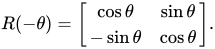
Anti - Clock Wise
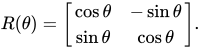
This rotates column vectors by means of the following matrix multiplication,
Says For ClockWise Rotation
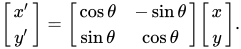
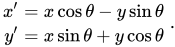
Shift An Image

Cal :


from skimage import transform
rotated = transform.rotate(img, angle=45) # rotate 45°
shifted = transform.warp(img, transform.AffineTransform(translation=(50, 30)))
scaled = transform.rescale(img, 0.5, channel_axis=-1) # 50% size
plt.imshow(rotated)
plt.axis('off')
plt.show()

Determining Structural Similarity (SSIM)
from skimage.metrics import structural_similarity as ssim
from skimage import io
# Load grayscale images
img1 = io.imread("images/parrot.jpg", as_gray=True)
img2 = io.imread("images/parrot.jpg", as_gray=True)
# Compute SSIM
score, diff = ssim(img1, img2, full=True, data_range=img1.max() - img1.min())
print("SSIM:", score) # 1.0 = identical
|
| 17 |
Mobile Application Development Lab - 20A05706 (Lab) |
Sept. 14, 2025 |
Toggle Button |
Toggle Button
E:\android\MyApplication\app\src\main\res\layout\activity_main.xml
<?xml version="1.0" encoding="utf-8"?>
<LinearLayout xmlns:android="http://schemas.android.com/apk/res/android"
xmlns:app="http://schemas.android.com/apk/res-auto"
xmlns:tools="http://schemas.android.com/tools"
android:id="@+id/main"
android:layout_width="match_parent"
android:layout_height="match_parent"
tools:context=".MainActivity"
android:orientation="vertical"
>
<TextView
android:layout_width="wrap_content"
android:layout_height="wrap_content"
android:textColor="#FF5722"
android:textSize="30sp"
android:textStyle="bold"
android:textAllCaps="true"
android:padding="10dp"
android:layout_margin="10dp"
android:gravity="center"
android:layout_gravity="center"
android:id="@+id/tv1"
/>
<ToggleButton
android:layout_width="match_parent"
android:layout_height="wrap_content"
android:textColor="#FF5722"
android:textSize="30sp"
android:textStyle="bold"
android:textAllCaps="true"
android:padding="10dp"
android:layout_margin="10dp"
android:gravity="center"
android:layout_gravity="center"
android:id="@+id/toggle"></ToggleButton>
</LinearLayout>
E:\android\MyApplication\app\src\main\java\com\example\myapplication\MainActivity.kt
package com.example.myapplication
import android.os.Bundle
import androidx.activity.enableEdgeToEdge
import androidx.appcompat.app.AppCompatActivity
import android.widget.TextView
import android.widget.ToggleButton
class MainActivity : AppCompatActivity() {
override fun onCreate(savedInstanceState: Bundle?) {
super.onCreate(savedInstanceState)
var tv: TextView?=null
var toogle: ToggleButton?=null
enableEdgeToEdge()
setContentView(R.layout.activity_main)
tv = findViewById(R.id.tv1)
toogle=findViewById(R.id.toggle)
toogle!!.setOnClickListener{
if(toogle!!.isChecked)
tv!!.text=("TON")
else
tv!!.text=("TOFF")
}
}
}
Output:

|
| 18 |
Mobile Application Development Lab - 20A05706 (Lab) |
Sept. 4, 2025 |
Port02 Do CURD Operation Using API Via Android sdk show Data from Server Send Points
Register Via API,/POST
Login Via API/POST
Contact address API/GET |
https://www.jsonschema2pojo.org/
https://androindian.com/
E:\android\android apps\APIIntegration\app\src\main\AndroidManifest.xml
<?xml version="1.0" encoding="utf-8"?>
<manifest xmlns:android="http://schemas.android.com/apk/res/android"
xmlns:tools="http://schemas.android.com/tools">
<uses-permission android:name="android.permission.INTERNET" />
<uses-permission android:name="android.permission.ACCESS_NETWORK_STATE" />
<application
android:allowBackup="true"
android:dataExtractionRules="@xml/data_extraction_rules"
android:fullBackupContent="@xml/backup_rules"
android:icon="@mipmap/ic_launcher"
android:label="@string/app_name"
android:roundIcon="@mipmap/ic_launcher_round"
android:supportsRtl="true"
android:theme="@style/Theme.APIIntegration"
tools:targetApi="31">
<activity
android:name=".MenuPage"
android:exported="false" />
<!-- <activity-->
<!-- android:name=".DashBoard"-->
<!-- android:exported="false" />-->
<activity
android:name=".MainActivity"
android:exported="true">
<intent-filter>
<action android:name="android.intent.action.MAIN" />
<category android:name="android.intent.category.LAUNCHER" />
</intent-filter>
</activity> <!-- Declare your activities here -->
<activity android:name=".Login" />
</application>
</manifest>
E:\android\android apps\APIIntegration\app\src\main\java\com\example\apiintegration\ConnectionChecking.kt
package com.example.apiintegration
import android.content.Context
import android.net.ConnectivityManager
import android.net.NetworkCapabilities
import android.os.Build
class ConnectionChecking {
fun isConnectingToInternet(context: Context): Boolean {
val connectivityManager = context.getSystemService(Context.CONNECTIVITY_SERVICE) as ConnectivityManager
if (Build.VERSION.SDK_INT >= Build.VERSION_CODES.M) {
val network = connectivityManager.activeNetwork ?: return false
val networkCapabilities = connectivityManager.getNetworkCapabilities(network) ?: return false
return networkCapabilities.hasCapability(NetworkCapabilities.NET_CAPABILITY_INTERNET)
} else {
val networkInfo = connectivityManager.activeNetworkInfo
return networkInfo != null && networkInfo.isConnected
}
}
}
E:\android\android apps\APIIntegration\app\src\main\java\com\example\apiintegration\CustomAdapter.kt
package com.example.apiintegration
import android.content.Context
import android.view.LayoutInflater
import android.view.View
import android.view.ViewGroup
import android.widget.ImageView
import android.widget.TextView
import android.widget.Toast
import androidx.recyclerview.widget.RecyclerView
//import com.squareup.picasso.Picasso
import com.squareup.picasso.Picasso
class CustomAdapter(private val context: Context, private val adpData: List<ListRes>)
: RecyclerView.Adapter<CustomAdapter.MyViewHolder>() {
override fun onCreateViewHolder(parent: ViewGroup, viewType: Int): MyViewHolder {
val view = LayoutInflater.from(parent.context).inflate(R.layout.custom, parent, false)
return MyViewHolder(view)
}
override fun onBindViewHolder(holder: MyViewHolder, position: Int) {
val item = adpData[position]
holder.id?.text = item.id.toString()
holder.mail?.text = item.user
holder.fname?.text = item.name
holder.lname?.text = item.place
holder.phonenumber?.text = item.phonenumber
// If you want to load image:
//Picasso.get().load(item.img).into(holder.iv)
Picasso.with(context).load(adpData.get(holder.adapterPosition).img).into(holder.iv)
holder.iv?.setOnClickListener {
Toast.makeText(context,"Clicked ${item.name}",Toast.LENGTH_LONG).show()
}
}
override fun getItemCount(): Int = adpData.size
inner class MyViewHolder(itemView: View) : RecyclerView.ViewHolder(itemView) {
var id: TextView? = itemView.findViewById(R.id.id1)
var mail: TextView? = itemView.findViewById(R.id.email)
var fname: TextView? = itemView.findViewById(R.id.firtsname)
var lname: TextView? = itemView.findViewById(R.id.lastname)
var phonenumber: TextView? = itemView.findViewById(R.id.phonenumber)
var iv: ImageView? = itemView.findViewById(R.id.iv)
}
}
E:\android\android apps\APIIntegration\app\src\main\java\com\example\apiintegration\ListRes.java
package com.example.apiintegration;
//import javax.annotation.Generated;
import com.google.gson.annotations.Expose;
import com.google.gson.annotations.SerializedName;
public class ListRes {
@SerializedName("id")
@Expose
private Integer id;
@SerializedName("user")
@Expose
private String user;
@SerializedName("name")
@Expose
private String name;
@SerializedName("phonenumber")
@Expose
private String phonenumber;
@SerializedName("place")
@Expose
private String place;
@SerializedName("workinformation")
@Expose
private String workinformation;
@SerializedName("img")
@Expose
private String img;
@SerializedName("Remarks")
@Expose
private String remarks;
public Integer getId() {
return id;
}
public void setId(Integer id) {
this.id = id;
}
public String getUser() {
return user;
}
public void setUser(String user) {
this.user = user;
}
public String getName() {
return name;
}
public void setName(String name) {
this.name = name;
}
public String getPhonenumber() {
return phonenumber;
}
public void setPhonenumber(String phonenumber) {
this.phonenumber = phonenumber;
}
public String getPlace() {
return place;
}
public void setPlace(String place) {
this.place = place;
}
public String getWorkinformation() {
return workinformation;
}
public void setWorkinformation(String workinformation) {
this.workinformation = workinformation;
}
public String getImg() {
return img;
}
public void setImg(String img) {
this.img = img;
}
public String getRemarks() {
return remarks;
}
public void setRemarks(String remarks) {
this.remarks = remarks;
}
}
E:\android\android apps\APIIntegration\app\src\main\java\com\example\apiintegration\Login.kt
package com.example.apiintegration
import android.content.Intent
import android.content.SharedPreferences
import androidx.appcompat.app.AppCompatActivity
import android.os.Bundle
import android.util.Log
import android.widget.Toast
import androidx.databinding.DataBindingUtil
import com.example.apiintegration.databinding.ActivityLoginBinding
import com.google.gson.JsonParser
import org.json.JSONObject
import retrofit2.Call
import retrofit2.Response
import retrofit2.Retrofit
import retrofit2.converter.gson.GsonConverterFactory
class Login : AppCompatActivity() {
var binding: ActivityLoginBinding?=null
val TAG = "Login"
override fun onCreate(savedInstanceState: Bundle?) {
super.onCreate(savedInstanceState)
binding=
DataBindingUtil.setContentView(this,R.layout.activity_login)
binding?.newuser?.setOnClickListener {
var intent= Intent(this@Login,MenuPage::class.java)
startActivity(intent)
}
binding?.login?.setOnClickListener {
var uemail=binding?.email?.editText?.text.toString().trim()
var upass=binding?.password?.editText?.text.toString().trim()
//1
var jsonObject= JSONObject()
jsonObject.put("username",uemail)
jsonObject.put("password",upass)
//2
var retrofit= Retrofit.Builder().
baseUrl("https://7001.sites.marrichet.com/api/").
addConverterFactory(GsonConverterFactory.create()).build()
//3
var retroInterface=retrofit.create(SampleProjectInterface::class.java)
var requestjson=
JsonParser().parse(jsonObject.toString()).asJsonObject
var logsponsecall=retroInterface.loginUser(requestjson)
logsponsecall?.enqueue(object :
retrofit2.Callback<LoginResponse>{
override fun onResponse(call: Call<LoginResponse>, response: Response<LoginResponse>) {
val loginResponse = response.body()
Log.d(TAG, "API Response: $loginResponse")
val token = loginResponse?.token
if (!token.isNullOrBlank()) {
Toast.makeText(this@Login, "Login successful!", Toast.LENGTH_SHORT).show()
val intent = Intent(this@Login, MenuPage::class.java)
startActivity(intent)
val sharedPreferences = getSharedPreferences("Login", MODE_PRIVATE)
val editor = sharedPreferences.edit()
editor.putString("email", uemail)
editor.putString("password", upass)
editor.putString("token", token)
editor.apply()
} else {
Toast.makeText(this@Login, "Login failed: Invalid token", Toast.LENGTH_LONG).show()
}
}
override fun onFailure(call: Call<LoginResponse>, t:
Throwable) {
Log.d(TAG, "Request JSON onFailure: $call,$t")
Toast.makeText(this@Login,""+t,
Toast.LENGTH_LONG).show()
}
})
}
}
}
E:\android\android apps\APIIntegration\app\src\main\java\com\example\apiintegration\LoginResponse.kt
package com.example.apiintegration
import com.google.gson.annotations.Expose
import com.google.gson.annotations.SerializedName
class LoginResponse {
@SerializedName("token")
@Expose
var token: String? = null
@SerializedName("username")
@Expose
var username: String? = null
@SerializedName("passwordadd")
@Expose
var passwordadd: String? = null
@SerializedName("img")
@Expose
var img: String? = null
}
E:\android\android apps\APIIntegration\app\src\main\java\com\example\apiintegration\MainActivity.kt
package com.example.apiintegration
import android.content.Intent
import android.os.Bundle
import android.widget.Toast
import androidx.activity.enableEdgeToEdge
import androidx.appcompat.app.AppCompatActivity
import androidx.core.view.ViewCompat
import androidx.core.view.WindowInsetsCompat
import androidx.databinding.DataBindingUtil
import com.example.apiintegration.databinding.ActivityMainBinding
import com.google.gson.JsonParser
import org.json.JSONObject
import retrofit2.Call
import retrofit2.Callback
import retrofit2.Retrofit
import retrofit2.converter.gson.GsonConverterFactory
import retrofit2.Response
import android.util.Log
class MainActivity : AppCompatActivity() {
var binding: ActivityMainBinding?=null
val TAG = "MainActivity"
override fun onCreate(savedInstanceState: Bundle?) {
super.onCreate(savedInstanceState)
binding= DataBindingUtil.setContentView(this,R.layout.activity_main)
binding?.register?.setOnClickListener{
var name=binding?.username?.editText?.text.toString().trim()
// var email=binding?.email?.editText?.text.toString().trim()
var password=binding?.passwod?.editText?.text.toString().trim()
//1
var jsonObject= JSONObject()
// jsonObject.put("key is from api","valuee from xml")
jsonObject.put("username",name)
jsonObject.put("password",password)
// jsonObject.put("email",email)
//2
var retrofit= Retrofit.Builder().
baseUrl("https://7001.sites.marrichet.com/api/")
.addConverterFactory(GsonConverterFactory.create()).build()
//3
var retroInterface=retrofit.create(SampleProjectInterface::class.java)
var regisetercall: Call<RegisterResponse>
//6
val `xyz` = JsonParser().parse(jsonObject.toString()).asJsonObject
Log.d(TAG, "Request JSON: $xyz")
//8
val regResponseCall = retroInterface.createUser(`xyz`)
regResponseCall?.enqueue(object : Callback<RegisterResponse?>{
override fun onResponse(
call: Call<RegisterResponse?>,
response: Response<RegisterResponse?>
) {
Log.d(TAG, "Response received: $response,$call")
if (response.isSuccessful && response.body() != null) {
val registeredUsername = response.body()?.username
Toast.makeText(this@MainActivity, "Registered: $registeredUsername", Toast.LENGTH_LONG).show()
Log.d(TAG, "if black Response received: $response,$call")
// Navigate to Login activity or next step if needed
// startActivity(Intent(this@MainActivity, LoginActivity::class.java))
} else {
Toast.makeText(this@MainActivity, "Registration failed: ${response.errorBody()?.string()}", Toast.LENGTH_LONG).show()
Log.d(TAG, "else black Response received: $response,$call")
var intent= Intent(this@MainActivity, Login::class.java)
startActivity(intent)
}
}
override fun onFailure(call: Call<RegisterResponse?>, t: Throwable) {
Log.d(TAG, "OnFailure: $call,$t")
Toast.makeText(this@MainActivity,""+t.toString(),Toast.LENGTH_LONG).show()
}
})
}
}
}
E:\android\android apps\APIIntegration\app\src\main\java\com\example\apiintegration\MenuPage.kt
package com.example.apiintegration
import android.content.Intent
import android.os.Bundle
import android.util.Log
import android.widget.LinearLayout
import android.widget.Toast
import androidx.activity.enableEdgeToEdge
import androidx.appcompat.app.AppCompatActivity
import androidx.core.view.ViewCompat
import androidx.core.view.WindowInsetsCompat
import androidx.databinding.DataBindingUtil
import androidx.recyclerview.widget.LinearLayoutManager
import com.example.apiintegration.databinding.ActivityMainBinding
import com.example.apiintegration.databinding.ActivityMenuPageBinding
import com.google.gson.JsonParser
import retrofit2.Call
import retrofit2.Callback
import retrofit2.Response
import retrofit2.Retrofit
import retrofit2.converter.gson.GsonConverterFactory
class MenuPage : AppCompatActivity() {
var binding:ActivityMenuPageBinding?=null
val TAG = "MenuPage"
override fun onCreate(savedInstanceState: Bundle?) {
super.onCreate(savedInstanceState)
enableEdgeToEdge()
// setContentView(R.layout.activity_menu_page)
binding=DataBindingUtil.setContentView(this,R.layout.activity_menu_page)
var sharedPreferences=getSharedPreferences("Login", MODE_PRIVATE)
var s1=sharedPreferences.getString("email",null)
var s2=sharedPreferences.getString("pass",null)
Toast.makeText(this@MenuPage, "" + s1 + s2, Toast.LENGTH_LONG).show()
binding?.logout?.setOnClickListener{
var editor=sharedPreferences.edit()
editor.clear()
editor.apply()
// Redirect to Login (MainActivity)
val intent = Intent(this@MenuPage, Login::class.java)
startActivity(intent)
finish() // close MenuPage so user can't go back with back button
}
//2
var retrofit= Retrofit.Builder().
baseUrl("https://7001.sites.marrichet.com/api/")
.addConverterFactory(GsonConverterFactory.create()).build()
//3
var retroInterface=retrofit.create(SampleProjectInterface::class.java)
//6
//var regisetercall: Call<RegisterResponse>
//val datajson = JsonParser().parse(jsonObject.toString()).asJsonObject
//Log.d(TAG, "Request JSON: $datajson")
//8
//val regResponseCall = retroInterface.createUser(datajson)
val regResponseCall = retroInterface.loadData()
regResponseCall?.enqueue(object : Callback<List<ListRes>?> {
override fun onResponse(
call: Call<List<ListRes>?>,
response: Response<List<ListRes>?>
) {
Log.d(TAG, "API Response: ${response.body()}")
val linearLayoutManager = LinearLayoutManager(this@MenuPage,
LinearLayoutManager.VERTICAL, false)
binding?.rec?.layoutManager = linearLayoutManager
val customAdapter = CustomAdapter(this@MenuPage, response.body() ?: emptyList())
binding?.rec?.adapter = customAdapter
}
override fun onFailure(call: Call<List<ListRes>?>, t: Throwable) {
Log.d(TAG, "OnFailure: $call,$t")
Toast.makeText(this@MenuPage,""+t.toString(),Toast.LENGTH_LONG).show()
}
})
}
}
E:\android\android apps\APIIntegration\app\src\main\java\com\example\apiintegration\RegisterResponse.kt
package com.example.apiintegration
//✅ 1. Ensure You're Using the Right Shortcut
//For Windows/Linux:
//Ctrl + Alt + Shift + K
import com.google.gson.annotations.Expose
import com.google.gson.annotations.SerializedName
//https://www.jsonschema2pojo.org/
class RegisterResponse {
@SerializedName("username")
@Expose
var username: String? = null
}
E:\android\android apps\APIIntegration\app\src\main\java\com\example\apiintegration\SampleProjectInterface.kt
package com.example.apiintegration
import com.google.gson.JsonObject
import retrofit2.Call
import retrofit2.http.Body
import retrofit2.http.GET
import retrofit2.http.Headers
import retrofit2.http.POST
public interface SampleProjectInterface {
@Headers("Content-Type: application/json")
@POST("register/")
fun createUser(@Body jsonObject: JsonObject): Call<RegisterResponse>?
@Headers("Content-Type:application/json")
@POST("login/")
fun loginUser(@Body jsonObject: JsonObject): Call<LoginResponse>
// https://7001.sites.marrichet.com/api/contactbookapi/
@Headers("Content-Type:application/json")
@GET("contactbookapi/")
fun loadData(): Call<List<ListRes>>
}
E:\android\android apps\APIIntegration\app\src\main\java\com\example\apiintegration\Support.kt
package com.example.apiintegration
import com.google.gson.annotations.Expose
import com.google.gson.annotations.SerializedName
class Support {
@SerializedName("url")
@Expose
var url: String? = null
@SerializedName("text")
@Expose
var text: String? = null
}
E:\android\android apps\APIIntegration\app\src\main\res\layout\activity_dash_board.xml
<?xml version="1.0" encoding="utf-8"?>
<layout>
<LinearLayout
xmlns:android="http://schemas.android.com/apk/res/android"
xmlns:app="http://schemas.android.com/apk/res-auto"
xmlns:tools="http://schemas.android.com/tools"
android:layout_width="match_parent"
android:layout_height="match_parent"
tools:context=".DashBoard"
android:orientation="vertical">
<Button
android:layout_width="match_parent"
android:layout_height="wrap_content"
android:id="@+id/logout"
android:layout_margin="10dp"
android:text="Logout"/>
<androidx.recyclerview.widget.RecyclerView
android:layout_width="match_parent"
android:layout_height="wrap_content"
android:layout_margin="10dp"
android:id="@+id/rec"/>
</LinearLayout>
</layout>
E:\android\android apps\APIIntegration\app\src\main\res\layout\activity_login.xml
<?xml version="1.0" encoding="utf-8"?>
<layout>
<RelativeLayout
xmlns:android="http://schemas.android.com/apk/res/android"
xmlns:app="http://schemas.android.com/apk/res-auto"
xmlns:tools="http://schemas.android.com/tools"
android:layout_width="match_parent"
android:layout_height="match_parent"
tools:context=".Login">
<androidx.cardview.widget.CardView
android:layout_width="match_parent"
android:layout_height="wrap_content"
android:layout_margin="10dp"
android:layout_centerHorizontal="true"
android:layout_centerVertical="true">
<LinearLayout
android:layout_width="match_parent"
android:layout_height="wrap_content"
android:orientation="vertical"
android:layout_margin="5dp">
<TextView
android:layout_width="wrap_content"
android:layout_height="wrap_content"
android:text="Login Here"
android:layout_gravity="center" />
<com.google.android.material.textfield.TextInputLayout
android:id="@+id/email"
android:layout_width="match_parent"
android:layout_height="wrap_content"
android:hint="email"
android:layout_margin="5dp"
style="@style/Widget.MaterialComponents.TextInputLayout.OutlinedBox">
<com.google.android.material.textfield.TextInputEditText
android:layout_width="match_parent"
android:layout_height="wrap_content"
/>
</com.google.android.material.textfield.TextInputLayout>
<com.google.android.material.textfield.TextInputLayout
android:id="@+id/password"
android:layout_width="match_parent"
android:layout_height="wrap_content"
android:hint="Password"
android:layout_margin="5dp"
style="@style/Widget.MaterialComponents.TextInputLayout.OutlinedBox">
<com.google.android.material.textfield.TextInputEditText
android:layout_width="match_parent"
android:layout_height="wrap_content"
/>
</com.google.android.material.textfield.TextInputLayout>
<Button
android:id="@+id/login"
android:layout_width="wrap_content"
android:layout_height="wrap_content"
android:text="Login"
android:padding="5dp"
android:layout_margin="5dp"
android:layout_gravity="center"
/>
<TextView
android:layout_width="match_parent"
android:layout_height="wrap_content"
android:id="@+id/newuser"
android:text="New User Register Here"
android:textSize="25sp"/>
</LinearLayout>
</androidx.cardview.widget.CardView>
</RelativeLayout>
</layout>
E:\android\android apps\APIIntegration\app\src\main\res\layout\activity_main.xml
<?xml version="1.0" encoding="utf-8"?>
<layout>
<RelativeLayout xmlns:android="http://schemas.android.com/apk/res/android"
xmlns:app="http://schemas.android.com/apk/res-auto"
xmlns:tools="http://schemas.android.com/tools"
android:layout_width="match_parent"
android:layout_height="match_parent"
tools:context=".MainActivity"
android:id="@+id/main"
android:orientation="vertical">
<androidx.cardview.widget.CardView
android:layout_width="match_parent"
android:layout_height="wrap_content"
android:layout_margin="5dp"
android:layout_centerHorizontal="true"
android:layout_centerVertical="true">
<LinearLayout
android:layout_width="match_parent"
android:layout_height="wrap_content"
android:layout_margin="5dp"
android:orientation="vertical">
<TextView
android:layout_width="wrap_content"
android:layout_height="wrap_content"
android:text="Register here"
/>
<com.google.android.material.textfield.TextInputLayout
android:id="@+id/username"
android:layout_width="match_parent"
android:layout_height="wrap_content"
android:hint="UserName"
android:layout_margin="5dp">
<com.google.android.material.textfield.TextInputEditText
android:layout_width="match_parent"
android:layout_height="wrap_content"
/>
</com.google.android.material.textfield.TextInputLayout>
<com.google.android.material.textfield.TextInputLayout
android:id="@+id/passwod"
android:layout_width="match_parent"
android:layout_height="wrap_content"
android:hint="Password"
android:layout_margin="5dp">
<com.google.android.material.textfield.TextInputEditText
android:layout_width="match_parent"
android:layout_height="wrap_content"
/>
</com.google.android.material.textfield.TextInputLayout>
<Button
android:id="@+id/register"
android:layout_width="wrap_content"
android:layout_height="wrap_content"
android:text="Register"
android:layout_gravity="center"
/>
</LinearLayout>
</androidx.cardview.widget.CardView>
</RelativeLayout>
</layout>
E:\android\android apps\APIIntegration\app\src\main\res\layout\activity_menu_page.xml
<?xml version="1.0" encoding="utf-8"?>
<layout>
<LinearLayout xmlns:android="http://schemas.android.com/apk/res/android"
xmlns:app="http://schemas.android.com/apk/res-auto"
xmlns:tools="http://schemas.android.com/tools"
android:id="@+id/main"
android:layout_width="match_parent"
android:layout_height="match_parent"
tools:context=".MenuPage"
android:orientation="vertical"
>
<Button
android:layout_width="match_parent"
android:layout_height="wrap_content"
android:text="logout"
android:id="@+id/logout"
/>
<androidx.recyclerview.widget.RecyclerView
android:layout_width="match_parent"
android:layout_height="wrap_content"
android:id="@+id/rec"/>
</LinearLayout>
</layout>
E:\android\android apps\APIIntegration\app\src\main\res\layout\custom.xml
<?xml version="1.0" encoding="utf-8"?>
<LinearLayout xmlns:android="http://schemas.android.com/apk/res/android"
android:layout_width="match_parent"
android:layout_height="wrap_content"
android:orientation="horizontal"
android:padding="8dp">
<!-- Avatar Image -->
<ImageView
android:id="@+id/iv"
android:layout_width="60dp"
android:layout_height="60dp"
android:scaleType="centerCrop"
android:src="@mipmap/ic_launcher"
android:layout_marginEnd="8dp" />
<!-- Text Container -->
<LinearLayout
android:layout_width="0dp"
android:layout_height="wrap_content"
android:layout_weight="1"
android:orientation="vertical">
<TextView
android:id="@+id/id1"
android:layout_width="wrap_content"
android:layout_height="wrap_content"
android:text="ID"
android:textStyle="bold"
android:textSize="14sp" />
<TextView
android:id="@+id/email"
android:layout_width="wrap_content"
android:layout_height="wrap_content"
android:text="User Email"
android:textSize="14sp" />
<TextView
android:id="@+id/firtsname"
android:layout_width="wrap_content"
android:layout_height="wrap_content"
android:text="Name"
android:textSize="14sp" />
<TextView
android:id="@+id/lastname"
android:layout_width="wrap_content"
android:layout_height="wrap_content"
android:text="Place"
android:textSize="14sp" />
<TextView
android:id="@+id/phonenumber"
android:layout_width="wrap_content"
android:layout_height="wrap_content"
android:text="phonenumber"
android:textSize="14sp" />
</LinearLayout>
</LinearLayout>
E:\android\android apps\APIIntegration\app\build.gradle.kts
android {
compileSdk = 35
defaultConfig {
targetSdk = 35
}
buildFeatures {
dataBinding = true
}
}
dependencies {
implementation(libs.androidx.core.ktx)
implementation(libs.androidx.appcompat)
implementation(libs.material)
implementation(libs.androidx.activity)
implementation(libs.androidx.constraintlayout)
implementation("com.squareup.retrofit2:retrofit:2.11.0")
implementation("com.squareup.retrofit2:converter-gson:2.11.0")
implementation ("com.google.code.gson:gson:2.8.9")
implementation ("com.github.bumptech.glide:glide:4.16.0")
implementation ("com.squareup.picasso:picasso:2.5.2")
testImplementation(libs.junit)
androidTestImplementation(libs.androidx.junit)
androidTestImplementation(libs.androidx.espresso.core)
}
Output:


|
| 19 |
AI for Image Analysis - 20A30702b (Theory) |
Sept. 1, 2025 |
UNIT V(Image Processing Using Machine Learning & RealTime Use Cases) |
Scale-invariant feature transform
Scale-invariant feature transform (SIFT) descriptors provide an alternative representation for image regions. They are very useful for matching images. As demonstrated earlier, simple corner detectors work well when the images to be matched are similar in nature (with respect to scale, orientation, and so on). But if they have different scales and rotations, the SIFT descriptors are needed to be used to match them. SIFT is not only just scale invariant, but it still obtains good results when rotation, illumination, and viewpoints of the images change as well.
Let's discuss the primary steps involved in the SIFT algorithm that transforms image content into local feature coordinates that are invariant to translation, rotation, scale, and other imaging parameters.
Algorithm to compute SIFT descriptors
Scale-space extrema detection: Search over multiple scales and image locations, the location and characteristic scales are given by DoG detector Keypoint localization: Select keypoints based on a measure of stability, keep only the strong interest points by eliminating the low-contrast and edge keypoints Orientation assignment: Compute the best orientation(s) for each keypoint region, which contributes to the stability of matching Keypoint descriptor computation: Use local image gradients at selected scale and rotation to describe each keypoint region
As discussed, SIFT is robust with regard to small variations in illumination (due to gradient and normalization), pose (small affine variation due to orientation histogram), scale (by DoG), and intra-class variability (small variations due to histograms).
With opencv and opencv-contrib
We will first construct a SIFT object and then use the detect() method to compute the keypoints in an image. Every keypoint is a special feature, and has several attributes. For example, its (x, y) coordinates, angle (orientation), response (strength of keypoints), size of the meaningful neighborhood, and so on.
import cv2
import numpy as np
import matplotlib.pyplot as plt
# Load grayscale image
img_path = "images/monalisa.jpg"
img = cv2.imread(img_path, cv2.IMREAD_GRAYSCALE)
if img is None:
raise FileNotFoundError(f"Image not found at {img_path}")
# Create SIFT detector
sift = cv2.SIFT_create()
keypoints, descriptors = sift.detectAndCompute(img, None)
# Draw keypoints
img_kp = cv2.drawKeypoints(img, keypoints, None, flags=cv2.DRAW_MATCHES_FLAGS_DRAW_RICH_KEYPOINTS)
# Convert grayscale to RGB for matplotlib
img_kp_rgb = cv2.cvtColor(img_kp, cv2.COLOR_BGR2RGB)
# Display
plt.figure(figsize=(10, 8))
plt.imshow(img_kp_rgb)
plt.axis('off')
plt.title(f"SIFT Keypoints (Total: {len(keypoints)})")
plt.show()
# Print descriptor info
print("Number of keypoints:", len(keypoints))
print("Descriptor shape:", descriptors.shape)


RANSAC algorithm
In this example, we will match an image with its affine transformed version; they can be considered as if they were taken from different view points. The following steps describe the image matching algorithm:
1. First, we will compute the interest points or the Harris Corners in both the images.
2. A small space around the points will be considered, and the correspondences inbetween the points will then be computed using a weighted sum of squared differences. This measure is not very robust, and it's only usable with slight viewpoint changes.
3. A set of source and corresponding destination coordinates will be obtained once the correspondences are found; they are used to estimate the geometric transformations between both the images.
4. A simple estimation of the parameters with the coordinates is not enough—many of the correspondences are likely to be faulty.
5. The RANdom SAmple Consensus (RANSAC) algorithm is used to robustly estimate the parameters, first by classifying the points into inliers and outliers, and then by fitting the model to inliers while ignoring the outliers, in order to find matches consistent with an affine transformation. The next code block shows how to implement the image matching using the Harris Corner features:
# Read and prepare image
temple = rgb2gray(img_as_float(imread('../images/temple.JPG')))
image_original = np.zeros(list(temple.shape) + [3])
image_original[..., 0] = temple
gradient_row, gradient_col = np.mgrid[0:image_original.shape[0], 0:image_original.shape[1]] / float(image_original.shape[0])
image_original[..., 1] = gradient_row
image_original[..., 2] = gradient_col
image_original = rescale_intensity(image_original)
image_original_gray = rgb2gray(image_original)
# Apply affine transform
affine_trans = AffineTransform(scale=(0.8, 0.9), rotation=0.1, translation=(120, -20))
image_warped = warp(image_original, affine_trans.inverse, output_shape=image_original.shape)
image_warped_gray = rgb2gray(image_warped)
# Detect corners
coords_orig = corner_peaks(corner_harris(image_original_gray), threshold_rel=0.01, min_distance=5)
coords_warped = corner_peaks(corner_harris(image_warped_gray), threshold_rel=0.01, min_distance=5)
# Refine corners to subpixel accuracy
coords_orig_subpix = corner_subpix(image_original_gray, coords_orig, window_size=9)
coords_warped_subpix = corner_subpix(image_warped_gray, coords_warped, window_size=9)
# Plot results
fig, axes = plt.subplots(1, 2, figsize=(20, 10))
axes[0].imshow(image_original_gray, cmap='gray')
axes[0].plot(coords_orig_subpix[:, 1], coords_orig_subpix[:, 0], 'r.', markersize=5)
axes[0].set_title('Original image with corners')
axes[0].axis('off')
axes[1].imshow(image_warped_gray, cmap='gray')
axes[1].plot(coords_warped_subpix[:, 1], coords_warped_subpix[:, 0], 'r.', markersize=5)
axes[1].set_title('Warped image with corners')
axes[1].axis('off')
plt.show()

Image Classification Using CNNs
CNNs are deep neural networks for which the primarily used input is images. CNNs learn the filters (features) that are hand-engineered in traditional algorithms. This independence from prior knowledge and human effort in feature design is a major advantage. They also reduce the number of parameters to be learned with their shared-weights architecture and possess translation invariance characteristics. In the next subsection, we'll discuss the general architecture of a CNN and how it works.
Conv or pooling or FC layers – CNN architecture and how it works
The next screenshot shows the typical architecture of a CNN. It consists of one or more convolutional layer, followed by a nonlinear ReLU activation layer, a pooling layer, and, finally, one (or more) fully connected (FC) layer, followed by an FC softmax layer, for example, in the case of a CNN designed to solve an image classification problem.
There can be multiple convolution ReLU pooling sequences of layers in the network, making the neural network deeper and useful for solving complex image processing tasks, as seen in the following diagram:

Convolutional layer
The main building block of CNN is the convolutional layer. The convolutional layer consists of a bunch of convolution filters (kernels), which we already discussed in detail in Chapter 2(refere Text Book2), Sampling, Fourier Transform, and Convolution. The convolution is applied on the input image using a convolution filter to produce a feature map. On the left side is the input to the convolutional layer; for example, the input image. On the right is the convolution filter, also called the kernel. As usual, the convolution operation is performed by sliding this filter over the input. At every location, the sum of element-wise matrix multiplication goes into the feature map. A convolutional layer is represented by its width, height (the size of a filter is width x height), and depth (number of filters). Stride specifies how much the convolution filter will be moved at each step (the default value is 1). Padding refers to the layers of zeros to surround the input (generally used to keep the input and output image size the same, also known as same padding). The following screenshot shows how 3 x 3 x 3 convolution filters are applied on an RGB image, the first with valid padding and the second with the computation with two such filters with the size of the stride=padding=1


Pooling layer
After a convolution operation, a pooling operation is generally performed to reduce dimensionality and the number of parameters to be learned, which shortens the training time, requires less data to train, and combats overfitting. Pooling layers downsample each feature map independently, reducing the height and width, but keeping the depth intact. The most common type of pooling is max pooling, which just takes the maximum value in the pooling window. Contrary to the convolution operation, pooling has no parameters. It slides a window over its input and simply takes the max value in the window. Similar to a convolution, the window size and stride for pooling can be specified.
Non-linearity – ReLU layer
For any kind of neural network to be powerful, it needs to contain non-linearity. The result of the convolution operation is hence passed through the non-linear activation function. ReLU activation is used in general to achieve non-linearity (and to combat the vanishing gradient problem with sigmoid activation). So, the values in the final feature maps are not actually the sums, but the relu function applied to them.
FC layer
After the convolutional and pooling layers, generally a couple of FC layers are added to wrap up the CNN architecture. The output of both convolutional and pooling layers are 3D volumes, but an FC layer expects a 1D vector of numbers. So, the output of the final pooling layer needs to be flattened to a vector, and that becomes the input to the FC layer. Flattening is simply arranging the 3D volume of numbers into a 1D vector.
Dropout
Dropout is the most popular regularization technique for deep neural networks. Dropout is used to prevent overfitting, and it is typically used to increase the performance (accuracy) of the deep learning task on the unseen dataset. During training time, at each iteration, a neuron is temporarily dropped or disabled with some probability, p. This means all the input and output to this neuron will be disabled at the current iteration. This hyperparameter p is called the dropout rate, and it's typically a number around 0.5, corresponding to 50% of the neurons being dropped out.
Image Classification Using Machine Learning Approaches:Decision Trees,Support Vector Machines, Logistics Regression,Code,Important Terms

Decision Trees
-Supervised learning technique for classification or regression problems
-We create a model that predicts the value of a target variable by learning simple decision rules inferred from the data features
-Not as effective as the best supervised machine learning techniques
-Boosting and random forests improve the performance
-Has several advantages + disadvantages
Advantages
-Simple to understand and to interpret + trees can be visualized
-No need for data preparations such as normalization or dummy variables
-Logarithmic O(logN) running time
Distadvantages
-Decision-tree learners can create over-complex trees that do not generalize to the data well
-This is the problem of overfitting // pruning somethime helps
-Decision trees can be unstable because small variations in the data might result in a completely different tree being generated
-The problem of learning an optimal decision tree is known to be NP-complete !!!
-Practical decision-tree learning algorithms are based on heuristic algorithms such as the greedy algorithm
bias: error from misclassifications in the learning algorithm
High bias the algorithm misses the relevant relationships
between features and target outputs !!!
ERROR DUE TO MODEL MISMATCH
variance: error from sensitivity to small changes in the training set
High variance can cause overfitting
VARIATION DUE TO TRAINING SAMPLE AND RANDOMIAZTION
Bias / variance tradeoff
~ we are not able to optimize both bias and variance at the same time
low bias high variance
low variance high bias
Pruning
-Usually decision trees are likely to overfit the data leading to poor test performance
-Smaller tree + fewer splits better predictor at the cost of a little bias
-Better solution: grow a large tree and then prune it back to a smaller subtree
„weakest link pruning”
Random forests
Why is it good?
If one or a few features are very strong predictors for the response variable (target output), these features will be selected in many of the decision trees they will become correlated
Huge advantage at some point the variance stops decreasing no matter how many more trees we add to our random forest + it is not going to produce overfitting !!!
Boosting
-It can be used for classification and regression too
-Helps to reduce variance and bias !!!
-Bagging: creates multiple copies of the original data constructs several decision trees on the copies combining all the trees to make predictions
-THESE TREES ARE INDEPENDENT FROM EACH OTHER !!!
-Boosting: here the decision trees are grown sequentially each tree is grown using information from previously grown trees
-THESE TREES ARE NOT INDEPENDENT FROM EACH OTHER !!!
-Can a set of weak learners create a single strong learner?
-Yes, we can turn a weak learner into a strong learner !!!
-Fit a large decision tree to the data overfitting
-The boosting algorithm learns slowly instead
-By fitting small trees we slowly improve the final result in cases when it does not perform well
import numpy as np
from scipy.cluster.hierarchy import linkage, dendrogram
import matplotlib.pyplot as plt
# Data points
x = np.array([[1,1],[1.5,1],[3,3],[4,4],[3,3.5],[3.5,4]])
# Scatter plot of data points
plt.scatter(x[:,0], x[:,1], s=50, color='blue')
plt.title("Data points")
plt.xlabel("X1")
plt.ylabel("X2")
plt.show()
# Compute hierarchical clustering (linkage)
linkage_matrix = linkage(x, method='single') # "single" linkage
# Plot dendrogram
plt.figure(figsize=(8,5))
dendrogram(linkage_matrix, truncate_mode='none', leaf_rotation=45, leaf_font_size=10)
plt.title("Hierarchical Clustering Dendrogram")
plt.xlabel("Sample index")
plt.ylabel("Distance")
plt.show()

Support Vector Machines:
-Very popular and widely used supervised learning classification algorithm
-The great benefit: it can operates even in infinite dimensions !!!
-It defines a margin / boundary between the data points in multidimensional space
-Goal: find a flat boundary ( „hyperplane” ) that leads to a homogeneous partition of the data
-A good separation is achieved by the hyperplane that has the largest distance to the nearest training-data point of any class since in general the larger the margin the lower the generalization error of the classifier
-So we have to maximize the margin
-Can be applied to almost everything
-Classifications or numerical predictions
-Widely used in pattern recognition
-Identify cancer or genetic diseases
-Text classification: classify texts based on the language
-Detecting rare events: earthquakes or engine failures
Non-linear spaces
-In many real-world applications, the relationships between variables are non-linear
-A key feature of SVMs is their ability to map the problem into a higher dimensional space using a process known as the „kernel trick”
-Non-linear relationship may suddenly appears to be quite linear
Maths:
https://chatgpt.com/s/t_68b5c22784e88191960e71fbffc4d2f5
f(x) = sign( i=1N Σ αi yi K(xi, x) + b )
Here:
-
Σ → summation
-
α_i, y_i, x_i → subscripted
-
K(x_i, x) → kernel function
-
b → bias term
Optional: Showing Kernel types in
1️⃣ Linear Kernel
K(x_i, x_j) = x_i · x_j
2️⃣ Polynomial Kernel
K(x_i, x_j) = (x_i · x_j + c)d
-SVMs with non-linear kernels add additional dimensions to the data in order to create separation in this way
-Kernel trick process of adding new features that express mathematical relationships between measured characteristics
-This allows the SVM to learn concepts that were not explicitly measured in the original data
Advantages
-SVM can be used for regression problems as well as for classifications
-Not overly influenced by noisy data
-Easier to use than neural networks
Disadvantages
-Finding the best model requires testing of various combinations of kernels and model parameters
-Quite slow especially when the input dataset has a large number of features
-Black box model: very hard to understand !!!
import matplotlib.pyplot as plt
from sklearn import datasets, svm, metrics
from sklearn.metrics import accuracy_score
# The digits dataset
digits = datasets.load_digits()
#print("Digits\n", digits)
images_and_labels = list(zip(digits.images, digits.target))
n_samples = len(digits.images)
data = digits.images.reshape((n_samples, -1))
#print("Data\n",data)
# Create a classifier: a support vector classifier
classifier = svm.SVC(gamma=0.001)
# We learn the digits on the first half of the digits
trainTestSplit = int(n_samples*0.75)
classifier.fit(data[:trainTestSplit], digits.target[:trainTestSplit])
# Now predict the value of the digit on the second half:
expected = digits.target[trainTestSplit:]
predicted = classifier.predict(data[trainTestSplit:])
#print("Classification report for classifier %s:\n%s\n"
#% (classifier, metrics.classification_report(expected, predicted)))
print("Confusion matrix:\n%s" % metrics.confusion_matrix(expected, predicted))
print(accuracy_score(expected, predicted))
# let's test on the last few images
plt.imshow(digits.images[-2], cmap=plt.cm.gray_r, interpolation='nearest')
print("Prediction for test image: ", classifier.predict(data[-2].reshape(1,-1)))
plt.show()

Logistics Regression
p(y) = e(b0 + b1 x) / (1 + e(b0 + b1 x))
The p(x) = P(default=1 | balance = x ) is the probability of default when we
know the balance !!!
It has a value between 0 and 1
Logistic regression fits the b and b parameters, these are the
regression parameters
This fitted curve is not linear: we can make it linear with the help
of the logit transformation
import numpy as np
from matplotlib import pyplot as plt
from sklearn.linear_model import LogisticRegression
# p i = 1 / 1 + exp[ - ( b0 + b1 * x )]
x1 = np.array([0,0.6,1.1,1.5,1.8,2.5,3,3.1,3.9,4,4.9,5,5.1])
y1 = np.array([0,0,0,0,0,0,0,0,0,0,0,0,0])
x2 = np.array([3,3.8,4.4,5.2,5.5,6.5,6,6.1,6.9,7,7.9,8,8.1])
y2 = np.array([1,1,1,1,1,1,1,1,1,1,1,1,1])
X = np.array([[0],[0.6],[1.1],[1.5],[1.8],[2.5],[3],[3.1],[3.9],[4],[4.9],[5],[5.1],[3],[3.8],[4.4],[5.2],[5.5],[6.5],[6],[6.1],[6.9],[7],[7.9],[8],[8.1]])
y = np.array([0,0,0,0,0,0,0,0,0,0,0,0,0,1,1,1,1,1,1,1,1,1,1,1,1,1])
plt.plot(x1,y1,'ro',color='blue')
plt.plot(x2,y2,'ro',color='red')
model = LogisticRegression()
model.fit(X,y)
print("b0 is:", model.intercept_)
print("b1 is:", model.coef_)
def logistic(classifier, x):
return 1/(1+np.exp(-(model.intercept_ + model.coef_ * x)))
for i in range(1,120):
plt.plot(i/10.0-2,logistic(model,i/10.0),'ro',color='green')
plt.axis([-2,10,-0.5,2])
plt.show()
# pred = model.predict_proba(1)
# print("Prediction: ", pred)
pred = model.predict_proba([[1]])
print("Prediction: ", pred)


Introduction to Real-Time Use Cases:
Few Real time Ways
A fully convolutional model for detecting objects: YOLO (v2)
Deep segmentation with DeepLab (v3)
Transfer learning: what is it and when to use it
Deep style transfer with cv2 using a pretrained torch-based deep learning model
Introducing YOLO v2 :
YOLO, is a very popular and fully conventional algorithm that is used for detecting images. It gives a very high accuracy rate compared to other algorithms, and also runs in real time. As the name suggests, this algorithm looks only once at an image. This means that this algorithm requires only one forward propagation pass to make accurate predictions.
In this section, we will detect objects in images with a fully convolutional network (FCN) deep learning model. Given an image with some objects (for example, animals, cars, and so on), the goal is to detect objects in those images using a pre-trained YOLO model, with bounding boxes.


Deep semantic segmentation with DeepLab V3+
In this section, we'll discuss how to use a deep learning FCN to perform semantic segmentation of an image. Before diving into further details, let's clear the basic concepts.
Semantic segmentation
Semantic segmentation refers to an understanding of an image at pixel level; that is, when we want to assign each pixel in the image an object class (a semantic label). It is a natural step in the progression from coarse to fine inference. It achieves fine-grained inference by making dense predictions that infer labels for every pixel so that each pixel is labeled with the class of its enclosing object or region.


Transfer learning – what it is, and when to use it
Transfer learning is a deep learning strategy that reuses knowledge gained from solving one problem by applying it to a different, but related, problem. For example, let's say we have three types of flowers, namely, a rose, a sunflower, and a tulip. We can use the standard pre-trained models, such as VGG16/19, ResNet50, or InceptionV3 models (pretrained on ImageNet with 1000 output classes, which can be found at https://gist. github.com/yrevar/942d3a0ac09ec9e5eb3a) to classify the flower images, but our model wouldn't be able to correctly identify them because these flower categories were not learned by the models. In other words, they are classes that the model is not aware of.
Transfer learning with Keras
Training of pre-trained models is done on many comprehensive image classification problems. The convolutional layers act as a feature extractor, and the fully connected (FC) layers act as classifiers, as shown in the following diagram, in the context of cat vs. dog image classification with a conv net:

|
| 20 |
AI for Image Analysis - 20A30702b (Theory) |
Sept. 7, 2025 |
Unit - 4 Part01 |
1. Blending Two Images
👉 Blend two images of the same size using weighted addition.

import cv2
import matplotlib.pyplot as plt
img1 = cv2.imread("images/parrot.jpg")
img2 = cv2.imread("images/antelops.jpeg")
# Resize second image to match first
img2 = cv2.resize(img2, (img1.shape[1], img1.shape[0]))
# Blend images
blended = cv2.addWeighted(img1, 0.7, img2, 0.3, 0)
# Convert BGR → RGB for matplotlib
blended_rgb = cv2.cvtColor(blended, cv2.COLOR_BGR2RGB)
plt.imshow(blended_rgb)
plt.axis('off')
plt.title("Blended Image")
plt.show()


2. Changing Contrast and Brightness
👉 Use cv2.convertScaleAbs().
Contrast
The contrast stretching operation takes a low-contrast image as input and stretches the narrower range of the intensity values to span a desired wider range of values in order to output a high-contrast output image, thereby enhancing the image's contrast. It is just a linear scaling function that is applied to image pixel values, and hence the image enhancement is less drastic (than its more sophisticated counterpart histogram equalization, to be described shortly). The following screenshot shows the point transformation function for contrast stretching:

As can be seen from the previous screenshot, the upper and lower pixel value limits (over which the image is to be normalized), need to be specified before the stretching can be performed (for example, for a gray-level image, the limits are often set to 0 and 255, in order for the output image to span the entire range of available pixel values). All we need to find is a suitable value of m from the CDF of the original image. The contrast stretching transform produces higher contrast than the original by darkening the levels below the value m (in other words, stretching the values toward the lower limit) in the original image and brightening the levels previous to value m (stretching the values toward the upper limit) in the original image. The following sections describe how to implement contraststretching using the PIL library
# # alpha: contrast, beta: brightness
# adjusted = cv2.convertScaleAbs(img1, alpha=1.5, beta=50)
# cv2.imshow("Contrast & Brightness", adjusted)
# cv2.waitKey(0)
import cv2
import matplotlib.pyplot as plt
# Load image
img1 = cv2.imread("images/parrot.jpg")
# Adjust contrast (alpha) and brightness (beta)
adjusted = cv2.convertScaleAbs(img1, alpha=1.5, beta=50)
# Convert BGR → RGB for matplotlib
adjusted_rgb = cv2.cvtColor(adjusted, cv2.COLOR_BGR2RGB)
# Display safely in notebook
plt.imshow(adjusted_rgb)
plt.axis('off')
plt.title("Contrast & Brightness Adjusted")
plt.show()

Smoothing Images:
Online Reference Source

Problem with Smoothing
-Does Not remove outlies(Noise)
- Smooths edges(Blur)
Median filter:
Median Filtering
1.Sort the K2 Values in window Centered at The Pixel
2.Assign The Middle Value(Median) to Pixel

Non-Linear Operation
(Cannot be Implemented using convolution)

It is the best order statistic filter; it replaces the value of a pixel by the median of gray levels
in the Neighborhood of the pixel.

The original of the pixel is included in the computation of the median of the filter are quite possible because for certain types of random noise, the provide excellent noise reduction capabilities with considerably less blurring then smoothing filters of similar size. These are effective for bipolar and unipolar impulse noise.
GAUSSIAN LOWPASS FILTERS:
Same Gaussian Kernel is used everywhere.
Blurs across edges
"Bias" Gaussian Kernel such that Pixcels not similar in Intensity to
Center Pixel Receive a lower weight
The form of these filters in two dimensions is given by
This transfer function is smooth, like Butterworth filter.
Gaussian in frequency domain remains a Gaussian in spatial domain
Advantage: No ringing artifacts.
Where D0 is the cutoff frequency. When D(u,v) = D0, the GLPF is down to 0.607 of its maximum
value. This means that a spatial Gaussian filter, obtained by computing the IDFT of above
equation., will have no ringing. Fig..Shows a perspective plot, image display and radial cross
sections of a GLPF function.


magnified sections in (b) and(c).
Fig. shows an application of lowpass filtering for producing a smoother, softer-looking
result from a sharp original. For human faces, the typical objective is to reduce the sharpness of
fine skin lines and small blemished.
Non-Linear Operation
(Cannot be Implemented using Convolution)
|
| 21 |
Mobile Application Development Lab - 20A05706 (Lab) |
Sept. 9, 2025 |
CHECKBOX |
E:\android\android apps\MyApplication2\app\src\main\AndroidManifest.xml
<?xml version="1.0" encoding="utf-8"?>
<manifest xmlns:android="http://schemas.android.com/apk/res/android"
xmlns:tools="http://schemas.android.com/tools">
<application
android:allowBackup="true"
android:dataExtractionRules="@xml/data_extraction_rules"
android:fullBackupContent="@xml/backup_rules"
android:icon="@mipmap/ic_launcher"
android:label="@string/app_name"
android:roundIcon="@mipmap/ic_launcher_round"
android:supportsRtl="true"
android:theme="@style/Theme.MyApplication"
tools:targetApi="31">
<activity
android:name=".MainActivity"
android:exported="true">
<intent-filter>
<action android:name="android.intent.action.MAIN" />
<category android:name="android.intent.category.LAUNCHER" />
</intent-filter>
</activity>
</application>
</manifest>
E:\android\android apps\MyApplication2\app\src\main\res\layout\activity_main.xml
<?xml version="1.0" encoding="utf-8"?>
<LinearLayout xmlns:android="http://schemas.android.com/apk/res/android"
xmlns:app="http://schemas.android.com/apk/res-auto"
xmlns:tools="http://schemas.android.com/tools"
android:id="@+id/main"
android:layout_width="match_parent"
android:layout_height="match_parent"
tools:context=".MainActivity"
android:orientation="vertical"
>
<TextView
android:layout_width="match_parent"
android:layout_height="wrap_content"
android:textColor="#FF5722"
android:textSize="30sp"
android:textStyle="bold"
android:textAllCaps="true"
android:padding="10dp"
android:layout_margin="10dp"
android:gravity="center"
android:layout_gravity="center"
android:id="@+id/tv1"
/>
<CheckBox
android:layout_width="match_parent"
android:layout_height="wrap_content"
android:text="Android"
android:textColor="#FF5722"
android:textSize="30sp"
android:textStyle="bold"
android:textAllCaps="true"
android:padding="10dp"
android:layout_margin="10dp"
android:gravity="center"
android:layout_gravity="center"
android:id="@+id/check"
></CheckBox>
</LinearLayout>
E:\android\android apps\MyApplication2\app\src\main\java\com\example\myapplication\MainActivity.kt
package com.example.myapplication
import android.os.Bundle
import android.widget.CheckBox
import android.widget.TextView
import androidx.activity.enableEdgeToEdge
import androidx.appcompat.app.AppCompatActivity
import androidx.core.view.ViewCompat
import androidx.core.view.WindowInsetsCompat
class MainActivity : AppCompatActivity() {
override fun onCreate(savedInstanceState: Bundle?) {
var check: CheckBox?=null
var tv: TextView?=null
super.onCreate(savedInstanceState)
enableEdgeToEdge()
setContentView(R.layout.activity_main)
tv = findViewById(R.id.tv1)
check = findViewById(R.id.check)
check!!.setOnClickListener{
if(check!!.isChecked)
tv!!.text=("Checked")
else
tv!!.text=("UnChecked")
}
}
}
E:\android\android apps\MyApplication2\app\build.gradle.kts
android {
compileSdk = 36
defaultConfig {
targetSdk = 36
}
E:\android\android apps\MyApplication2\gradle\wrapper\gradle-wrapper.properties
#Tue Sep 09 12:55:09 IST 2025
distributionBase=GRADLE_USER_HOME
distributionPath=wrapper/dists
#distributionUrl=https\://services.gradle.org/distributions/gradle-8.7-bin.zip
#distributionUrl=https\://services.gradle.org/distributions/gradle-8.9-bin.zip
distributionUrl=https\://services.gradle.org/distributions/gradle-8.11.1-bin.zip
zipStoreBase=GRADLE_USER_HOME
zipStorePath=wrapper/dists
E:\android\android apps\MyApplication2\gradle\libs.versions.toml
[versions]
agp = "8.6.0"
kotlin = "1.9.0"
coreKtx = "1.10.1"
junit = "4.13.2"
junitVersion = "1.3.0"
espressoCore = "3.7.0"
appcompat = "1.7.1"
material = "1.12.0"
activity = "1.10.1"
constraintlayout = "2.2.1"
[libraries]
androidx-core-ktx = { group = "androidx.core", name = "core-ktx", version.ref = "coreKtx" }
junit = { group = "junit", name = "junit", version.ref = "junit" }
androidx-junit = { group = "androidx.test.ext", name = "junit", version.ref = "junitVersion" }
androidx-espresso-core = { group = "androidx.test.espresso", name = "espresso-core", version.ref = "espressoCore" }
androidx-appcompat = { group = "androidx.appcompat", name = "appcompat", version.ref = "appcompat" }
material = { group = "com.google.android.material", name = "material", version.ref = "material" }
androidx-activity = { group = "androidx.activity", name = "activity", version.ref = "activity" }
androidx-constraintlayout = { group = "androidx.constraintlayout", name = "constraintlayout", version.ref = "constraintlayout" }
[plugins]
android-application = { id = "com.android.application", version.ref = "agp" }
kotlin-android = { id = "org.jetbrains.kotlin.android", version.ref = "kotlin" }
Output:

|
| 22 |
Mobile Application Development Lab - 20A05706 (Lab) |
Sept. 14, 2025 |
SEEKBAR |
SEEKBAR
E:\android\MyApplication\app\src\main\res\layout\activity_main.xml
<?xml version="1.0" encoding="utf-8"?>
<LinearLayout xmlns:android="http://schemas.android.com/apk/res/android"
xmlns:app="http://schemas.android.com/apk/res-auto"
xmlns:tools="http://schemas.android.com/tools"
android:layout_width="match_parent"
android:layout_height="match_parent"
tools:context=".MainActivity"
android:orientation="vertical">
<SeekBar
android:id="@+id/seekBar1"
android:layout_width="300dp"
android:layout_height="wrap_content"
android:layout_alignParentLeft="true"
android:layout_alignParentTop="true"
android:layout_marginTop="26dp"
android:max="10"/>
<TextView
android:id="@+id/textView1"
android:layout_width="wrap_content"
android:layout_height="wrap_content"
android:layout_alignParentLeft="true"
android:layout_below="@+id/seekBar1"
android:layout_marginLeft="29dp"
android:layout_marginTop="14dp" />
</LinearLayout>
E:\android\MyApplication\app\src\main\java\com\example\myapplication\MainActivity.kt
package com.example.myapplication
import android.os.Bundle
import android.widget.SeekBar
import android.widget.TextView
import androidx.activity.enableEdgeToEdge
import androidx.appcompat.app.AppCompatActivity
class MainActivity : AppCompatActivity() {
private lateinit var seekBar: SeekBar
private lateinit var textView: TextView
override fun onCreate(savedInstanceState: Bundle?) {
super.onCreate(savedInstanceState)
setContentView(R.layout.activity_main)
// Enable edge-to-edge content
enableEdgeToEdge()
// Initialize views
seekBar = findViewById(R.id.seekBar1)
textView = findViewById(R.id.textView1)
// Initialize the text view with the initial progress
textView.text = "${seekBar.progress}/${seekBar.max}"
var progress = 0
// Set up the seek bar change listener
seekBar.setOnSeekBarChangeListener(object : SeekBar.OnSeekBarChangeListener {
override fun onProgressChanged(seekBar: SeekBar?, progresValue: Int, fromUser: Boolean) {
//textView.text = "$progress/${seekBar?.max}"
progress = progresValue
}
override fun onStartTrackingTouch(seekBar: SeekBar?) {
// Optional: Do something when tracking starts
}
override fun onStopTrackingTouch(seekBar: SeekBar?) {
// Optional: Do something when tracking stops
textView.text = "$progress/${this@MainActivity.seekBar.max}"
}
})
}
}
|
| 23 |
Mobile Application Development Lab - 20A05706 (Lab) |
Sept. 14, 2025 |
IMAGEVIEW |
IMAGEVIEW
E:\android\MyApplication\app\src\main\res\layout\activity_main.xml
<?xml version="1.0" encoding="utf-8"?>
<LinearLayout xmlns:android="http://schemas.android.com/apk/res/android"
xmlns:app="http://schemas.android.com/apk/res-auto"
xmlns:tools="http://schemas.android.com/tools"
android:layout_width="match_parent"
android:layout_height="match_parent"
tools:context=".MainActivity"
android:orientation="vertical">
<TextView
android:layout_width="wrap_content"
android:layout_height="wrap_content"
android:text="Radio Button Example"
android:textAllCaps="true"
android:textStyle="italic"
android:textSize="20sp"
android:textColor="#309"
android:padding="5dp"
android:layout_margin="5dp"
android:id="@+id/tv1"/>
<ImageView
android:layout_width="wrap_content"
android:layout_height="wrap_content"
android:id="@+id/iv"
android:src="@mipmap/ic_launcher"></ImageView>
</LinearLayout>
E:\android\MyApplication\app\src\main\java\com\example\myapplication\MainActivity.kt
package com.example.myapplication
import android.annotation.SuppressLint
import android.os.Bundle
import android.widget.ImageView
import android.widget.Toast
import androidx.activity.enableEdgeToEdge
import androidx.appcompat.app.AppCompatActivity
class MainActivity : AppCompatActivity() {
var iv: ImageView?=null
@SuppressLint("WrongConstant")
override fun onCreate(savedInstanceState: Bundle?) {
super.onCreate(savedInstanceState)
setContentView(R.layout.activity_main)
// Enable edge-to-edge content
enableEdgeToEdge()
iv=findViewById(R.id.iv)
iv!!.setOnClickListener{
Toast.makeText(applicationContext,"You seletd image",Toast.LENGTH_LONG).show()
}
}
}
|
| 24 |
Mobile Application Development Lab - 20A05706 (Lab) |
Sept. 14, 2025 |
IMAGE BUTTON |
IMAGE BUTTON
E:\android\MyApplication\app\src\main\res\layout\activity_main.xml
<?xml version="1.0" encoding="utf-8"?>
<LinearLayout xmlns:android="http://schemas.android.com/apk/res/android"
xmlns:app="http://schemas.android.com/apk/res-auto"
xmlns:tools="http://schemas.android.com/tools"
android:layout_width="match_parent"
android:layout_height="match_parent"
tools:context=".MainActivity"
android:orientation="vertical">
<TextView
android:layout_width="wrap_content"
android:layout_height="wrap_content"
android:text="Radio Button Example"
android:textAllCaps="true"
android:textStyle="italic"
android:textSize="20sp"
android:textColor="#309"
android:padding="5dp"
android:layout_margin="5dp"
android:id="@+id/tv1"
/>
<ImageButton
android:layout_width="match_parent"
android:layout_height="wrap_content"
android:id="@+id/ib"
android:src="@mipmap/ic_launcher"></ImageButton>
</LinearLayout>
E:\android\MyApplication\app\src\main\res\layout\activity_main.xml
package com.example.myapplication
import android.annotation.SuppressLint
import android.os.Bundle
import android.widget.ImageButton
import android.widget.Toast
import androidx.activity.enableEdgeToEdge
import androidx.appcompat.app.AppCompatActivity
class MainActivity : AppCompatActivity() {
var ib: ImageButton?=null
@SuppressLint("WrongConstant")
override fun onCreate(savedInstanceState: Bundle?) {
super.onCreate(savedInstanceState)
setContentView(R.layout.activity_main)
// Enable edge-to-edge content
enableEdgeToEdge()
ib=findViewById(R.id.ib)
ib!!.setOnClickListener{
Toast.makeText(applicationContext,"You seletcd imagebutton",5000).show()
}
}
}
Output

|
| 25 |
Mobile Application Development Lab - 20A05706 (Lab) |
Sept. 14, 2025 |
INTENTS |
INTENTS
E:\android\MyApplication\app\build.gradle.kts
buildTypes {
dataBinding{
enable=true
//enabled=true old version of android sdk Do it
}
}
E:\android\MyApplication\app\src\main\AndroidManifest.xml
<?xml version="1.0" encoding="utf-8"?>
<manifest xmlns:android="http://schemas.android.com/apk/res/android"
xmlns:tools="http://schemas.android.com/tools">
<application
android:allowBackup="true"
android:dataExtractionRules="@xml/data_extraction_rules"
android:fullBackupContent="@xml/backup_rules"
android:icon="@mipmap/ic_launcher"
android:label="@string/app_name"
android:roundIcon="@mipmap/ic_launcher_round"
android:supportsRtl="true"
android:theme="@style/Theme.MyApplication">
<activity
android:name=".Activity_third"
android:exported="false" />
<activity
android:name=".Activity_second"
android:exported="false" />
<activity
android:name=".MainActivity"
android:exported="true">
<intent-filter>
<action android:name="android.intent.action.MAIN" />
<category android:name="android.intent.category.LAUNCHER" />
</intent-filter>
</activity>
</application>
</manifest>
E:\android\MyApplication\app\src\main\java\com\example\myapplication\MainActivity.kt
<?xml version="1.0" encoding="utf-8"?>
<layout>
<LinearLayout xmlns:android="http://schemas.android.com/apk/res/android"
xmlns:app="http://schemas.android.com/apk/res-auto"
xmlns:tools="http://schemas.android.com/tools"
android:layout_width="match_parent"
android:layout_height="match_parent"
android:orientation="vertical"
tools:context=".MainActivity">
<TextView
android:layout_width="wrap_content"
android:layout_height="wrap_content"
android:text="We are in First Page"
/>
<EditText
android:layout_width="match_parent"
android:layout_height="wrap_content"
android:id="@+id/name"/>
<EditText
android:layout_width="match_parent"
android:layout_height="wrap_content"
android:id="@+id/mobile"/>
<Button
android:layout_width="match_parent"
android:layout_height="wrap_content"
android:text="Move to Second"
android:id="@+id/bt1"
/>
</LinearLayout>
</layout>
E:\android\MyApplication\app\src\main\java\com\example\myapplication\MainActivity.kt
package com.example.myapplication
import android.annotation.SuppressLint
import android.content.Intent
import android.os.Bundle
import android.widget.Toast
import androidx.activity.enableEdgeToEdge
import androidx.appcompat.app.AppCompatActivity
import androidx.databinding.DataBindingUtil
import com.example.myapplication.databinding.ActivityMainBinding
class MainActivity : AppCompatActivity() {
var binding: ActivityMainBinding?=null
@SuppressLint("WrongConstant")
override fun onCreate(savedInstanceState: Bundle?) {
super.onCreate(savedInstanceState)
setContentView(R.layout.activity_main)
// Enable edge-to-edge content
enableEdgeToEdge()
binding= DataBindingUtil.setContentView(this,R.layout.activity_main)
binding?.bt1?.setOnClickListener{
var intent= Intent(this@MainActivity,Activity_second::class.java)
// intent.putExtra("key","values")
intent.putExtra("name",binding?.name?.text.toString())
intent.putExtra("mobile",binding?.mobile?.text.toString())
startActivity(intent)
}
}
}
E:\android\MyApplication\app\src\main\res\layout\activity_second.xml
<?xml version="1.0" encoding="utf-8"?>
<layout>
<LinearLayout xmlns:android="http://schemas.android.com/apk/res/android"
xmlns:app="http://schemas.android.com/apk/res-auto"
xmlns:tools="http://schemas.android.com/tools"
android:layout_width="match_parent"
android:layout_height="match_parent"
android:orientation="vertical"
tools:context=".Second">
<TextView
android:layout_width="wrap_content"
android:layout_height="wrap_content"
android:text="We are in Second Page" />
<Button
android:id="@+id/bt2"
android:layout_width="match_parent"
android:layout_height="wrap_content"
android:text="Move to Third" />
</LinearLayout>
</layout>
E:\android\MyApplication\app\src\main\java\com\example\myapplication\Activity_second.kt
package com.example.myapplication
import android.content.Intent
import android.os.Bundle
import android.widget.Toast
import androidx.activity.enableEdgeToEdge
import androidx.appcompat.app.AppCompatActivity
import androidx.core.view.ViewCompat
import androidx.core.view.WindowInsetsCompat
import androidx.databinding.DataBindingUtil
import com.example.myapplication.databinding.ActivitySecondBinding
class Activity_second : AppCompatActivity() {
var binding: ActivitySecondBinding? = null
override fun onCreate(savedInstanceState: Bundle?) {
super.onCreate(savedInstanceState)
enableEdgeToEdge()
setContentView(R.layout.activity_second)
binding = DataBindingUtil.setContentView(this, R.layout.activity_second)
var dataintent = intent
var s1 = dataintent.getStringExtra("name")
var s2 = dataintent.getStringExtra("mobile")
Toast.makeText(this, "" + s1 + s2, Toast.LENGTH_LONG).show()
binding?.bt2?.setOnClickListener {
var intent = Intent(this, Activity_third::class.java)
intent.putExtra("data", s1 + s2)
startActivity(intent)
// finish()
}
}
}
E:\android\MyApplication\app\src\main\res\layout\activity_third.xml
<?xml version="1.0" encoding="utf-8"?>
<androidx.constraintlayout.widget.ConstraintLayout xmlns:android="http://schemas.android.com/apk/res/android"
xmlns:app="http://schemas.android.com/apk/res-auto"
xmlns:tools="http://schemas.android.com/tools"
android:id="@+id/main"
android:layout_width="match_parent"
android:layout_height="match_parent"
tools:context=".Activity_third">
</androidx.constraintlayout.widget.ConstraintLayout>
E:\android\MyApplication\app\src\main\java\com\example\myapplication\Activity_third.kt
package com.example.myapplication
import android.content.Intent
import android.os.Bundle
import android.widget.Toast
import androidx.activity.enableEdgeToEdge
import androidx.appcompat.app.AppCompatActivity
import androidx.core.view.ViewCompat
import androidx.core.view.WindowInsetsCompat
class Activity_third : AppCompatActivity() {
override fun onCreate(savedInstanceState: Bundle?) {
super.onCreate(savedInstanceState)
enableEdgeToEdge()
setContentView(R.layout.activity_third)
// ViewCompat.setOnApplyWindowInsetsListener(findViewById(R.id.main)) { v, insets ->
// val systemBars = insets.getInsets(WindowInsetsCompat.Type.systemBars())
// v.setPadding(systemBars.left, systemBars.top, systemBars.right, systemBars.bottom)
// insets
// }
var dataintent=intent
var s1=dataintent.getStringExtra("data")
Toast.makeText(this,""+s1, Toast.LENGTH_LONG).show()
}
override fun onBackPressed() {
super.onBackPressed()
var intent= Intent(this,MainActivity::class.java)
startActivity(intent)
finish() // Optionally finish this activity to remove it from the back stack
}
}
Output


|
| 26 |
COMPUTER NETWORKS & INTERNET PROTOCOLS LAB - 23A05501P (Lab) |
Sept. 10, 2025 |
Web Application Using Web Server (Ex Django) |
Server
Open CMD
C:\Users\AECN>ipconfig
Windows IP Configuration
Ethernet adapter Ethernet:
Connection-specific DNS Suffix . : bbrouter
IPv6 Address. . . . . . . . . . . : 2001:4490:4c6d:3711:704b:cab5:304d:ceb7
IPv6 Address. . . . . . . . . . . : 2001:4490:4c6d:b2a3:c3b6:301d:9faf:f6c
Temporary IPv6 Address. . . . . . : 2001:4490:4c6d:3711:5932:79d:904b:fdfd
Temporary IPv6 Address. . . . . . : 2001:4490:4c6d:b2a3:5932:79d:904b:fdfd
Link-local IPv6 Address . . . . . : fe80::f83a:f49a:b92:4e5d%4
IPv4 Address. . . . . . . . . . . : 192.168.1.27
Subnet Mask . . . . . . . . . . . : 255.255.255.0
Default Gateway . . . . . . . . . : fe80::1%4
192.168.1.1
Python
python --version
python -m pip install django
python -m django --version
python -m django startproject aecpro
go to aecpro folder
add
settings.py chnage this line
ALLOWED_HOSTS = ["0.0.0.0","*"]
after run this on cmd
python manage.py runserver 0.0.0.0:8080
http://192.168.1.27:8080/
|
| 27 |
Mobile Application Development Lab - 20A05706 (Lab) |
Sept. 14, 2025 |
ADVANCED USER INTERFACE/predefined layout & data from Res |
ADVANCED USER INTERFACE/predefined layout & data from Res
E:\android\MyApplication\app\src\main\AndroidManifest.xml
<?xml version="1.0" encoding="utf-8"?>
<manifest xmlns:android="http://schemas.android.com/apk/res/android"
xmlns:tools="http://schemas.android.com/tools">
<application
android:allowBackup="true"
android:dataExtractionRules="@xml/data_extraction_rules"
android:fullBackupContent="@xml/backup_rules"
android:icon="@mipmap/ic_launcher"
android:label="@string/app_name"
android:roundIcon="@mipmap/ic_launcher_round"
android:supportsRtl="true"
android:theme="@style/Theme.MyApplication">
<activity
android:name=".MainActivity"
android:exported="true">
<intent-filter>
<action android:name="android.intent.action.MAIN" />
<category android:name="android.intent.category.LAUNCHER" />
</intent-filter>
</activity>
</application>
</manifest>
E:\android\MyApplication\app\src\main\res\layout\activity_main.xml
<?xml version="1.0" encoding="utf-8"?>
<layout>
<LinearLayout
xmlns:android="http://schemas.android.com/apk/res/android"
xmlns:app="http://schemas.android.com/apk/res-auto"
xmlns:tools="http://schemas.android.com/tools"
android:layout_width="match_parent"
android:layout_height="match_parent"
tools:context=".MainActivity"
android:orientation="vertical">
<ListView
android:layout_width="match_parent"
android:layout_height="match_parent"
android:id="@+id/list"/>
</LinearLayout>
</layout>
E:\android\MyApplication\app\src\main\java\com\example\myapplication\MainActivity.kt
package com.example.myapplication
import android.annotation.SuppressLint
import android.content.Intent
import android.net.Uri
import android.os.Bundle
import android.provider.MediaStore
import android.widget.ArrayAdapter
import android.widget.Toast
import androidx.activity.enableEdgeToEdge
import androidx.appcompat.app.AppCompatActivity
import androidx.databinding.DataBindingUtil
import com.example.myapplication.databinding.ActivityMainBinding
class MainActivity : AppCompatActivity() {
var binding: ActivityMainBinding? = null
var Course = arrayOf(
"Android", "Java", "CoreJava", "Adv Java",
"PHP", "Python", "Core Java", "Adv Java", "Android", "Java",
"CoreJava", "Adv Java", "PHP", "Python", "Core Java", "Adv Java",
"Android", "Java", "CoreJava", "Adv Java", "PHP", "Python", "Core Java", "Adv Java"
)
@SuppressLint("WrongConstant")
override fun onCreate(savedInstanceState: Bundle?) {
super.onCreate(savedInstanceState)
setContentView(R.layout.activity_main)
// Enable edge-to-edge content
enableEdgeToEdge()
binding = DataBindingUtil.setContentView(this, R.layout.activity_main)
// predefined layout & data from kotlin
// var courseadapter= ArrayAdapter(this@MainActivity,android.R.layout.simple_list_item_1 ,Course)
// binding?.list?.adapter=courseadapter
// predefined layout & data from Res
var xyz = resources.getStringArray(R.array.xyz)
var courseadapter = ArrayAdapter(
this@MainActivity,
android.R.layout.simple_list_item_1,
resources.getStringArray(R.array.xyz)
)
binding?.list?.adapter = courseadapter
// custom layout & data from kotlin
//var courseadapter=
// ArrayAdapter(this@MainActivity,R.layout.custom, Course)
// //binding?.list?.adapter=courseadapter
// binding?.list?.setOnItemClickListener { parent, view, position, id ->
// Toast.makeText(this,""+position,Toast.LENGTH_LONG).show()
// }
}
}
E:\android\MyApplication\app\src\main\res\values\strings.xml
<?xml version="1.0" encoding="utf-8"?>
<resources>
<string name="app_name">List</string>
<string-array name="xyz">
<item>ATK</item>
<item>NLR</item>
<item>KDP</item>
<item>ANTHASAGARAM</item>
<item>Chilakalamarri</item>
<item>Mangupalli</item>
<item>Gudugunta</item>
<item>Yeguvapalli</item>
<item>HYD</item>
<item>CHE</item>
<item>KOL</item>
<item>ATK</item>
<item>NLR</item>
<item>KDP</item>
<item>ANTHASAGARAM</item>
<item>Chilakalamarri</item>
<item>Mangupalli</item>
<item>Gudugunta</item>
<item>Yeguvapalli</item>
<item>HYD</item>
<item>CHE</item>
<item>KOL</item>
<item>ATK</item>
<item>NLR</item>
<item>KDP</item>
<item>ANTHASAGARAM</item>
<item>Chilakalamarri</item>
<item>Mangupalli</item>
<item>Gudugunta</item>
<item>Yeguvapalli</item>
<item>HYD</item>
<item>CHE</item>
<item>KOL</item>
<item>ATK</item>
<item>NLR</item>
<item>KDP</item>
<item>ANTHASAGARAM</item>
<item>Chilakalamarri</item>
<item>Mangupalli</item>
<item>Gudugunta</item>
<item>Yeguvapalli</item>
<item>HYD</item>
<item>CHE</item>
<item>KOL</item>
<item>ATK</item>
<item>NLR</item>
<item>KDP</item>
<item>ANTHASAGARAM</item>
<item>Chilakalamarri</item>
<item>Mangupalli</item>
<item>Gudugunta</item>
<item>Yeguvapalli</item>
<item>HYD</item>
<item>CHE</item>
<item>KOL</item>
</string-array>
</resources>
|
| 28 |
Mobile Application Development Lab - 20A05706 (Lab) |
Sept. 14, 2025 |
ADVANCED USER INTERFACE/custom layout & data from kotlin |
ADVANCED USER INTERFACE/custom layout & data from kotlin
E:\android\MyApplication\app\src\main\AndroidManifest.xml
<?xml version="1.0" encoding="utf-8"?>
<manifest xmlns:android="http://schemas.android.com/apk/res/android"
xmlns:tools="http://schemas.android.com/tools">
<application
android:allowBackup="true"
android:dataExtractionRules="@xml/data_extraction_rules"
android:fullBackupContent="@xml/backup_rules"
android:icon="@mipmap/ic_launcher"
android:label="@string/app_name"
android:roundIcon="@mipmap/ic_launcher_round"
android:supportsRtl="true"
android:theme="@style/Theme.MyApplication">
<activity
android:name=".MainActivity"
android:exported="true">
<intent-filter>
<action android:name="android.intent.action.MAIN" />
<category android:name="android.intent.category.LAUNCHER" />
</intent-filter>
</activity>
</application>
</manifest>
E:\android\MyApplication\app\src\main\java\com\example\myapplication\MainActivity.kt
package com.example.myapplication
import android.annotation.SuppressLint
import android.content.Intent
import android.net.Uri
import android.os.Bundle
import android.provider.MediaStore
import android.widget.ArrayAdapter
import android.widget.Toast
import androidx.activity.enableEdgeToEdge
import androidx.appcompat.app.AppCompatActivity
import androidx.databinding.DataBindingUtil
import com.example.myapplication.databinding.ActivityMainBinding
class MainActivity : AppCompatActivity() {
var binding: ActivityMainBinding? = null
var Course = arrayOf(
"Android", "Java", "CoreJava", "Adv Java",
"PHP", "Python", "Core Java", "Adv Java", "Android", "Java",
"CoreJava", "Adv Java", "PHP", "Python", "Core Java", "Adv Java",
"Android", "Java", "CoreJava", "Adv Java", "PHP", "Python", "Core Java", "Adv Java"
)
@SuppressLint("WrongConstant")
override fun onCreate(savedInstanceState: Bundle?) {
super.onCreate(savedInstanceState)
setContentView(R.layout.activity_main)
// Enable edge-to-edge content
enableEdgeToEdge()
binding = DataBindingUtil.setContentView(this, R.layout.activity_main)
// predefined layout & data from kotlin
// var courseadapter= ArrayAdapter(this@MainActivity,android.R.layout.simple_list_item_1 ,Course)
// binding?.list?.adapter=courseadapter
// predefined layout & data from Res
// var xyz = resources.getStringArray(R.array.xyz)
// var courseadapter = ArrayAdapter(
// this@MainActivity,
// android.R.layout.simple_list_item_1,
// resources.getStringArray(R.array.xyz)
// )
// binding?.list?.adapter = courseadapter
// custom layout & data from kotlin
var courseadapter=ArrayAdapter(this@MainActivity,R.layout.custom, Course)
binding?.list?.adapter=courseadapter
binding?.list?.setOnItemClickListener { parent, view, position, id ->
// Get the clicked item value from the adapter
val selectedItem = parent.getItemAtPosition(position).toString()
Toast.makeText(this@MainActivity, "Position: $position, Value: $selectedItem", Toast.LENGTH_LONG).show()
}
}
}
E:\android\MyApplication\app\src\main\res\layout\activity_main.xml
<?xml version="1.0" encoding="utf-8"?>
<layout>
<LinearLayout
xmlns:android="http://schemas.android.com/apk/res/android"
xmlns:app="http://schemas.android.com/apk/res-auto"
xmlns:tools="http://schemas.android.com/tools"
android:layout_width="match_parent"
android:layout_height="match_parent"
tools:context=".MainActivity"
android:orientation="vertical">
<ListView
android:layout_width="match_parent"
android:layout_height="match_parent"
android:id="@+id/list"/>
</LinearLayout>
</layout>
E:\android\MyApplication\app\src\main\res\layout\custom.xml
<?xml version="1.0" encoding="utf-8"?>
<TextView xmlns:android="http://schemas.android.com/apk/res/android"
android:layout_width="match_parent"
android:layout_height="wrap_content"
android:textStyle="bold"
android:textAllCaps="true"
android:textColor="#FF5722"
android:textSize="20sp"
android:layout_margin="10dp"
android:padding="10dp">
</TextView>
|
| 29 |
Mobile Application Development Lab - 20A05706 (Lab) |
Sept. 14, 2025 |
ADVANCED USER INTERFACE |
ADVANCED USER INTERFACE
predefined layout/ArrayAdapter - > android.R.layout.simple_list_item_1
E:\android\MyApplication\app\src\main\AndroidManifest.xml
<?xml version="1.0" encoding="utf-8"?>
<manifest xmlns:android="http://schemas.android.com/apk/res/android"
xmlns:tools="http://schemas.android.com/tools">
<application
android:allowBackup="true"
android:dataExtractionRules="@xml/data_extraction_rules"
android:fullBackupContent="@xml/backup_rules"
android:icon="@mipmap/ic_launcher"
android:label="@string/app_name"
android:roundIcon="@mipmap/ic_launcher_round"
android:supportsRtl="true"
android:theme="@style/Theme.MyApplication">
<activity
android:name=".MainActivity"
android:exported="true">
<intent-filter>
<action android:name="android.intent.action.MAIN" />
<category android:name="android.intent.category.LAUNCHER" />
</intent-filter>
</activity>
</application>
</manifest>
E:\android\MyApplication\app\src\main\res\layout\activity_main.xml
<?xml version="1.0" encoding="utf-8"?>
<layout>
<LinearLayout
xmlns:android="http://schemas.android.com/apk/res/android"
xmlns:app="http://schemas.android.com/apk/res-auto"
xmlns:tools="http://schemas.android.com/tools"
android:layout_width="match_parent"
android:layout_height="match_parent"
tools:context=".MainActivity"
android:orientation="vertical">
<ListView
android:layout_width="match_parent"
android:layout_height="match_parent"
android:id="@+id/list"/>
</LinearLayout>
</layout>
E:\android\MyApplication\app\src\main\java\com\example\myapplication\MainActivity.kt
package com.example.myapplication
import android.annotation.SuppressLint
import android.content.Intent
import android.net.Uri
import android.os.Bundle
import android.provider.MediaStore
import android.widget.ArrayAdapter
import android.widget.Toast
import androidx.activity.enableEdgeToEdge
import androidx.appcompat.app.AppCompatActivity
import androidx.databinding.DataBindingUtil
import com.example.myapplication.databinding.ActivityMainBinding
class MainActivity : AppCompatActivity() {
var binding: ActivityMainBinding? = null
var Course = arrayOf(
"Android", "Java", "CoreJava", "Adv Java",
"PHP", "Python", "Core Java", "Adv Java", "Android", "Java",
"CoreJava", "Adv Java", "PHP", "Python", "Core Java", "Adv Java",
"Android", "Java", "CoreJava", "Adv Java", "PHP", "Python", "Core Java", "Adv Java"
)
@SuppressLint("WrongConstant")
override fun onCreate(savedInstanceState: Bundle?) {
super.onCreate(savedInstanceState)
setContentView(R.layout.activity_main)
// Enable edge-to-edge content
enableEdgeToEdge()
binding = DataBindingUtil.setContentView(this, R.layout.activity_main)
// predefined layout & data from kotlin
var courseadapter =
ArrayAdapter(this@MainActivity, android.R.layout.simple_list_item_1, Course)
binding?.list?.adapter = courseadapter
}
}
Output

|
| 30 |
Mobile Application Development Lab - 20A05706 (Lab) |
Sept. 14, 2025 |
ADVANCED USER INTERFACE/predefined GRIDVIEW EXAMPLE |
ADVANCED USER INTERFACE/predefined GRIDVIEW EXAMPLE /data from kotlin
using Predfined
Case 01(using Predfined):
E:\android\MyApplication\app\src\main\res\layout\activity_main.xml
<?xml version="1.0" encoding="utf-8"?>
<layout>
<RelativeLayout
xmlns:android="http://schemas.android.com/apk/res/android"
xmlns:app="http://schemas.android.com/apk/res-auto"
xmlns:tools="http://schemas.android.com/tools"
android:layout_width="match_parent"
android:layout_height="match_parent"
tools:context=".MainActivity">
<GridView
android:layout_width="match_parent"
android:layout_height="wrap_content"
android:id="@+id/grid"
android:layout_margin="10dp"
android:numColumns="auto_fit"/>
</RelativeLayout>
</layout>
E:\android\MyApplication\app\src\main\java\com\example\myapplication\MainActivity.kt
package com.example.myapplication
import android.annotation.SuppressLint
import android.content.Intent
import android.net.Uri
import android.os.Bundle
import android.provider.MediaStore
import android.widget.ArrayAdapter
import android.widget.Toast
import androidx.activity.enableEdgeToEdge
import androidx.appcompat.app.AppCompatActivity
import androidx.databinding.DataBindingUtil
import com.example.myapplication.databinding.ActivityMainBinding
class MainActivity : AppCompatActivity() {
var binding: ActivityMainBinding? = null
var Course = arrayOf(
"Android", "Java", "CoreJava", "Adv Java",
"PHP", "Python", "Core Java", "Adv Java", "Android", "Java",
"CoreJava", "Adv Java", "PHP", "Python", "Core Java", "Adv Java",
"Android", "Java", "CoreJava", "Adv Java", "PHP", "Python", "Core Java", "Adv Java"
)
override fun onCreate(savedInstanceState: Bundle?) {
super.onCreate(savedInstanceState)
setContentView(R.layout.activity_main)
// Enable edge-to-edge content
enableEdgeToEdge()
binding = DataBindingUtil.setContentView(this, R.layout.activity_main)
var gridadaprer= ArrayAdapter(this,android.R.layout.simple_list_item_1, Course)
binding?.grid?.adapter=gridadaprer
// Handle item clicks and show both position and value
binding?.grid?.setOnItemClickListener { parent, view, position, id ->
val selectedItem = parent.getItemAtPosition(position) as String
Toast.makeText(this, "Position: $position\nValue: $selectedItem", Toast.LENGTH_LONG).show()
}
}
}
Case 02(User Defined):
E:\android\MyApplication\app\src\main\res\layout\activity_main.xml
<?xml version="1.0" encoding="utf-8"?>
<layout>
<RelativeLayout
xmlns:android="http://schemas.android.com/apk/res/android"
xmlns:app="http://schemas.android.com/apk/res-auto"
xmlns:tools="http://schemas.android.com/tools"
android:layout_width="match_parent"
android:layout_height="match_parent"
tools:context=".MainActivity">
<GridView
android:layout_width="match_parent"
android:layout_height="wrap_content"
android:id="@+id/grid"
android:layout_margin="10dp"
android:numColumns="auto_fit"/>
</RelativeLayout>
</layout>
E:\android\MyApplication\app\src\main\res\layout\custom.xml
<?xml version="1.0" encoding="utf-8"?>
<TextView xmlns:android="http://schemas.android.com/apk/res/android"
android:id="@+id/customTextView"
android:layout_width="match_parent"
android:layout_height="wrap_content"
android:gravity="center"
android:padding="16dp"
android:textSize="18sp"
android:textStyle="bold"
android:textAllCaps="true"
android:textColor="#FF5722"
android:layout_margin="10dp">
</TextView>
E:\android\MyApplication\app\src\main\java\com\example\myapplication\MainActivity.kt
package com.example.myapplication
import android.annotation.SuppressLint
import android.content.Intent
import android.net.Uri
import android.os.Bundle
import android.provider.MediaStore
import android.widget.ArrayAdapter
import android.widget.Toast
import androidx.activity.enableEdgeToEdge
import androidx.appcompat.app.AppCompatActivity
import androidx.databinding.DataBindingUtil
import com.example.myapplication.databinding.ActivityMainBinding
class MainActivity : AppCompatActivity() {
var binding: ActivityMainBinding? = null
var Course = arrayOf(
"Android", "Java", "CoreJava", "Adv Java",
"PHP", "Python", "Core Java", "Adv Java", "Android", "Java",
"CoreJava", "Adv Java", "PHP", "Python", "Core Java", "Adv Java",
"Android", "Java", "CoreJava", "Adv Java", "PHP", "Python", "Core Java", "Adv Java",
"CoreJava", "Adv Java", "PHP", "Python", "Core Java", "Adv Java",
"Android", "Java", "CoreJava", "Adv Java", "PHP", "Python", "Core Java", "Adv Java",
"CoreJava", "Adv Java", "PHP", "Python", "Core Java", "Adv Java",
"Android", "Java", "CoreJava", "Adv Java", "PHP", "Python", "Core Java", "Adv Java"
)
override fun onCreate(savedInstanceState: Bundle?) {
super.onCreate(savedInstanceState)
setContentView(R.layout.activity_main)
// Enable edge-to-edge content
enableEdgeToEdge()
binding = DataBindingUtil.setContentView(this, R.layout.activity_main)
var gridadaprer= ArrayAdapter(this,R.layout.custom, Course)
binding?.grid?.adapter=gridadaprer
// Handle item clicks and show both position and value
binding?.grid?.setOnItemClickListener { parent, view, position, id ->
val selectedItem = parent.getItemAtPosition(position) as String
Toast.makeText(this, "Position: $position\nValue: $selectedItem", Toast.LENGTH_LONG).show()
}
}
}
|
| 31 |
Mobile Application Development Lab - 20A05706 (Lab) |
Sept. 14, 2025 |
AUTOCOMPLETETEXTVIEW EXAMPLE |
AUTOCOMPLETETEXTVIEW EXAMPLE
E:\android\MyApplication\app\src\main\res\layout\activity_main.xml
<?xml version="1.0" encoding="utf-8"?>
<layout>
<RelativeLayout
xmlns:android="http://schemas.android.com/apk/res/android"
xmlns:app="http://schemas.android.com/apk/res-auto"
xmlns:tools="http://schemas.android.com/tools"
android:layout_width="match_parent"
android:layout_height="match_parent"
tools:context=".MainActivity">
<GridView
android:layout_width="match_parent"
android:layout_height="wrap_content"
android:id="@+id/grid"
android:layout_margin="10dp"
android:numColumns="auto_fit"/>
<Spinner
android:layout_width="match_parent"
android:layout_height="wrap_content"
android:id="@+id/spin"
android:layout_below="@id/grid"
android:layout_margin="10dp"/>
<AutoCompleteTextView
android:layout_width="match_parent"
android:layout_height="wrap_content"
android:id="@+id/auto"
android:layout_below="@id/spin"
android:completionThreshold="1"
android:layout_margin="10dp"/>
</RelativeLayout>
</layout>
E:\android\MyApplication\app\src\main\java\com\example\myapplication\MainActivity.kt
package com.example.myapplication
import android.annotation.SuppressLint
import android.content.Intent
import android.net.Uri
import android.os.Bundle
import android.provider.MediaStore
import android.widget.ArrayAdapter
import android.widget.Toast
import androidx.activity.enableEdgeToEdge
import androidx.appcompat.app.AppCompatActivity
import androidx.databinding.DataBindingUtil
import com.example.myapplication.databinding.ActivityMainBinding
class MainActivity : AppCompatActivity() {
var binding: ActivityMainBinding? = null
var course=arrayOf("Android", "Java","CoreJava","Core Java","advjava","adv Java",
"python","androidjava","javaandroid")
override fun onCreate(savedInstanceState: Bundle?) {
super.onCreate(savedInstanceState)
setContentView(R.layout.activity_main)
// Enable edge-to-edge content
enableEdgeToEdge()
binding = DataBindingUtil.setContentView(this, R.layout.activity_main)
var autoadapter= ArrayAdapter(this,android.R.layout.simple_list_item_1, course)
binding?.auto?.setAdapter(autoadapter)
}
}
|
| 32 |
AI for Image Analysis - 20A30702b (Theory) |
Sept. 17, 2025 |
Unit - 4 Next Part02 |
Adding Text to Images
👉 Use cv2.putText()
import cv2
import matplotlib.pyplot as plt
# Load image
img1 = cv2.imread("images/parrot.jpg")
output = img1.copy()
# Put text on image
cv2.putText(output, "Hello OpenCV!", (50, 100),
cv2.FONT_HERSHEY_SIMPLEX, 2, (0, 255, 0), 3)
# Convert BGR → RGB for matplotlib
output_rgb = cv2.cvtColor(output, cv2.COLOR_BGR2RGB)
# Display safely in notebook
plt.imshow(output_rgb)
plt.axis('on')
plt.title("Text on Image")
plt.show()

Changing the Shape of Images
resized = cv2.resize(img1, (300, 300))
cropped = img1[50:200, 100:300] # crop region
flipped = cv2.flip(img1, 1) # horizontal flip

6. Effecting Image Thresholding
👉 Binary thresholding and adaptive thresholding.
import numpy as np
from skimage.transform import (hough_line, hough_line_peaks, hough_circle, hough_circle_peaks)
from skimage.draw import circle_perimeter
from skimage.feature import canny
from skimage.data import astronaut
from skimage.io import imread, imsave
from skimage.color import rgb2gray, gray2rgb, label2rgb
from skimage import img_as_float
from skimage.morphology import skeletonize
from skimage import data, img_as_float
import matplotlib.pyplot as plt
from matplotlib import cm
from skimage.filters import sobel, threshold_otsu
from skimage.feature import canny
from skimage.segmentation import felzenszwalb, slic, quickshift, watershed
from skimage.segmentation import mark_boundaries, find_boundaries
# Load and preprocess image
image = rgb2gray(imread('images/horse.jpg'))
thresh = threshold_otsu(image)
binary = image > thresh
# Plotting
fig, axes = plt.subplots(nrows=2, ncols=2, figsize=(20, 15))
ax = axes.ravel()
ax[0].imshow(image, cmap=plt.cm.gray)
ax[0].set_title('Original', size=20)
ax[0].axis('off')
ax[1].hist(image.ravel(), bins=256, density=True) # <-- use density instead of normed
ax[1].set_title('Histogram', size=20)
ax[1].axvline(thresh, color='r')
ax[2].imshow(binary, cmap=plt.cm.gray)
ax[2].set_title('Thresholded (Otsu)', size=20)
ax[2].axis('off')
ax[3].axis('off')
plt.tight_layout()
plt.show()


Performing Histogram Equalization.
import numpy as np
import matplotlib.pyplot as plt
from skimage.io import imread
from skimage.color import rgb2gray
from skimage.filters.rank import enhance_contrast
from skimage.morphology import disk
from skimage import exposure, img_as_ubyte
# Helper function
def plot_gray_image(ax, image, title):
ax.imshow(image, cmap='gray')
ax.set_title(title)
ax.axis('off')
ax.set_adjustable('box') # valid value
# Load image and convert to grayscale
image = rgb2gray(imread('images/squirrel.jpg'))
# Add noise
sigma = 0.05
noisy_image = np.clip(image + sigma * np.random.standard_normal(image.shape), 0, 1)
# Convert to uint8 for rank filters
noisy_uint8 = img_as_ubyte(noisy_image)
# Local morphological contrast enhancement
enhanced_image = enhance_contrast(noisy_uint8, disk(5))
# Adaptive histogram equalization (works with float)
equalized_image = exposure.equalize_adapthist(noisy_image)
# Plot results
fig, axes = plt.subplots(1, 3, figsize=(18, 7), sharex=True, sharey=True)
axes1, axes2, axes3 = axes.ravel()
plot_gray_image(axes1, noisy_image, 'Original')
plot_gray_image(axes2, enhanced_image / 255.0, 'Local morphological contrast enhancement') # normalize for display
plot_gray_image(axes3, equalized_image, 'Adaptive Histogram equalization')
plt.show()
 |
| 33 |
Mobile Application Development Lab - 20A05706 (Lab) |
Sept. 14, 2025 |
RADIO GROUP AND RADIO
BUTTON |
RADIO GROUP AND RADIO BUTTON
E:\android\MyApplication\app\src\main\res\layout\activity_main.xml
<?xml version="1.0" encoding="utf-8"?>
<LinearLayout xmlns:android="http://schemas.android.com/apk/res/android"
xmlns:app="http://schemas.android.com/apk/res-auto"
xmlns:tools="http://schemas.android.com/tools"
android:layout_width="match_parent"
android:layout_height="match_parent"
tools:context=".MainActivity"
android:orientation="vertical">
<TextView
android:layout_width="wrap_content"
android:layout_height="wrap_content"
android:textColor="#FF5722"
android:textSize="30sp"
android:textStyle="bold"
android:textAllCaps="true"
android:padding="10dp"
android:layout_margin="10dp"
android:gravity="center"
android:layout_gravity="center"
android:id="@+id/tv1"
/>
<RadioGroup
android:layout_width="match_parent"
android:layout_height="wrap_content"
android:orientation="horizontal"
android:id="@+id/rg">
<RadioButton
android:layout_width="wrap_content"
android:layout_height="wrap_content"
android:id="@+id/r1"
android:text="Male"></RadioButton>
<RadioButton
android:layout_width="wrap_content"
android:layout_height="wrap_content"
android:id="@+id/r2"
android:text="Female"></RadioButton>
</RadioGroup>
</LinearLayout>
E:\android\MyApplication\app\src\main\java\com\example\myapplication\MainActivity.kt
package com.example.myapplication
import android.os.Bundle
import android.widget.RadioButton
import android.widget.RadioGroup
import android.widget.TextView
import androidx.activity.enableEdgeToEdge
import androidx.appcompat.app.AppCompatActivity
class MainActivity : AppCompatActivity() {
private lateinit var tv: TextView
private lateinit var radiogroup: RadioGroup
private lateinit var r1: RadioButton
private lateinit var r2: RadioButton
override fun onCreate(savedInstanceState: Bundle?) {
super.onCreate(savedInstanceState)
setContentView(R.layout.activity_main)
// Enable edge-to-edge content
enableEdgeToEdge()
// Find views by ID
tv = findViewById(R.id.tv1)
radiogroup = findViewById(R.id.rg)
r1 = findViewById(R.id.r1)
r2 = findViewById(R.id.r2)
// Set a listener for the RadioGroup
radiogroup.setOnCheckedChangeListener { group, checkedId ->
when (checkedId) {
R.id.r1 -> tv.text = "MALE"
R.id.r2 -> tv.text = "FEMALE"
}
}
}
}
Output:

|
| 34 |
Mobile Application Development Lab - 20A05706 (Lab) |
Sept. 14, 2025 |
SWITCH |
E:\android\MyApplication\app\src\main\res\layout\activity_main.xml
<?xml version="1.0" encoding="utf-8"?>
<LinearLayout xmlns:android="http://schemas.android.com/apk/res/android"
xmlns:app="http://schemas.android.com/apk/res-auto"
xmlns:tools="http://schemas.android.com/tools"
android:layout_width="match_parent"
android:layout_height="match_parent"
tools:context=".MainActivity"
android:orientation="vertical">
<TextView
android:layout_width="wrap_content"
android:layout_height="wrap_content"
android:textColor="#FF5722"
android:textSize="30sp"
android:textStyle="bold"
android:textAllCaps="true"
android:padding="10dp"
android:layout_margin="10dp"
android:gravity="center"
android:layout_gravity="center"
android:id="@+id/tv1"
/>
<Switch
android:layout_width="match_parent"
android:layout_height="wrap_content"
android:text="Switch"
android:textColor="#FF5722"
android:textSize="30sp"
android:textStyle="bold"
android:textAllCaps="true"
android:padding="10dp"
android:layout_margin="10dp"
android:gravity="center"
android:layout_gravity="center"
android:id="@+id/switch1"></Switch>
</LinearLayout>
E:\android\MyApplication\app\src\main\java\com\example\myapplication\MainActivity.kt
package com.example.myapplication
import android.os.Bundle
import android.widget.Switch
import androidx.activity.enableEdgeToEdge
import androidx.appcompat.app.AppCompatActivity
import android.widget.TextView
class MainActivity : AppCompatActivity() {
override fun onCreate(savedInstanceState: Bundle?) {
super.onCreate(savedInstanceState)
var tv: TextView?=null
var swit: Switch?=null
enableEdgeToEdge()
setContentView(R.layout.activity_main)
tv = findViewById(R.id.tv1)
swit=findViewById(R.id.switch1)
swit!!.setOnClickListener{
if(swit!!.isChecked)
tv!!.text=("SON")
else
tv!!.text=("SOFF")
}
}
}
Output:

|
| 35 |
Mobile Application Development Lab - 20A05706 (Lab) |
Sept. 14, 2025 |
RATING BAR |
RATING BAR
E:\android\MyApplication\app\src\main\res\layout\activity_main.xml
<?xml version="1.0" encoding="utf-8"?>
<LinearLayout xmlns:android="http://schemas.android.com/apk/res/android"
xmlns:app="http://schemas.android.com/apk/res-auto"
xmlns:tools="http://schemas.android.com/tools"
android:layout_width="match_parent"
android:layout_height="match_parent"
tools:context=".MainActivity"
android:orientation="vertical">
<TextView
android:layout_width="wrap_content"
android:layout_height="wrap_content"
android:text="Radio Button Example"
android:textAllCaps="true"
android:textStyle="italic"
android:textSize="20sp"
android:textColor="#309"
android:padding="5dp"
android:layout_margin="5dp"
android:id="@+id/tv1"/>
<RatingBar
android:id="@+id/ratingBar"
android:layout_width="wrap_content"
android:layout_height="wrap_content"
android:stepSize="1"/>
</LinearLayout>
E:\android\MyApplication\app\src\main\java\com\example\myapplication\MainActivity.kt
package com.example.myapplication
import android.annotation.SuppressLint
import android.os.Bundle
import android.widget.RatingBar
import android.widget.Toast
import androidx.activity.enableEdgeToEdge
import androidx.appcompat.app.AppCompatActivity
class MainActivity : AppCompatActivity() {
var ratingbar: RatingBar?=null
@SuppressLint("WrongConstant")
override fun onCreate(savedInstanceState: Bundle?) {
super.onCreate(savedInstanceState)
setContentView(R.layout.activity_main)
// Enable edge-to-edge content
enableEdgeToEdge()
ratingbar = findViewById(R.id.ratingBar)
ratingbar!!.setOnRatingBarChangeListener { ratingBar, fl, b ->
Toast.makeText(applicationContext,"you seleted"+fl,Toast.LENGTH_LONG).show()
}
}
}
Output

|
| 36 |
Mobile Application Development Lab - 20A05706 (Lab) |
Sept. 14, 2025 |
RECYCLERVIEW |
RECYCLERVIEW
RecyclerView is a powerful and flexible UI component introduced in Android's support library to efficiently display large datasets in a scrollable list or grid format. It's an improved version of the older ListView and GridView components, providing better performance, more flexibility, and easier customization. Here's an explanation of RecyclerView in Android:
• Purpose:
• RecyclerView is designed to efficiently display large datasets in a scrollable list or grid format.
• It efficiently manages the memory usage by recycling views as they move off-screen, reducing the need for creating and destroying views dynamically.
• RecyclerView provides a flexible architecture for implementing various layout managers, item decorations, and item animations.
E:\android\MyApplication\app\build.gradle.kts
android {
dataBinding{
enable=true
//enabled=true old version of android sdk Do it
}
}
E:\android\MyApplication\app\src\main\AndroidManifest.xml
<?xml version="1.0" encoding="utf-8"?>
<manifest xmlns:android="http://schemas.android.com/apk/res/android"
xmlns:tools="http://schemas.android.com/tools">
<application
android:allowBackup="true"
android:dataExtractionRules="@xml/data_extraction_rules"
android:fullBackupContent="@xml/backup_rules"
android:icon="@mipmap/ic_launcher"
android:label="@string/app_name"
android:roundIcon="@mipmap/ic_launcher_round"
android:supportsRtl="true"
android:theme="@style/Theme.MyApplication">
<activity
android:name=".MainActivity"
android:exported="true">
<intent-filter>
<action android:name="android.intent.action.MAIN" />
<category android:name="android.intent.category.LAUNCHER" />
</intent-filter>
</activity>
</application>
</manifest>
E:\android\MyApplication\app\src\main\res\layout\activity_main.xml
<?xml version="1.0" encoding="utf-8"?>
<layout>
<RelativeLayout
xmlns:android="http://schemas.android.com/apk/res/android"
xmlns:app="http://schemas.android.com/apk/res-auto"
xmlns:tools="http://schemas.android.com/tools"
android:layout_width="match_parent"
android:layout_height="match_parent"
tools:context=".MainActivity">
<TextView
android:layout_width="wrap_content"
android:layout_height="wrap_content"
android:text="Recycler view example"
android:id="@+id/tv1"
/>
<androidx.recyclerview.widget.RecyclerView
android:layout_width="match_parent"
android:layout_height="wrap_content"
android:id="@+id/rec"
android:layout_below="@id/tv1"
android:layout_margin="10dp"/>
</RelativeLayout>
</layout>
E:\android\MyApplication\app\src\main\java\com\example\myapplication\MainActivity.kt
package com.example.myapplication
import android.annotation.SuppressLint
import android.content.Intent
import android.net.Uri
import android.os.Bundle
import android.provider.MediaStore
import android.widget.ArrayAdapter
import android.widget.Toast
import androidx.activity.enableEdgeToEdge
import androidx.appcompat.app.AppCompatActivity
import androidx.databinding.DataBindingUtil
import androidx.recyclerview.widget.LinearLayoutManager
import com.example.myapplication.databinding.ActivityMainBinding
class MainActivity : AppCompatActivity() {
var binding: ActivityMainBinding? = null
// var Names=arrayOf("AAA","BBB","CCC")
// var Mobile=arrayOf("5253","87567","7565")
// var Emails=arrayOf("aaa@gmail.com","bbb@yamil.com","ccc@hotmail.com")
// var Profile=arrayOf(R.mipmap.ic_launcher,R.mipmap.ic_launcher_round,R.mipmap.ic_launcher)
var Names = arrayOf(
"AAA","BBB","CCC","DDD","EEE","FFF","GGG","HHH","III","JJJ",
"KKK","LLL","MMM","NNN","OOO","PPP","QQQ","RRR","SSS","TTT"
)
var Mobile = arrayOf(
"5253","87567","7565","1234","9876","5432","6789","3456","7890","2345",
"4567","6781","2346","9872","5643","6784","3457","9873","4568","7891"
)
var Emails = arrayOf(
"aaa@gmail.com","bbb@yamil.com","ccc@hotmail.com","ddd@gmail.com","eee@yahoo.com",
"fff@hotmail.com","ggg@gmail.com","hhh@yahoo.com","iii@hotmail.com","jjj@gmail.com",
"kkk@yahoo.com","lll@hotmail.com","mmm@gmail.com","nnn@yahoo.com","ooo@hotmail.com",
"ppp@gmail.com","qqq@yahoo.com","rrr@hotmail.com","sss@gmail.com","ttt@yahoo.com"
)
var Profile = arrayOf(
R.mipmap.ic_launcher, R.mipmap.ic_launcher_round, R.mipmap.ic_launcher,
R.mipmap.ic_launcher_round, R.mipmap.ic_launcher, R.mipmap.ic_launcher_round,
R.mipmap.ic_launcher, R.mipmap.ic_launcher_round, R.mipmap.ic_launcher, R.mipmap.ic_launcher_round,
R.mipmap.ic_launcher, R.mipmap.ic_launcher_round, R.mipmap.ic_launcher, R.mipmap.ic_launcher_round,
R.mipmap.ic_launcher, R.mipmap.ic_launcher_round, R.mipmap.ic_launcher, R.mipmap.ic_launcher_round,
R.mipmap.ic_launcher, R.mipmap.ic_launcher_round
)
override fun onCreate(savedInstanceState: Bundle?) {
super.onCreate(savedInstanceState)
setContentView(R.layout.activity_main)
// Enable edge-to-edge content
enableEdgeToEdge()
binding = DataBindingUtil.setContentView(this, R.layout.activity_main)
var linearlayoutmanager= LinearLayoutManager(this@MainActivity,LinearLayoutManager.VERTICAL, false)
binding?.rec?.layoutManager=linearlayoutmanager
var customAdapter=CustomAdapter(this@MainActivity, Names,Mobile, Emails, Profile)
binding?.rec?.adapter=customAdapter
}
}
E:\android\MyApplication\app\src\main\res\layout\custom.xml
<?xml version="1.0" encoding="utf-8"?>
<LinearLayout
xmlns:android="http://schemas.android.com/apk/res/android"
android:layout_width="match_parent"
android:layout_height="wrap_content"
android:orientation="horizontal">
<ImageView
android:layout_width="wrap_content"
android:layout_height="wrap_content"
android:id="@+id/iv"
android:layout_margin="5dp"/>
<LinearLayout
android:layout_width="match_parent"
android:layout_height="wrap_content"
android:id="@+id/linear"
android:orientation="vertical">
<TextView
android:layout_width="match_parent"
android:layout_height="wrap_content"
android:id="@+id/name"
android:layout_margin="5dp"/>
<TextView
android:layout_width="match_parent"
android:layout_height="wrap_content"
android:id="@+id/mobile"
android:layout_margin="5dp"/>
<TextView
android:layout_width="match_parent"
android:layout_height="wrap_content"
android:id="@+id/email"
android:layout_margin="5dp"/>
</LinearLayout>
</LinearLayout>
E:\android\MyApplication\app\src\main\java\com\example\myapplication\CustomAdapter.kt
package com.example.myapplication
import android.widget.Toast
import android.content.Context
import android.view.LayoutInflater
import android.view.View
import android.view.ViewGroup
import android.widget.ImageView
import android.widget.LinearLayout
import android.widget.TextView
import androidx.recyclerview.widget.RecyclerView
class CustomAdapter(mainActivity: MainActivity, names: Array<String>, mobile: Array<String>, emails: Array<String>, profile: Array<Int>) : RecyclerView.Adapter<CustomAdapter.MyViewHolder>() {
var adpnames: Array<String>
var adpmobile: Array<String>
var adpemail: Array<String>
var adpprofile: Array<Int>
var adpContext: Context
init {
adpnames=names
adpemail=emails
adpmobile=mobile
adpprofile=profile
adpContext=mainActivity
}
override fun onCreateViewHolder(parent: ViewGroup, viewType: Int):CustomAdapter.MyViewHolder {
var view=LayoutInflater.from(parent.context).inflate(R.layout.custom,parent,false)
return MyViewHolder(view)
}
override fun onBindViewHolder(holder: CustomAdapter.MyViewHolder,position: Int) {
holder.name?.text=adpnames[holder.adapterPosition]
holder.email?.text=adpemail[holder.adapterPosition]
holder.mobile?.text=adpmobile[holder.adapterPosition]
holder.profile?.setImageResource(adpprofile[holder.adapterPosition]
)
// When the profile image is clicked
holder?.profile?.setOnClickListener {
val info = "Name: ${adpnames[position]}\n" +
"Email: ${adpemail[position]}\n" +
"Mobile: ${adpmobile[position]}\n" +
"Profile ID: ${adpprofile[position]}"
Toast.makeText(adpContext, info, Toast.LENGTH_LONG).show()
}
// When the whole item is clicked, show all information
holder?.linearLayout?.setOnClickListener {
val info = "Name: ${adpnames[position]}\n" +
"Email: ${adpemail[position]}\n" +
"Mobile: ${adpmobile[position]}\n" +
"Profile ID: ${adpprofile[position]}"
Toast.makeText(adpContext, info, Toast.LENGTH_LONG).show()
}
}
override fun getItemCount(): Int {
return adpnames.size
}
inner class MyViewHolder (itemview:
View):RecyclerView.ViewHolder(itemview) {
var name: TextView? = null
var mobile: TextView? = null
var email: TextView? = null
var profile: ImageView? = null
var linearLayout: LinearLayout? = null
init {
name = itemview.findViewById(R.id.name)
mobile = itemview.findViewById(R.id.mobile)
email = itemview.findViewById(R.id.email)
profile = itemview.findViewById(R.id.iv)
linearLayout = itemview.findViewById(R.id.linear)
}
}
}
Output

|
| 37 |
Mobile Application Development Lab - 20A05706 (Lab) |
Sept. 16, 2025 |
RECYCLERVIEW dynamic Maps |
RECYCLERVIEW dynamic Maps
E:\android\MyApplication\app\build.gradle.kts
android {
dataBinding{
enable=true
//enabled=true old version of android sdk Do it
}
}
dependencies {
implementation("org.osmdroid:osmdroid-android:6.1.14")
implementation("androidx.preference:preference-ktx:1.2.1")
}
E:\android\MyApplication\app\src\main\AndroidManifest.xml
<?xml version="1.0" encoding="utf-8"?>
<manifest xmlns:android="http://schemas.android.com/apk/res/android"
xmlns:tools="http://schemas.android.com/tools">
<uses-permission android:name="android.permission.INTERNET"/>
<uses-permission android:name="android.permission.WRITE_EXTERNAL_STORAGE"/>
<uses-permission android:name="android.permission.ACCESS_FINE_LOCATION"/>
<uses-permission android:name="android.permission.ACCESS_COARSE_LOCATION"/>
<application
android:allowBackup="true"
android:dataExtractionRules="@xml/data_extraction_rules"
android:fullBackupContent="@xml/backup_rules"
android:icon="@mipmap/ic_launcher"
android:label="@string/app_name"
android:roundIcon="@mipmap/ic_launcher_round"
android:supportsRtl="true"
android:theme="@style/Theme.MyApplication">
<activity
android:name=".MainActivity"
android:exported="true">
<intent-filter>
<action android:name="android.intent.action.MAIN" />
<category android:name="android.intent.category.LAUNCHER" />
</intent-filter>
</activity>
</application>
</manifest>
E:\android\MyApplication\app\src\main\res\values\strings.xml
<?xml version="1.0" encoding="utf-8"?>
<resources>
<string name="app_name">List</string>
<string-array name="xyz">
<item>ATK</item>
<item>NLR</item>
<item>KDP</item>
<item>ANTHASAGARAM</item>
<item>Chilakalamarri</item>
<item>Mangupalli</item>
<item>Gudugunta</item>
<item>Yeguvapalli</item>
<item>HYD</item>
<item>CHE</item>
<item>KOL</item>
<item>ATK</item>
<item>NLR</item>
<item>KDP</item>
<item>ANTHASAGARAM</item>
<item>Chilakalamarri</item>
<item>Mangupalli</item>
<item>Gudugunta</item>
<item>Yeguvapalli</item>
<item>HYD</item>
<item>CHE</item>
<item>KOL</item>
<item>ATK</item>
<item>NLR</item>
<item>KDP</item>
<item>ANTHASAGARAM</item>
<item>Chilakalamarri</item>
<item>Mangupalli</item>
<item>Gudugunta</item>
<item>Yeguvapalli</item>
<item>HYD</item>
<item>CHE</item>
<item>KOL</item>
<item>ATK</item>
<item>NLR</item>
<item>KDP</item>
<item>ANTHASAGARAM</item>
<item>Chilakalamarri</item>
<item>Mangupalli</item>
<item>Gudugunta</item>
<item>Yeguvapalli</item>
<item>HYD</item>
<item>CHE</item>
<item>KOL</item>
<item>ATK</item>
<item>NLR</item>
<item>KDP</item>
<item>ANTHASAGARAM</item>
<item>Chilakalamarri</item>
<item>Mangupalli</item>
<item>Gudugunta</item>
<item>Yeguvapalli</item>
<item>HYD</item>
<item>CHE</item>
<item>KOL</item>
</string-array>
<string-array name="tile_sources">
<item>OSM Standard</item>
<item>USGS Topo</item>
<item>Watercolor</item>
</string-array>
</resources>
E:\android\MyApplication\app\src\main\res\layout\activity_main.xml
<?xml version="1.0" encoding="utf-8"?>
<layout>
<RelativeLayout
xmlns:android="http://schemas.android.com/apk/res/android"
xmlns:app="http://schemas.android.com/apk/res-auto"
xmlns:tools="http://schemas.android.com/tools"
android:layout_width="match_parent"
android:layout_height="match_parent"
tools:context=".MainActivity">
<TextView
android:layout_width="wrap_content"
android:layout_height="wrap_content"
android:text="Recycler view example"
android:id="@+id/tv1"
/>
<androidx.recyclerview.widget.RecyclerView
android:layout_width="match_parent"
android:layout_height="wrap_content"
android:id="@+id/rec"
android:layout_below="@id/tv1"
android:layout_margin="10dp"/>
</RelativeLayout>
</layout>
E:\android\MyApplication\app\src\main\res\layout\custom.xml
<?xml version="1.0" encoding="utf-8"?>
<LinearLayout
xmlns:android="http://schemas.android.com/apk/res/android"
android:layout_width="match_parent"
android:layout_height="wrap_content"
android:orientation="horizontal">
<ImageView
android:layout_width="wrap_content"
android:layout_height="wrap_content"
android:id="@+id/iv"
android:layout_margin="5dp"/>
<LinearLayout
android:layout_width="match_parent"
android:layout_height="wrap_content"
android:id="@+id/linear"
android:orientation="vertical">
<TextView
android:layout_width="match_parent"
android:layout_height="wrap_content"
android:id="@+id/name"
android:layout_margin="5dp"/>
<TextView
android:layout_width="match_parent"
android:layout_height="wrap_content"
android:id="@+id/mobile"
android:layout_margin="5dp"/>
<TextView
android:layout_width="match_parent"
android:layout_height="wrap_content"
android:id="@+id/email"
android:layout_margin="5dp"/>
<!-- Spinner to switch tile sources -->
<Spinner
android:id="@+id/spinnerTile"
android:layout_width="wrap_content"
android:layout_height="wrap_content"
android:entries="@array/tile_sources"
android:layout_margin="5dp"/>
<org.osmdroid.views.MapView
android:id="@+id/map"
android:layout_width="match_parent"
android:layout_height="200dp"/>
</LinearLayout>
</LinearLayout>
E:\android\MyApplication\app\src\main\java\com\example\myapplication\MainActivity.kt
package com.example.myapplication
import android.annotation.SuppressLint
import android.content.Intent
import android.net.Uri
import android.os.Bundle
import android.provider.MediaStore
import android.widget.ArrayAdapter
import android.widget.Toast
import androidx.activity.enableEdgeToEdge
import androidx.appcompat.app.AppCompatActivity
import androidx.databinding.DataBindingUtil
import androidx.recyclerview.widget.LinearLayoutManager
import com.example.myapplication.databinding.ActivityMainBinding
class MainActivity : AppCompatActivity() {
var binding: ActivityMainBinding? = null
// var Names=arrayOf("AAA","BBB","CCC")
// var Mobile=arrayOf("5253","87567","7565")
// var Emails=arrayOf("aaa@gmail.com","bbb@yamil.com","ccc@hotmail.com")
// var Profile=arrayOf(R.mipmap.ic_launcher,R.mipmap.ic_launcher_round,R.mipmap.ic_launcher)
var Names = arrayOf(
"AAA","BBB","CCC","DDD","EEE","FFF","GGG","HHH","III","JJJ",
"KKK","LLL","MMM","NNN","OOO","PPP","QQQ","RRR","SSS","TTT"
)
var Mobile = arrayOf(
"5253","87567","7565","1234","9876","5432","6789","3456","7890","2345",
"4567","6781","2346","9872","5643","6784","3457","9873","4568","7891"
)
var Emails = arrayOf(
"aaa@gmail.com","bbb@yamil.com","ccc@hotmail.com","ddd@gmail.com","eee@yahoo.com",
"fff@hotmail.com","ggg@gmail.com","hhh@yahoo.com","iii@hotmail.com","jjj@gmail.com",
"kkk@yahoo.com","lll@hotmail.com","mmm@gmail.com","nnn@yahoo.com","ooo@hotmail.com",
"ppp@gmail.com","qqq@yahoo.com","rrr@hotmail.com","sss@gmail.com","ttt@yahoo.com"
)
var Profile = arrayOf(
R.mipmap.ic_launcher, R.mipmap.ic_launcher_round, R.mipmap.ic_launcher,
R.mipmap.ic_launcher_round, R.mipmap.ic_launcher, R.mipmap.ic_launcher_round,
R.mipmap.ic_launcher, R.mipmap.ic_launcher_round, R.mipmap.ic_launcher, R.mipmap.ic_launcher_round,
R.mipmap.ic_launcher, R.mipmap.ic_launcher_round, R.mipmap.ic_launcher, R.mipmap.ic_launcher_round,
R.mipmap.ic_launcher, R.mipmap.ic_launcher_round, R.mipmap.ic_launcher, R.mipmap.ic_launcher_round,
R.mipmap.ic_launcher, R.mipmap.ic_launcher_round
)
override fun onCreate(savedInstanceState: Bundle?) {
super.onCreate(savedInstanceState)
setContentView(R.layout.activity_main)
// Enable edge-to-edge content
enableEdgeToEdge()
binding = DataBindingUtil.setContentView(this, R.layout.activity_main)
var linearlayoutmanager= LinearLayoutManager(this@MainActivity,LinearLayoutManager.VERTICAL, false)
binding?.rec?.layoutManager=linearlayoutmanager
var customAdapter=CustomAdapter(this@MainActivity, Names,Mobile, Emails, Profile)
binding?.rec?.adapter=customAdapter
}
}
E:\android\MyApplication\app\src\main\java\com\example\myapplication\CustomAdapter.kt
package com.example.myapplication
import android.content.Context
import android.graphics.Color
import android.view.LayoutInflater
import android.view.View
import android.view.ViewGroup
import android.widget.*
import androidx.recyclerview.widget.RecyclerView
import org.osmdroid.config.Configuration
import org.osmdroid.tileprovider.tilesource.TileSourceFactory
import org.osmdroid.tileprovider.tilesource.XYTileSource
import org.osmdroid.util.GeoPoint
import org.osmdroid.views.MapView
import org.osmdroid.views.overlay.Marker
import org.osmdroid.views.overlay.Polygon
import org.osmdroid.views.overlay.Polyline
import org.osmdroid.views.overlay.ScaleBarOverlay
import org.osmdroid.views.overlay.compass.CompassOverlay
import org.osmdroid.views.overlay.compass.InternalCompassOrientationProvider
class CustomAdapter(
mainActivity: Context,
private val names: Array<String>,
private val mobile: Array<String>,
private val emails: Array<String>,
private val profile: Array<Int>
) : RecyclerView.Adapter<CustomAdapter.MyViewHolder>() {
private val context = mainActivity
init {
Configuration.getInstance().load(
context,
android.preference.PreferenceManager.getDefaultSharedPreferences(context)
)
}
override fun onCreateViewHolder(parent: ViewGroup, viewType: Int): MyViewHolder {
val view = LayoutInflater.from(parent.context).inflate(R.layout.custom, parent, false)
return MyViewHolder(view)
}
override fun getItemCount(): Int = names.size
override fun onBindViewHolder(holder: MyViewHolder, position: Int) {
// Set user info
holder.name.text = names[position]
holder.email.text = emails[position]
holder.mobile.text = mobile[position]
holder.profile.setImageResource(profile[position])
holder.profile.setOnClickListener {
Toast.makeText(
context,
"Name: ${names[position]}\nEmail: ${emails[position]}\nMobile: ${mobile[position]}",
Toast.LENGTH_LONG
).show()
}
holder.linearLayout.setOnClickListener {
Toast.makeText(
context,
"Name: ${names[position]}\nEmail: ${emails[position]}\nMobile: ${mobile[position]}",
Toast.LENGTH_LONG
).show()
}
// MapView setup
holder.mapView.setMultiTouchControls(true)
holder.mapView.controller.setZoom(10.0)
// Compass overlay
val compassOverlay = CompassOverlay(context, InternalCompassOrientationProvider(context), holder.mapView)
compassOverlay.enableCompass()
holder.mapView.overlays.add(compassOverlay)
// Scale bar overlay
val scaleBarOverlay = ScaleBarOverlay(holder.mapView)
scaleBarOverlay.setCentred(true)
holder.mapView.overlays.add(scaleBarOverlay)
// Default tile source
holder.mapView.setTileSource(TileSourceFactory.MAPNIK)
// Dummy location for each item
val latitude = 12.9716 + (position * 0.01)
val longitude = 77.5946 + (position * 0.01)
val geoPoint = GeoPoint(latitude, longitude)
holder.mapView.controller.setCenter(geoPoint)
// Marker overlay
val marker = Marker(holder.mapView)
marker.position = geoPoint
marker.setAnchor(Marker.ANCHOR_CENTER, Marker.ANCHOR_BOTTOM)
marker.title = names[position]
// Polyline overlay
val polyline = Polyline()
polyline.addPoint(GeoPoint(latitude, longitude))
polyline.addPoint(GeoPoint(latitude + 0.01, longitude + 0.01))
polyline.addPoint(GeoPoint(latitude + 0.02, longitude))
polyline.width = 5f
polyline.color = Color.BLUE
// Polygon overlay
val polygon = Polygon()
val polygonPoints = listOf(
GeoPoint(latitude + 0.01, longitude - 0.01),
GeoPoint(latitude + 0.01, longitude + 0.01),
GeoPoint(latitude - 0.01, longitude + 0.01),
GeoPoint(latitude - 0.01, longitude - 0.01)
)
polygon.points = polygonPoints
polygon.fillColor = Color.parseColor("#3300FF00") // semi-transparent green
polygon.strokeColor = Color.GREEN
polygon.strokeWidth = 3f
// Clear previous overlays and add new ones
holder.mapView.overlays.clear()
holder.mapView.overlays.add(marker)
holder.mapView.overlays.add(polyline)
holder.mapView.overlays.add(polygon)
holder.mapView.overlays.add(compassOverlay)
holder.mapView.overlays.add(scaleBarOverlay)
holder.mapView.invalidate()
// Spinner for tile sources
val tileNames = context.resources.getStringArray(R.array.tile_sources)
val adapter = ArrayAdapter(context, android.R.layout.simple_spinner_item, tileNames)
adapter.setDropDownViewResource(android.R.layout.simple_spinner_dropdown_item)
holder.spinnerTile.adapter = adapter
holder.spinnerTile.onItemSelectedListener = object : AdapterView.OnItemSelectedListener {
override fun onItemSelected(parent: AdapterView<*>, view: View?, pos: Int, id: Long) {
when (pos) {
0 -> holder.mapView.setTileSource(TileSourceFactory.MAPNIK)
1 -> holder.mapView.setTileSource(TileSourceFactory.USGS_TOPO)
2 -> holder.mapView.setTileSource(
XYTileSource(
"Watercolor",
0, 20, 256, ".png",
arrayOf("http://tile.stamen.com/watercolor/"),
"© Stamen Design"
)
)
3 -> holder.mapView.setTileSource(
XYTileSource(
"OpenTopoMap",
0, 17, 256, ".png",
arrayOf("https://tile.opentopomap.org/{z}/{x}/{y}.png"),
"© OpenTopoMap"
)
)
}
holder.mapView.invalidate()
}
override fun onNothingSelected(parent: AdapterView<*>) {}
}
}
inner class MyViewHolder(itemView: View) : RecyclerView.ViewHolder(itemView) {
val name: TextView = itemView.findViewById(R.id.name)
val mobile: TextView = itemView.findViewById(R.id.mobile)
val email: TextView = itemView.findViewById(R.id.email)
val profile: ImageView = itemView.findViewById(R.id.iv)
val linearLayout: LinearLayout = itemView.findViewById(R.id.linear)
val mapView: MapView = itemView.findViewById(R.id.map)
val spinnerTile: Spinner = itemView.findViewById(R.id.spinnerTile)
}
}
Output:

|
| 38 |
Mobile Application Development Lab - 20A05706 (Lab) |
Sept. 14, 2025 |
TEXT FIELDS |
TEXT FIELDS
E:\android\MyApplication\app\src\main\java\com\example\myapplication\MainActivity.kt
<?xml version="1.0" encoding="utf-8"?>
<LinearLayout xmlns:android="http://schemas.android.com/apk/res/android"
xmlns:app="http://schemas.android.com/apk/res-auto"
xmlns:tools="http://schemas.android.com/tools"
android:layout_width="match_parent"
android:layout_height="match_parent"
android:orientation="vertical"
tools:context=".MainActivity">
<TextView
android:layout_width="wrap_content"
android:layout_height="wrap_content"
android:layout_margin="5dp"
android:padding="5dp"
android:text="Example Form"
android:textAllCaps="true"
android:textColor="#E91E63"
android:textSize="20sp"
android:textStyle="italic" />
<ScrollView
android:layout_width="match_parent"
android:layout_height="match_parent">
<LinearLayout
android:layout_width="match_parent"
android:layout_height="match_parent"
android:orientation="vertical">
<EditText
android:id="@+id/editTextTextPersonName"
android:layout_width="match_parent"
android:layout_height="wrap_content"
android:layout_margin="5dp"
android:ems="10"
android:hint="textPersonName"
android:inputType="textPersonName"
android:padding="5dp"
android:textAllCaps="true"
android:textColor="#E91E63"
android:textColorHint="#3F51B5"
android:textSize="20sp"
android:textStyle="italic" />
<EditText
android:id="@+id/editTextTextPassword"
android:layout_width="match_parent"
android:layout_height="wrap_content"
android:layout_margin="5dp"
android:ems="10"
android:hint="textPassword"
android:inputType="textPassword"
android:padding="5dp"
android:textAllCaps="true"
android:textColor="#E91E63"
android:textColorHint="#3F51B5"
android:textSize="20sp"
android:textStyle="italic" />
<EditText
android:id="@+id/editTextNumberPassword"
android:layout_width="match_parent"
android:layout_height="wrap_content"
android:layout_margin="5dp"
android:ems="10"
android:hint="numberPassword"
android:inputType="numberPassword"
android:padding="5dp"
android:textAllCaps="true"
android:textColor="#E91E63"
android:textColorHint="#3F51B5"
android:textSize="20sp"
android:textStyle="italic" />
<EditText
android:id="@+id/editTextTextEmailAddress"
android:layout_width="match_parent"
android:layout_height="wrap_content"
android:layout_margin="5dp"
android:ems="10"
android:hint="textEmailAddress"
android:inputType="textEmailAddress"
android:padding="5dp"
android:textAllCaps="true"
android:textColor="#E91E63"
android:textColorHint="#3F51B5"
android:textSize="20sp"
android:textStyle="italic" />
<EditText
android:id="@+id/editTextTextMultiLine"
android:layout_width="match_parent"
android:layout_height="wrap_content"
android:layout_margin="5dp"
android:ems="10"
android:gravity="start|top"
android:hint="textMultiLine"
android:inputType="textMultiLine"
android:minLines="10"
android:padding="5dp"
android:textAllCaps="true"
android:textColor="#E91E63"
android:textColorHint="#3F51B5"
android:textSize="20sp"
android:textStyle="italic" />
<EditText
android:id="@+id/editTextTextPostalAddress"
android:layout_width="match_parent"
android:layout_height="wrap_content"
android:layout_margin="5dp"
android:ems="10"
android:hint="textPostalAddress"
android:inputType="textPostalAddress"
android:padding="5dp"
android:textAllCaps="true"
android:textColor="#E91E63"
android:textColorHint="#3F51B5"
android:textSize="20sp"
android:textStyle="italic" />
<EditText
android:id="@+id/editTextTime"
android:layout_width="match_parent"
android:layout_height="wrap_content"
android:layout_margin="5dp"
android:ems="10"
android:hint="time"
android:inputType="time"
android:padding="5dp"
android:textAllCaps="true"
android:textColor="#E91E63"
android:textColorHint="#3F51B5"
android:textSize="20sp"
android:textStyle="italic" />
<EditText
android:id="@+id/editTextNumber"
android:layout_width="match_parent"
android:layout_height="wrap_content"
android:layout_margin="5dp"
android:ems="10"
android:hint="number"
android:inputType="number"
android:padding="5dp"
android:textAllCaps="true"
android:textColor="#E91E63"
android:textColorHint="#3F51B5"
android:textSize="20sp"
android:textStyle="italic" />
<EditText
android:id="@+id/editTextNumberSigned"
android:layout_width="match_parent"
android:layout_height="wrap_content"
android:layout_margin="5dp"
android:ems="10"
android:hint="numberSigned"
android:inputType="numberSigned"
android:padding="5dp"
android:textAllCaps="true"
android:textColor="#E91E63"
android:textColorHint="#3F51B5"
android:textSize="20sp"
android:textStyle="italic" />
<EditText
android:id="@+id/editTextNumberDecimal"
android:layout_width="match_parent"
android:layout_height="wrap_content"
android:layout_margin="5dp"
android:ems="10"
android:hint="numberDecimal"
android:inputType="numberDecimal"
android:padding="5dp"
android:textAllCaps="true"
android:textColor="#E91E63"
android:textColorHint="#3F51B5"
android:textSize="20sp"
android:textStyle="italic" />
<Button
android:id="@+id/bt"
android:layout_width="match_parent"
android:layout_height="wrap_content"
android:text="Submit"></Button>
</LinearLayout>
</ScrollView>
</LinearLayout>
E:\android\MyApplication\app\src\main\java\com\example\myapplication\MainActivity.kt
package com.example.myapplication
import android.annotation.SuppressLint
import android.os.Bundle
import android.widget.Button
import android.widget.EditText
import android.widget.Toast
import androidx.activity.enableEdgeToEdge
import androidx.appcompat.app.AppCompatActivity
class MainActivity : AppCompatActivity() {
var button: Button? = null
var e1: EditText? = null
var e2: EditText? = null
@SuppressLint("WrongConstant")
override fun onCreate(savedInstanceState: Bundle?) {
super.onCreate(savedInstanceState)
setContentView(R.layout.activity_main)
// Enable edge-to-edge content
enableEdgeToEdge()
button = findViewById(R.id.bt)
e1 = findViewById(R.id.editTextTextPersonName)
e2 = findViewById(R.id.editTextTextPassword)
button!!.setOnClickListener {
var s1: String = e1!!.text.toString()
var s2: String = e2!!.text.toString()
Toast.makeText(applicationContext, s1 + s2, Toast.LENGTH_LONG).show()
}
}
}
Output

|
| 39 |
Mobile Application Development Lab - 20A05706 (Lab) |
Sept. 14, 2025 |
Implicit Intent example |
Implicit Intent example
E:\android\MyApplication\app\src\main\AndroidManifest.xml
<?xml version="1.0" encoding="utf-8"?>
<manifest xmlns:android="http://schemas.android.com/apk/res/android"
xmlns:tools="http://schemas.android.com/tools">
<application
android:allowBackup="true"
android:dataExtractionRules="@xml/data_extraction_rules"
android:fullBackupContent="@xml/backup_rules"
android:icon="@mipmap/ic_launcher"
android:label="@string/app_name"
android:roundIcon="@mipmap/ic_launcher_round"
android:supportsRtl="true"
android:theme="@style/Theme.MyApplication">
<activity
android:name=".MainActivity"
android:exported="true">
<intent-filter>
<action android:name="android.intent.action.MAIN" />
<category android:name="android.intent.category.LAUNCHER" />
</intent-filter>
</activity>
</application>
</manifest>
E:\android\MyApplication\app\src\main\res\layout\activity_main.xml
<?xml version="1.0" encoding="utf-8"?>
<layout>
<LinearLayout
xmlns:android="http://schemas.android.com/apk/res/android"
xmlns:app="http://schemas.android.com/apk/res-auto"
xmlns:tools="http://schemas.android.com/tools"
android:layout_width="match_parent"
android:layout_height="match_parent"
tools:context=".MainActivity"
android:orientation="vertical">
<TextView
android:layout_width="wrap_content"
android:layout_height="wrap_content"
android:text="Implicit Intent eaxmple!"
/>
<Button
android:layout_width="match_parent"
android:layout_height="wrap_content"
android:text="Camera "
android:id="@+id/camera"/>
<Button
android:layout_width="match_parent"
android:layout_height="wrap_content"
android:text="Browser "
android:id="@+id/browser"/>
<Button
android:layout_width="match_parent"
android:layout_height="wrap_content"
android:text="Gallary "
android:id="@+id/gallary"/>
</LinearLayout>
</layout>
E:\android\MyApplication\app\src\main\res\layout\activity_main.xml
package com.example.myapplication
import android.annotation.SuppressLint
import android.content.Intent
import android.net.Uri
import android.os.Bundle
import android.provider.MediaStore
import androidx.activity.enableEdgeToEdge
import androidx.appcompat.app.AppCompatActivity
import androidx.databinding.DataBindingUtil
import com.example.myapplication.databinding.ActivityMainBinding
class MainActivity : AppCompatActivity() {
var binding: ActivityMainBinding?=null
@SuppressLint("WrongConstant")
override fun onCreate(savedInstanceState: Bundle?) {
super.onCreate(savedInstanceState)
setContentView(R.layout.activity_main)
// Enable edge-to-edge content
enableEdgeToEdge()
binding=DataBindingUtil.setContentView(this,R.layout.activity_main)
binding?.camera?.setOnClickListener {
var intent= Intent(MediaStore.ACTION_IMAGE_CAPTURE)
startActivity(intent)
}
binding?.browser?.setOnClickListener {
var intent= Intent(android.content.Intent.ACTION_VIEW)
intent.data= Uri.parse("https://androindian.com/registration-usingretrofit-raw-data/")
startActivity(intent)
}
binding?.gallary?.setOnClickListener {
var intent= Intent(Intent.ACTION_PICK)
// intent.setType("image/*")
intent.setType("video/*")
// intent.setType("doc/*")
startActivity(intent)
}
}
}
Output

|
| 40 |
AI & ML Lab - 23A31403 (Lab) |
Nov. 30, 2025 |
graph Topic BFS ,DFS |
Neo4j graph database
C:\Users\nani\.Neo4jDesktop2\Data\dbmss\dbms-19e81f2e-5ce7-4140-8a6d-534b71e97aa7\bin
SET JAVA_HOME=C:\Program Files\Java\jdk-24.0.2
SET PATH=%JAVA_HOME%\bin;%PATH%
neo4j.bat console
Data Sci Side
Networkx
R-GNN (Advanced Relational ML Models Lavel 4 ML Topic)
Using pyTorch Module form O2O,O2M,M2M Relational ML Models
at Ubantuos
http://localhost:7474/browser/
welcome@1234 |
| 41 |
SHAIK ANEEF - Project (Project) |
Dec. 1, 2025 |
Project |
Project/JyothsnaLead
Date - 01/Dec/2025 - Project Title selection
If Guild and coodinater and HOD :
Pass
B4 22HN1A3952 SHAIK ANEEF
22HN1A3904 BANDI CHENCHU KRISHNA
22HN1A3907 BOMMISETTY SRINIVASA GANESH
22HN1A3934 MAMUDURU VENKAT LOCHANDU
22HN1A3905 BATTHALA LAKSHMI PRASANNA
05/12/2025
952,904 is present
Absentees
905 - rain issue
934 - siter marriage
907 - bank Holiday
Project Title submission process |
| 42 |
JyothsnaLead/Project - Project (Project) |
Dec. 5, 2025 |
Project progress |
Project Team
22HN1A3941 NALABOTHU JYOTHSNA
22HN1A3922 GANUGAPENTA NIHARIKA
22HN1A3966 YELLURI VIJAY KRISHNA KUMAR
22HN1A3902 BACHU MAHESH
22HN1A3909 CHALLA KAVYA
Project Title time
05/12/2025(Friday)
Project title Submission
941,22,66 - prasent
Abs
909 - health issues
902 - transport issue |
| 43 |
EDGE COMPUTING LAB - 23A39605 (Lab) |
Dec. 1, 2025 |
1. Setup and Configuration of Edge Devices
o Raspberry Pi/Jetson Nano installation, SSH, GPIO control |
1. Setup and Configuration of Edge Devices
Raspberry Pi/Jetson Nano installation, SSH, GPIO control
1. Setup and Configuration of Edge Devices
Raspberry Pi / Jetson Nano Installation, SSH Access, and GPIO Control
A. Operating System Installation
Raspberry Pi
-
Download the Raspberry Pi OS using the Raspberry Pi Imager tool.
-
Flash the OS to an SD card (16GB+ recommended).
-
Enable SSH and configure Wi-Fi during flashing (optional using Imager advanced options).
-
Insert SD card → Power on → Device boots with default credentials.
B. Remote Access (SSH Configuration)
On Raspberry Pi
Enable SSH:
sudo systemctl enable ssh
sudo systemctl start ssh
Connect from your laptop:
ssh pi@<device-ip>
To find device IP:
ifconfig
C. GPIO (General Purpose Input/Output) Control
Raspberry Pi (Python – RPi.GPIO or GPIO Zero)
Example using RPi.GPIO:
import RPi.GPIO as GPIO
import time
GPIO.setmode(GPIO.BCM)
GPIO.setup(18, GPIO.OUT)
while True:
GPIO.output(18, True)
time.sleep(1)
GPIO.output(18, False)
time.sleep(1)
D. Additional Recommended Setup
-
Setup VNC for GUI remote access.
-
Setup Docker for deploying applications.
-
Create virtual environments for Python projects.
-
Use systemd services to auto-run scripts on boot.
-
Configure I2C, SPI, UART interfaces as needed.
E. Typical Use Cases
-
AI object detection (Jetson Nano + camera).
-
IoT sensor hub (Raspberry Pi + GPIO sensors).
-
Edge inference for ML models.
-
Robotics and industrial automation.
-
Home automation systems.
pi@raspberrypi:~ $ pinout
,--------------------------------.
| oooooooooooooooooooo J8 +======
| 1ooooooooooooooooooo PoE | Net
| Wi 1o +======
| Fi Pi Model 4B V1.4 oo |
| ,----. +---+ +====
| |D| |SoC | |RAM| |USB3
| |S| | | | | +====
| |I| `----' +---+ |
| |C| +====
| |S| |USB2
| pwr |hd| |hd| |I||A| +====
`-| |---|m0|---|m1|----|V|-------'
Revision : d03114
SoC : BCM2711
RAM : 8GB
Storage : MicroSD
USB ports : 4 (of which 2 USB3)
Ethernet ports : 1 (1000Mbps max. speed)
Wi-fi : True
Bluetooth : True
Camera ports (CSI) : 1
Display ports (DSI): 1
J8:
3V3 (1) (2) 5V
GPIO2 (3) (4) 5V
GPIO3 (5) (6) GND
GPIO4 (7) (8) GPIO14
GND (9) (10) GPIO15
GPIO17 (11) (12) GPIO18
GPIO27 (13) (14) GND
GPIO22 (15) (16) GPIO23
3V3 (17) (18) GPIO24
GPIO10 (19) (20) GND
GPIO9 (21) (22) GPIO25
GPIO11 (23) (24) GPIO8
GND (25) (26) GPIO7
GPIO0 (27) (28) GPIO1
Here Check Status Of GPIO Pins
pi@raspberrypi:~ $ raspi-gpio get
BANK0 (GPIO 0 to 27):
GPIO 0: level=1 fsel=0 func=INPUT pull=UP
GPIO 1: level=1 fsel=0 func=INPUT pull=UP
GPIO 2: level=1 fsel=0 func=INPUT pull=UP
GPIO 3: level=1 fsel=0 func=INPUT pull=UP
GPIO 4: level=1 fsel=0 func=INPUT pull=UP
GPIO 5: level=1 fsel=0 func=INPUT pull=UP
GPIO 6: level=1 fsel=0 func=INPUT pull=UP
GPIO 7: level=1 fsel=0 func=INPUT pull=UP
GPIO 8: level=1 fsel=0 func=INPUT pull=UP
GPIO 9: level=0 fsel=0 func=INPUT pull=DOWN
GPIO 10: level=0 fsel=0 func=INPUT pull=DOWN
GPIO 11: level=0 fsel=0 func=INPUT pull=DOWN
GPIO 12: level=0 fsel=0 func=INPUT pull=DOWN
GPIO 13: level=0 fsel=0 func=INPUT pull=DOWN
GPIO 14: level=0 fsel=0 func=INPUT pull=NONE
GPIO 15: level=1 fsel=0 func=INPUT pull=UP
GPIO 16: level=0 fsel=0 func=INPUT pull=DOWN
GPIO 17: level=0 fsel=0 func=INPUT pull=DOWN
GPIO 18: level=0 fsel=0 func=INPUT pull=DOWN
GPIO 19: level=0 fsel=0 func=INPUT pull=DOWN
GPIO 20: level=0 fsel=0 func=INPUT pull=DOWN
GPIO 21: level=0 fsel=0 func=INPUT pull=DOWN
GPIO 22: level=0 fsel=0 func=INPUT pull=DOWN
|
| 44 |
AI & ML Lab - 23A31403 (Lab) |
Dec. 14, 2025 |
2. Pandas Library: Visualization
a) Write a program which use pandas inbuilt visualization to plot following graphs:
i. Bar plots ii. Histograms iii. Line plots iv. Scatter plots |
import pandas as pd
dir(pd.DataFrame)
Output:
[
.....
'pipe',
'pivot',
'pivot_table',
'plot',
'pop'
...
]
Progarm
print(pd.DataFrame.plot.__doc__)
Output
Make plots of Series or DataFrame.
Uses the backend specified by the
option ``plotting.backend``. By default, matplotlib is used.
Parameters
----------
data : Series or DataFrame
The object for which the method is called.
x : label or position, default None
Only used if data is a DataFrame.
y : label, position or list of label, positions, default None
Allows plotting of one column versus another. Only used if data is a
DataFrame.
kind : str
The kind of plot to produce:
- 'line' : line plot (default)
- 'bar' : vertical bar plot
- 'barh' : horizontal bar plot
- 'hist' : histogram
- 'box' : boxplot
- 'kde' : Kernel Density Estimation plot
- 'density' : same as 'kde'
- 'area' : area plot
- 'pie' : pie plot
- 'scatter' : scatter plot (DataFrame only)
- 'hexbin' : hexbin plot (DataFrame only)
Program
dict = {"country": ["Brazil", "Russia", "India", "China", "South Africa"],
"capital": ["Brasilia", "Moscow", "New Dehli", "Beijing", "Pretoria"],
"area": [8.516, 17.10, 3.286, 9.597, 1.221],
"count01": [8.516, 17.10, 3.286, 9.597, 1.221],
"population": [200.4, 143.5, 1252, 1357, 52.98] }
brics = pd.DataFrame(dict)
print(brics)
Output
country capital area count01 population
0 Brazil Brasilia 8.516 8.516 200.40
1 Russia Moscow 17.100 17.100 143.50
2 India New Dehli 3.286 3.286 1252.00
3 China Beijing 9.597 9.597 1357.00
4 South Africa Pretoria 1.221 1.221 52.98
Program
# ---------------------------
# 1. BAR PLOT (Area by Country)
# ---------------------------
brics.plot(kind='bar', x='country', y='area', title='Area of BRICS Countries')
plt.ylabel("Area (million sq km)")
plt.show()
# -----------------------------------
# 2. HISTOGRAM (Population distribution)
# -----------------------------------
brics['population'].plot(kind='hist', title='Population Histogram')
plt.xlabel("Population (millions)")
plt.show()
# ---------------------------
# 3. LINE PLOT (Area trend)
# ---------------------------
brics.plot(kind='line', x='country', y='area', title='Area Line Plot')
plt.ylabel("Area (million sq km)")
plt.show()
# -----------------------------------------
# 4. SCATTER PLOT (Area vs Population)
# -----------------------------------------
brics.plot(kind='scatter', x='area', y='population',
title='Scatter Plot: Area vs Population')
plt.xlabel("Area (million sq km)")
plt.ylabel("Population (millions)")
plt.show()
Output
|
| 45 |
AI & ML Lab - 23A31403 (Lab) |
Dec. 22, 2025 |
3. Write a Program to Implement Breadth First Search using Python.
4. Write a program to implement Best First Searching Algorithm
5. Write a Program to Implement Depth First Search using Python.
6. Write a program to implement the Heuristic Search
7. Write a python program to implement A* and AO* algorithm. (Ex: find the shortest path) |
Program
import networkx as nx
import matplotlib.pyplot as plt
dir(nx)
print(nx.Graph.__doc__)
G = nx.Graph()
G.add_weighted_edges_from([ ('Atmakur', 'Marripadu', 43), ('Atmakur', 'Sangam', 17), ('Marripadu', 'Appiligunta', 10), ('Marripadu', 'Badvel', 51), ('Marripadu', 'Pallolu', 5), ('Sangam', 'Padalakure', 20), ('Sangam', 'Nellore', 60)], color="red")
G
plt.axis('off')
nx.draw_networkx(G,node_size=600,font_color='white')
Output:
3. Write a Program to Implement Breadth First Search using Python.
Program using Predefined Function Call
bfs_nodes = list(nx.bfs_tree(G, source='Atmakur'))
print("BFS Traversal:", bfs_nodes)
Output
BFS Traversal: ['Atmakur', 'Marripadu', 'Sangam', 'Appiligunta', 'Badvel', 'Pallolu', 'Padalakure', 'Nellore']
Program using User Denied Function Call
visited = []
def dfs(visited, graph, node):
if node not in visited:
print(f"{node} has been visited")
visited.append(node)
for neighbor in graph[node]:
visited = dfs(visited, graph, neighbor)
return visited
dfs(visited, G, 'Atmakur')
Output:
Atmakur has been visited
Marripadu has been visited
Appiligunta has been visited
Badvel has been visited
Pallolu has been visited
Sangam has been visited
Padalakure has been visited
Nellore has been visited
['Atmakur',
'Marripadu',
'Appiligunta',
'Badvel',
'Pallolu',
'Sangam',
'Padalakure',
'Nellore']
5. Write a Program to Implement Depth First Search using Python.
Pre Fun()
dfs_nodes = list(nx.dfs_tree(G, source='Atmakur'))
print("DFS Traversal:", dfs_nodes)
Output:
DFS Traversal: ['Atmakur', 'Marripadu', 'Appiligunta', 'Badvel', 'Pallolu', 'Sangam', 'Padalakure', 'Nellore']
User Fun() :
visited = []
def dfs(visited, graph, node):
if node not in visited:
print(f"{node} has been visited")
visited.append(node)
for neighbor in graph[node]:
visited = dfs(visited, graph, neighbor)
return visited
dfs(visited, G, 'Atmakur')
Output:
Atmakur has been visited
Marripadu has been visited
Appiligunta has been visited
Badvel has been visited
Pallolu has been visited
Sangam has been visited
Padalakure has been visited
Nellore has been visited
['Atmakur',
'Marripadu',
'Appiligunta',
'Badvel',
'Pallolu',
'Sangam',
'Padalakure',
'Nellore']
4. Write a program to implement Best First Searching Algorithm
Program
from queue import PriorityQueue
def best_first_search(graph, start, goal, h):
pq = PriorityQueue()
pq.put((h.get(start, 0), start))
visited = set()
while not pq.empty():
_, node = pq.get()
print("Visiting:", node)
if node == goal:
return "Goal Reached"
visited.add(node)
for neighbor in graph.neighbors(node):
if neighbor not in visited:
pq.put((h.get(neighbor, 0), neighbor))
return "Goal Not Found"
print("Best First Search Result:",best_first_search(G, 'Atmakur', 'Badvel', heuristic))
Output:
Visiting: Atmakur
Visiting: Marripadu
Visiting: Appiligunta
Visiting: Badvel
Best First Search Result: Goal Reached
6. Write a program to implement the Heuristic Search
Program
heuristic = {
'Atmakur': 60,
'Marripadu': 45,
'Sangam': 50,
'Appiligunta': 30,
'Badvel': 25,
'Pallolu': 20,
'Padalakure': 15,
'Nellore': 0
}
from queue import PriorityQueue
def heuristic_search(graph, start, goal, h):
pq = PriorityQueue()
pq.put((h[start], start))
visited = set()
while not pq.empty():
_, node = pq.get()
print("Visiting:", node)
if node == goal:
return "Goal reached"
visited.add(node)
for neighbor in graph.neighbors(node):
if neighbor not in visited:
pq.put((h[neighbor], neighbor))
return "Goal not found"
print(heuristic_search(G, 'Atmakur', 'Nellore', heuristic))
Output:
Visiting: Atmakur
Visiting: Marripadu
Visiting: Pallolu
Visiting: Badvel
Visiting: Appiligunta
Visiting: Sangam
Visiting: Nellore
Goal reached
7. Write a python program to implement A* and AO* algorithm. (Ex: find the shortest path)
Program A*
astar_path = nx.astar_path(
G,
'Atmakur',
'Nellore',
heuristic=lambda n, goal=None: heuristic[n],
weight='weight'
)
print("A* Path:", astar_path)
print("Total Cost:", nx.path_weight(G, astar_path, weight='weight'))
Output:
A* Path: ['Atmakur', 'Sangam', 'Nellore']
Total Cost: 77
Program AO*
import math
AO = nx.DiGraph()
# Add edges with weights from your towns data
edges = [
('Atmakur', 'Marripadu', 43),
('Atmakur', 'Sangam', 17),
('Marripadu', 'Appiligunta', 10),
('Marripadu', 'Badvel', 51),
('Marripadu', 'Pallolu', 5),
('Sangam', 'Padalakure', 20),
('Sangam', 'Nellore', 60)
]
for u, v, w in edges:
AO.add_edge(u, v, weight=w)
heuristic_ao = {
'Atmakur': 60,
'Marripadu': 45,
'Sangam': 50,
'Appiligunta': 30,
'Badvel': 25,
'Pallolu': 20,
'Padalakure': 15,
'Nellore': 0
}
def ao_star(node):
if node not in AO or AO.out_degree(node) == 0:
return heuristic_ao[node]
costs = []
for child in AO.successors(node):
cost = AO[node][child]['weight'] + ao_star(child)
costs.append(cost)
return min(costs)
print("AO* Minimum Cost from Nellore:", ao_star('Atmakur'))
Output
AO* Minimum Cost from Nellore: 52
Explanation
Graph edges (distances):
Atmakur → Marripadu (43)
Atmakur → Sangam (17)
Marripadu → Appiligunta (10)
Marripadu → Badvel (51)
Marripadu → Pallolu (5)
Sangam → Padalakure (20)
Sangam → Nellore (60)
Heuristic values (estimated distance to goal):
Atmakur: 60
Marripadu: 45
Sangam: 50
Appiligunta: 30
Badvel: 25
Pallolu: 20
Padalakure: 15
Nellore: 0
Step 1: AO* starts at Atmakur
- It looks at successors: 'Marripadu' and 'Sangam'
- Recursively calculates cost for each child
Step 2: Calculate cost via 'Marripadu'
- Cost = edge weight (Atmakur → Marripadu) + AO*(Marripadu)
- Edge weight = 43
AO*(Marripadu)
- Successors: 'Appiligunta', 'Badvel', 'Pallolu'
- Marripadu → Appiligunta: 10 + heuristic(Appiligunta=30) = 10 + 30 = 40
- Marripadu → Badvel: 51 + heuristic(Badvel=25) = 51 + 25 = 76
- Marripadu → Pallolu: 5 + heuristic(Pallolu=20) = 5 + 20 = 25
- AO* takes minimum: min(40, 76, 25) = 25
- Total cost via 'Marripadu' = 43 + 25 = 68
Step 3: Calculate cost via 'Sangam'
- Cost = edge weight (Atmakur → Sangam) + AO*(Sangam)
- Edge weight = 17
AO*(Sangam)
- Successors: 'Padalakure', 'Nellore'
- Sangam → Padalakure: 20 + heuristic(Padalakure=15) = 35
- Sangam → Nellore: 60 + heuristic(Nellore=0) = 60
- AO* takes minimum: min(35, 60) = 35
- Total cost via 'Sangam' = 17 + 35 = 52
Step 4: Choose minimum at root 'Atmakur'
- Costs:
- Via Marripadu: 68
- Via Sangam: 52
- AO* takes minimum: min(68, 52) = 52 ✅
✅ Result
AO* Minimum Cost from Atmakur: 52
Path implied (by AO*):
Atmakur → Sangam → Padalakure
- Total cost = 17 (Atmakur→Sangam) + 20 (Sangam→Padalakure) + 15 (heuristic of Padalakure) = 52
Note: Currently your code returns only the cost, not the path.
If you want, I can modify it to also return the exact path, so you can see ['Atmakur', 'Sangam', 'Padalakure'].
|
| 46 |
EDGE COMPUTING LAB - 23A39605 (Lab) |
Dec. 29, 2025 |
5. MQTT-Based Edge Communication
o Setup publisher/subscriber model for edge-to-cloud communication |
5. MQTT-Based Edge Communication o Setup publisher/subscriber model for edge-to-cloud communication
REQUIRED LIBRARY (on Raspberry Pi)
pip install Adafruit-DHT
FINAL IMPROVED CODE (LED + DHT11 via MQTT)
import time
import RPi.GPIO as GPIO
import paho.mqtt.client as mqtt
import board
import adafruit_dht
# ---------------- GPIO SETUP ----------------
GPIO.setmode(GPIO.BCM)
GPIO.setwarnings(False)
LED_PIN = 18
GPIO.setup(LED_PIN, GPIO.OUT)
# ---------------- DHT11 SETUP ----------------
dhtDevice = adafruit_dht.DHT11(board.D4)
# ---------------- MQTT SETUP ----------------
BROKER = "192.168.0.161"
TOPIC_CMD = "led/cmd"
TOPIC_STATUS = "led/status"
TOPIC_DHT = "sensor/dht11"
# ---------------- STATE ----------------
led_state = False # change detector
# ---------------- CALLBACKS ----------------
def on_connect(client, userdata, flags, rc):
print("Connected:", rc)
client.subscribe(TOPIC_CMD)
def on_message(client, userdata, msg):
global led_state
payload = msg.payload.decode().lower()
print("MQTT:", payload)
# -------- OFF → ON (CHANGE SIGNAL) --------
if payload == "on" and not led_state:
led_state = True
GPIO.output(LED_PIN, GPIO.HIGH)
client.publish(TOPIC_STATUS, "ON")
# ---- READ DHT11 ONCE ----
try:
temperature = dhtDevice.temperature
humidity = dhtDevice.humidity
if temperature is not None and humidity is not None:
data = f"Temp={temperature}C Humidity={humidity}%"
client.publish(TOPIC_DHT, data)
print("DHT:", data)
except RuntimeError as error:
print("DHT error:", error)
# -------- ON → OFF (CHANGE SIGNAL) --------
elif payload == "off" and led_state:
led_state = False
GPIO.output(LED_PIN, GPIO.LOW)
client.publish(TOPIC_STATUS, "OFF")
def on_disconnect(client, userdata, rc):
print("Disconnected")
# ---------------- MQTT CLIENT ----------------
client = mqtt.Client()
client.on_connect = on_connect
client.on_message = on_message
client.on_disconnect = on_disconnect
client.connect(BROKER, 1883, 60)
client.loop_forever()
Example Output
MQTT: on
DHT: Temp=28C Humidity=65%
DHT: Temp=28C Humidity=64%
MQTT: off
Case02
import time
from time import sleep
import os,sys
import RPi.GPIO as GPIO
import paho.mqtt.client as paho
GPIO.setmode(GPIO.BCM)
GPIO.setwarnings(False)
LED_PIN=18 #define LED pin
GPIO.setup(LED_PIN,GPIO.OUT) # Set pin function as output
def on_connect(self, mosq, obj, rc):
self.subscribe("led", 0)
def on_message(mosq, obj, msg):
#print(msg.topic + " " + str(msg.qos) + " " + str(msg.payload))
if(msg.payload.decode().lower() == 'on'):
print("LED on")
#sleep(5)
GPIO.output(LED_PIN, 1) #LED ON
sleep(0.2)
elif(msg.payload.decode().lower() == 'off'):
print("LED off")
#sleep(5)
GPIO.output(LED_PIN,0) # LED OFF
sleep(0.2)
def on_publish(mosq, obj, mid):
#print("mid: " + str(mid))
pass
def on_subscribe(mosq, obj, mid, granted_qos):
print("Subscribed: " + str(mid) + " " + str(granted_qos))
mqttc = paho.Client() # object declaration
# Assign event callbacks
mqttc.on_message = on_message # called as callback
mqttc.on_connect = on_connect
mqttc.on_publish = on_publish
mqttc.on_subscribe = on_subscribe
mqttc.connect('192.168.0.161', 1883)
rc = 0
flag = 0
flag1 = 0
while True:
input_state=bool(GPIO.input(18))
rc = mqttc.loop()
if flag==0:
mqttc.publish("led",'Status :'+str(GPIO.input(18)))
flag=1
if input_state==False:
if flag1==0:
print('Button Not Pressed')
flag1=1
flag=0
elif input_state==True:
if flag1==1:
print('Button Pressed')
flag1=0
flag=0
Testing From OnBard raspberry Pi(192.168.0.161)
import time
from time import sleep
import os,sys
import RPi.GPIO as GPIO
import paho.mqtt.client as paho
GPIO.setmode(GPIO.BCM)
GPIO.setwarnings(False)
LED_PIN=18 #define LED pin
GPIO.setup(LED_PIN,GPIO.OUT) # Set pin function as output
GPIO.output(LED_PIN,0)
GPIO.output(LED_PIN,1) #On
GPIO.output(LED_PIN,0) #OFF
Using MQTT Msg Publish
On Way Case
pi@raspberrypi:~ $ mosquitto_pub -h 192.168.0.161 -t led -m "on"
pi@raspberrypi:~ $ mosquitto_pub -h 192.168.0.161 -t led -m "oN"
pi@raspberrypi:~ $ mosquitto_pub -h 192.168.0.161 -t led -m "On"
pi@raspberrypi:~ $ mosquitto_pub -h 192.168.0.161 -t led -m "ON"
OFF Way Case
pi@raspberrypi:~ $ mosquitto_pub -h 192.168.0.161 -t led -m "off"
pi@raspberrypi:~ $ mosquitto_pub -h 192.168.0.161 -t led -m "Off"
pi@raspberrypi:~ $ mosquitto_pub -h 192.168.0.161 -t led -m "oFf"
pi@raspberrypi:~ $ mosquitto_pub -h 192.168.0.161 -t led -m "OFF"
|


